Ibtasima Dental — service booking
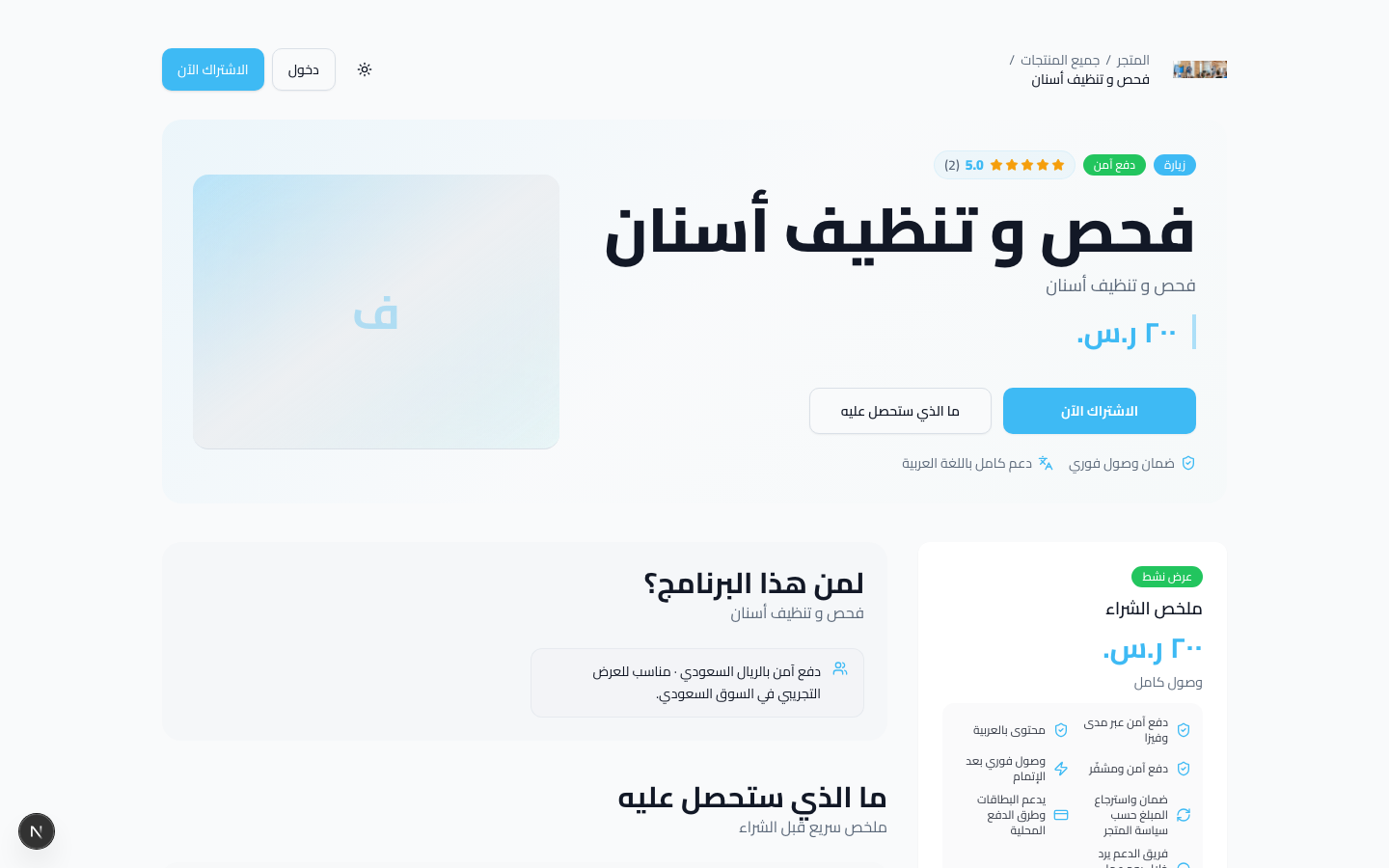
Checkups, orthodontics, whitening — appointment-based services.
 Lam Meem
This guide explains Lam Meem step by step: shaping a product idea, building a storefront, publishing the offer, accepting payments, and supporting customers after purchase. Lam Meem is more than a landing page or course repository; it is an Arabic-first commerce workspace for creators, coaches, consultants, and training businesses in Saudi Arabia and the GCC, combining products, storefront, checkout, booking, customer library, and analytics.
Start here to understand what Lam Meem is built for, how it differs from generic tools, and which part of the guide to read first. Developer setup notes are included later in this section only for teams reviewing the platform locally.
Give you a clear starting point before entering detailed product, storefront, and dashboard workflows.
When this is your first pass through Lam Meem or you want to decide which section matters most.
Courses, consultations, memberships, downloads, events, bundles, and cohort programs with type-specific settings.
Shareable storefront and product pages with templates for education, consulting, coaching, and services.
Clear purchase flow, Moyasar payments, coupons, appointment booking, and post-payment confirmation.
One place for buyers to access lessons, files, booked sessions, progress, messages, and certificates.
Orders, customers, messages, analytics, automations, campaigns, and funnels after launch.
Help with product descriptions, course outlines, storefront copy, quizzes, summaries, and lesson planning.
Arabic-first UX, local terminology, regional buyer expectations, and payment flows designed around the market.
Sales pages connect directly to checkout, library access, booking, customers, and analytics.
Sell consultations, memberships, files, events, services, and bundles alongside courses in one workspace.
The workflow helps you choose the right product, shape the offer, set pricing, publish, and track the first orders.
Begin with demo accounts, create one simple product, then use the publishing checklist before sharing the link.
Open the demo storefront, try checkout or booking, then sign in to the customer library to verify access.
Run the setup commands, enable mock checkout, and use seeded accounts to test flows without production integrations.
.env.examplenpm run setupnpm run db:migrate -w @ellm/dbnpm run db:seednpm run dev → open http://localhost:3000 locally. Public links use https://lammem.com.OPENROUTER_API_KEY for live text generation and OPENAI_API_KEY for images and transcription.
https://lammem.com/s/growth-club.
After seeding, use these accounts to switch between roles and understand the difference between the creator dashboard and the customer library.
Test the platform quickly from different user roles without creating new accounts.
When reviewing UI, testing checkout, or training a team on dashboard workflows.
| Role | Password | Lands on | |
|---|---|---|---|
| Creator / Owner | creator@example.com |
password123 |
Dashboard (لوحة التحكم) |
| Customer / Student | student1@example.com |
password123 |
Library (مكتبتي) |
| Coaching student | coaching.student@example.com |
password123 |
Library with booked sessions |
| Admin team member | admin@example.com |
password123 |
Dashboard (limited nav) |
| Support team member | support@example.com |
password123 |
Dashboard (support nav) |
The seeded workspace storefront is Growth Club
(نادي النمو) at slug growth-club.
creator@example.com → review dashboard metrics and the sidebar grouped by workflow.student1@example.com → open /library and play a lesson to see the student experience.https://lammem.com/p/growth-club/consultation-30min, then confirm the session appears in the library.
Beyond the default Growth Club workspace (growth-club), the repo ships
ready-made storefronts for common Saudi verticals — clinics, fitness, consulting, academies,
digital templates, and venue rentals. Use them to explore templates, sales pages, and booking
flows without building a store from scratch.
Connect the guide to real workspaces in the demo database instead of fictional examples only.
Team training, investor demos, or comparing storefront templates by industry.
npm run db:seed -w @ellm/db.
The 33 KSA vertical workspaces come from
npm run db:seed-ksa-verticals -w @ellm/db
— see packages/db/prisma/SEED-KSA-VERTICALS.md.
Password for all accounts: password123.
| Store | Slug | Dashboard owner | Coupon | URL |
|---|---|---|---|---|
| Growth Club | growth-club |
creator@example.com |
LAUNCH25 |
/s/growth-club |
| Riyadh Academy | riyadh-academy |
academy@example.com |
RIYADH15 |
/s/riyadh-academy |
Each card below is a common use case. Log in with the owner email to open that workspace in the dashboard.
Checkups, orthodontics, whitening — appointment-based services.
Group classes, personal training, and monthly memberships.
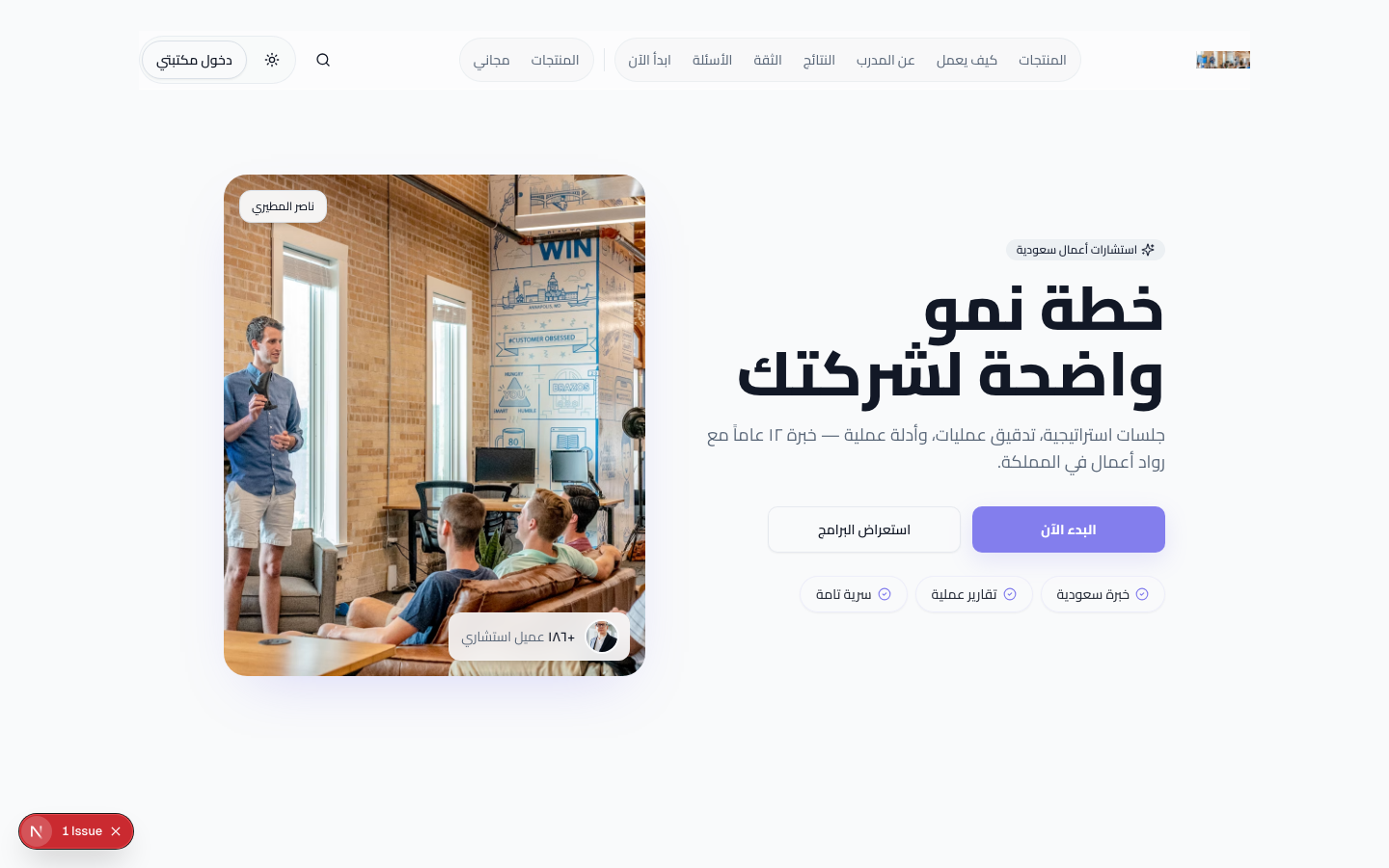
Strategy sessions, operations audits, and digital playbooks.
IELTS prep courses and private lessons — classic academy layout.
PMP, SHRM, exam banks, and corporate cohort enrollment.
Notion & Canva packs — instant download and monthly membership.
Wedding halls and conference rooms — daily pricing and bundles.
Therapy and counseling sessions — virtual booking.
| Guide scenario | Matching demo store | What to try |
|---|---|---|
| 1 — Fitness trainer launches a course | fit-riyadh or bridge-language | Course/membership catalog · video content · coupons |
| 2 — Consultant sells sessions | masar-consulting · growth-club | 30–90 min booking · intake form · library session card |
| 3 — Training center cohort | ihtiman-institute · riyadh-academy | Certification/cohort · capacity · drip content |
| 4 — PDF template pack | templates-store | Instant download · free sample · monthly membership |
Full list (33 stores): packages/db/prisma/SEED-KSA-VERTICALS.md
and packages/db/prisma/SEED-USERS.html — owner emails and URLs for every workspace.
This section summarizes the main end-to-end journeys in Lam Meem. Use it as a quick map before reading the detailed sections: what the store owner does, what the customer sees, and how product, checkout, library, and dashboard data connect.
Show the practical paths that repeat across most platform use cases.
When explaining Lam Meem to a new team, reviewing customer experience, or testing a full journey before launch.
Shapes the idea, creates the product, configures the storefront, publishes, and follows up on orders.
Browses, buys or books, then opens the library to access content or sessions.
Connects the offer to the order and access record, then appears in orders, customers, and analytics.
After purchase, follow-up continues through analytics, campaigns, automations, and affiliates.
flowchart LR
  idea["Idea or expertise"] --> type["Choose product type"]
  type --> build["Create product"]
  build --> store["Customize storefront"]
  store --> publish["Publish checklist"]
  publish --> share["Share link"]
  share --> order["First order"]
  order --> followup["Customer follow-up and analytics"]
sequenceDiagram
  participant Buyer
  participant Store
  participant Checkout
  participant Library
  Buyer->>Store: Opens storefront or product page
  Store-->>Buyer: Shows details and price
  Buyer->>Checkout: Buys or books
  Checkout-->>Library: Grants access
  Library-->>Buyer: Shows lessons, files, or sessions
/library.
flowchart TD
  setup["Create bookable product"] --> availability["Set availability"]
  availability --> intake["Attach optional intake form"]
  intake --> productPage["Product page"]
  productPage --> slot["Buyer selects slot"]
  slot --> payment["Checkout"]
  payment --> customerSession["Session in customer library"]
  payment --> teamSession["Session in team dashboard"]
stateDiagram-v2
  [*] --> Trial
  Trial --> Active: first successful payment
  Active --> Active: renewal succeeds
  Active --> PastDue: renewal fails
  PastDue --> Active: payment updated
  PastDue --> Cancelled: grace period ends
  Active --> Cancelled: cancellation
Use this journey for ongoing access products such as monthly memberships, communities, refreshed content, or resource libraries.
flowchart LR
  invite["Invite member"] --> role["Choose role"]
  role --> permissions["Customize permissions if needed"]
  permissions --> nav["Sidebar adapts to access"]
  nav --> work["Daily work"]
  work --> audit["Review audit log"]
Practical walkthroughs based on common Saudi and GCC use cases, showing how creators move from product idea to sale and customer follow-up. Each scenario includes concrete field values, URLs, and expected outcomes.
Connect multiple screens into realistic launch examples instead of explaining features in isolation.
When you want to understand how a full product goes from setup to first sale.
Think of Lam Meem as two connected journeys: the buyer journey on the public storefront, and the store management journey in the dashboard. When you publish a product, the public sales page updates and becomes ready to share.
https://lammem.com/s/{slug}Buyer browses catalog and selects a product./p/{slug}/{product}Buyer reviews details, price, curriculum, or available slots./checkout/{offerId}Buyer pays through Moyasar or selects a booking slot first./libraryBuyer accesses lessons, files, sessions, and certificates./dashboardManage products, orders, customers, and settings.
flowchart LR
  idea["Product idea"] --> editor["Create and edit product"]
  editor --> store["Storefront and sales page"]
  store --> checkout["Checkout or booking"]
  checkout --> library["Customer library"]
  checkout --> orders["Orders and customers"]
  orders --> growth["Analytics and growth"]
  growth --> editor
Persona: Sara runs a gym and wants to sell a 4-week home workout program in Arabic.
| Step | Action | Example values |
|---|---|---|
| 1 | Settings → General | Workspace name: «استوديو سارة للياقة» · slug: sara-fitness |
| 2 | Products → New → AI path | Prompt: «دورة تمارين منزلية 4 أسابيع للمبتدئين، 12 درس فيديو، 299 ريال» |
| 3 | Review AI draft → Apply | Title: «برنامج اللياقة المنزلية — 4 أسابيع» · Price: 299 SAR |
| 4 | Content tab | 3 modules: «الأسبوع 1»، «الأسبوع 2»، «الأسبوع 3–4» — 4 lessons each |
| 5 | Upload videos | Media library → attach main video per lesson |
| 6 | Settings → Certificates | Enable completion certificate with QR |
| 7 | Publish | Status → Published · Preview at /p/sara-fitness/home-fitness-4w |
| 8 | Marketing | Create coupon LAUNCH20 — 20% off, max 100 uses |
/library with progress tracking, and receive a certificate after finishing all lessons.
fit-riyadh (fitness memberships) or bridge-language (IELTS courses) —
see Seeded Demo Stores.
Persona: Ahmed offers strategy consultations for Saudi SMEs.
| Step | Action | Example values |
|---|---|---|
| 1 | Create product → type coaching | Title: «استشارة استراتيجية — 30 دقيقة» · Price: 450 SAR |
| 2 | Overview → Booking | Duration: 30 min · Sessions included: 1 · Virtual (Zoom link in location) |
| 3 | Settings → Availability | Sun–Thu 10:00–18:00 · 30-min slots · 15-min buffer between sessions |
| 4 | Settings → Intake form | Link form: company name, challenge, revenue band |
| 5 | Integrations | Connect Google Calendar to block busy times |
| 6 | Automations | Trigger: booking confirmed → WhatsApp reminder 24h before |
| 7 | Publish & test | Book as guest on storefront → complete mock checkout |
masar-consulting — 90-min strategy session ·
or Growth Club: https://lammem.com/p/growth-club/consultation-30min —
try slot picker and checkout without creating a product from scratch.
Persona: «Growth Club» runs a 6-week leadership program with 25 seats.
| Step | Action | Example values |
|---|---|---|
| 1 | Create → type cohort | Start: 2026-09-01 · Capacity: 25 · Price: 2,500 SAR |
| 2 | Content tab | Weekly modules aligned to cohort schedule — drip release each Sunday |
| 3 | Settings → Drip | Release module N on day (N−1)×7 after enrollment |
| 4 | Audience tab | Monitor enrollments — manually grant access for corporate invoices if needed |
| 5 | Messages | Weekly announcement to enrolled cohort via dashboard inbox |
ihtiman-institute (corporate Q4 cohort) or riyadh-academy (workshops & courses) —
Seeded Demo Stores.
Persona: Nour sells Notion/Excel templates for freelancers.
| Step | Action | Example values |
|---|---|---|
| 1 | Quick create → digital_download | Title: «حزمة قوالب المستقل» · Price: 79 SAR |
| 2 | Content → Files tab | Upload PDF guide + ZIP of templates (max per plan) |
| 3 | Overview → Description | Markdown list of what's included + preview screenshots |
| 4 | Publish | Instant download in library after payment — no lesson player needed |
templates-store — Notion pack, free sample, and monthly membership —
/s/templates-store.
Use these as starting points in the AI creation path or product editor suggest buttons. The best prompts name the product type, audience, promised outcome, format, and price.
| Product type | Sample prompt (Arabic) | What AI generates |
|---|---|---|
| course | «دورة تسويق رقمي للمبتدئين — 8 دروس — جمهور أصحاب مشاريع صغيرة — 399 ريال» | Title, 3–4 modules, lesson titles, sales description |
| coaching | «استشارة تغذية 45 دقيقة أونلاين — للنساء — 200 ريال» | Title, short summary, suggested price, category |
| membership | «عضوية شهرية لمحتوى حصري — فيديوهات أسبوعية + مجتمع — 49 ريال/شهر» | Subscription framing, benefits list |
| event | «ورشة حضورية في الرياض — 20 مقعد — 15 سبتمبر — 350 ريال» | Event copy, capacity hints |
| digital_download | «دليل PDF لإعداد متجر إلكتروني — 50 صفحة — 59 ريال» | Title, bullet benefits, description |
The public marketing site at / introduces Lam Meem to prospective creators.
It is bilingual (AR/EN), with RTL layout and Saudi-friendly Arabic terminology in the Arabic version.
Explain how the public site presents Lam Meem before a user signs up or enters the dashboard.
When reviewing positioning, copy, persona tabs, and the main acquisition path.
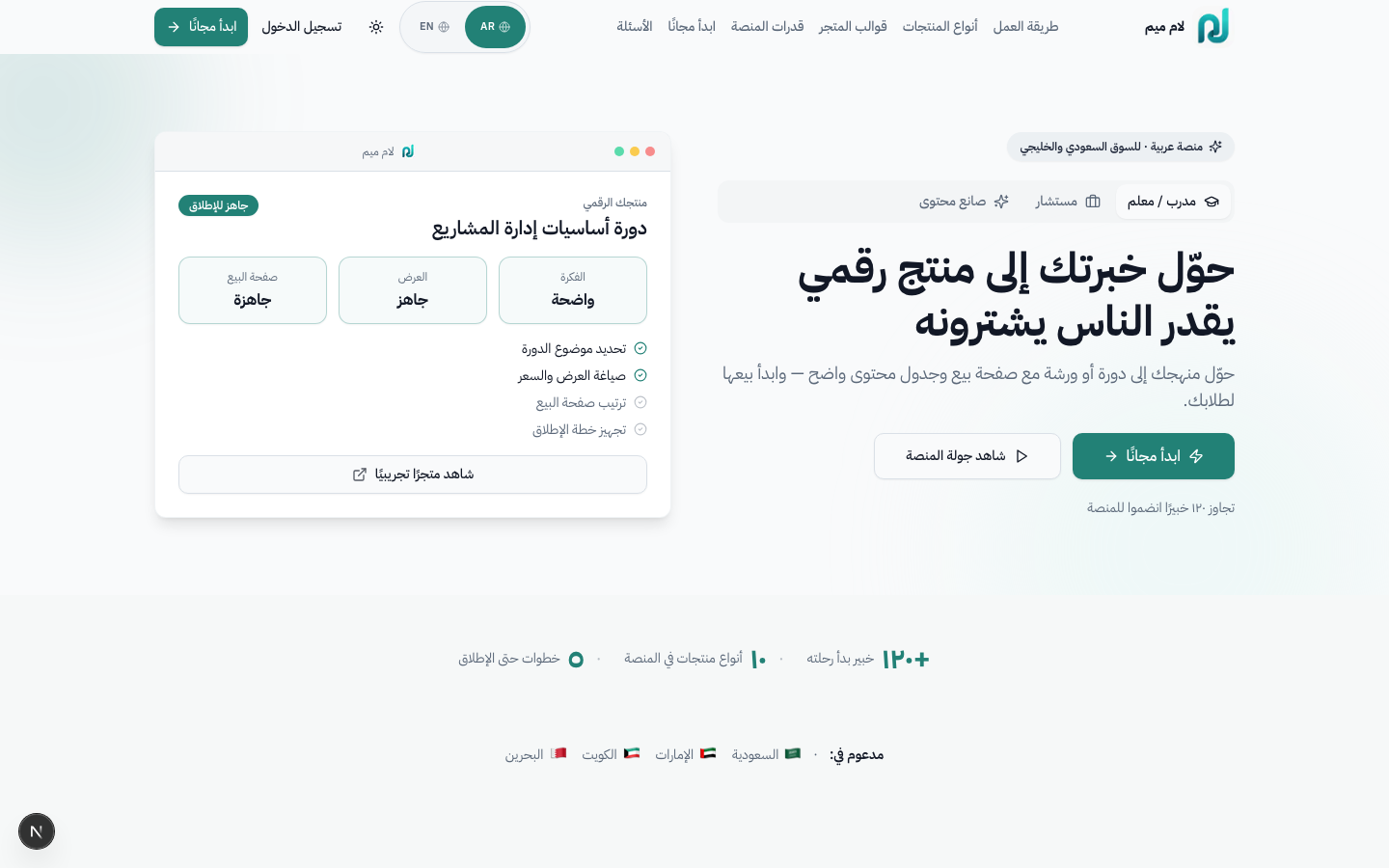
https://lammem.com/auth?mode=signuphttps://lammem.com/authSell courses, cohorts, and 1:1 sessions — highlighted in persona tabs
Bookable consultations with intake forms and calendar sync
Multi-product catalogs, locations, certifications
Downloads, memberships, bundles
Lam Meem separates creator and customer sign-in so dashboard users do not get mixed with buyers accessing their library.
Clarify which login path belongs to store owners, team members, and customers.
When testing redirects after login or explaining which sign-in URL each user type should use.
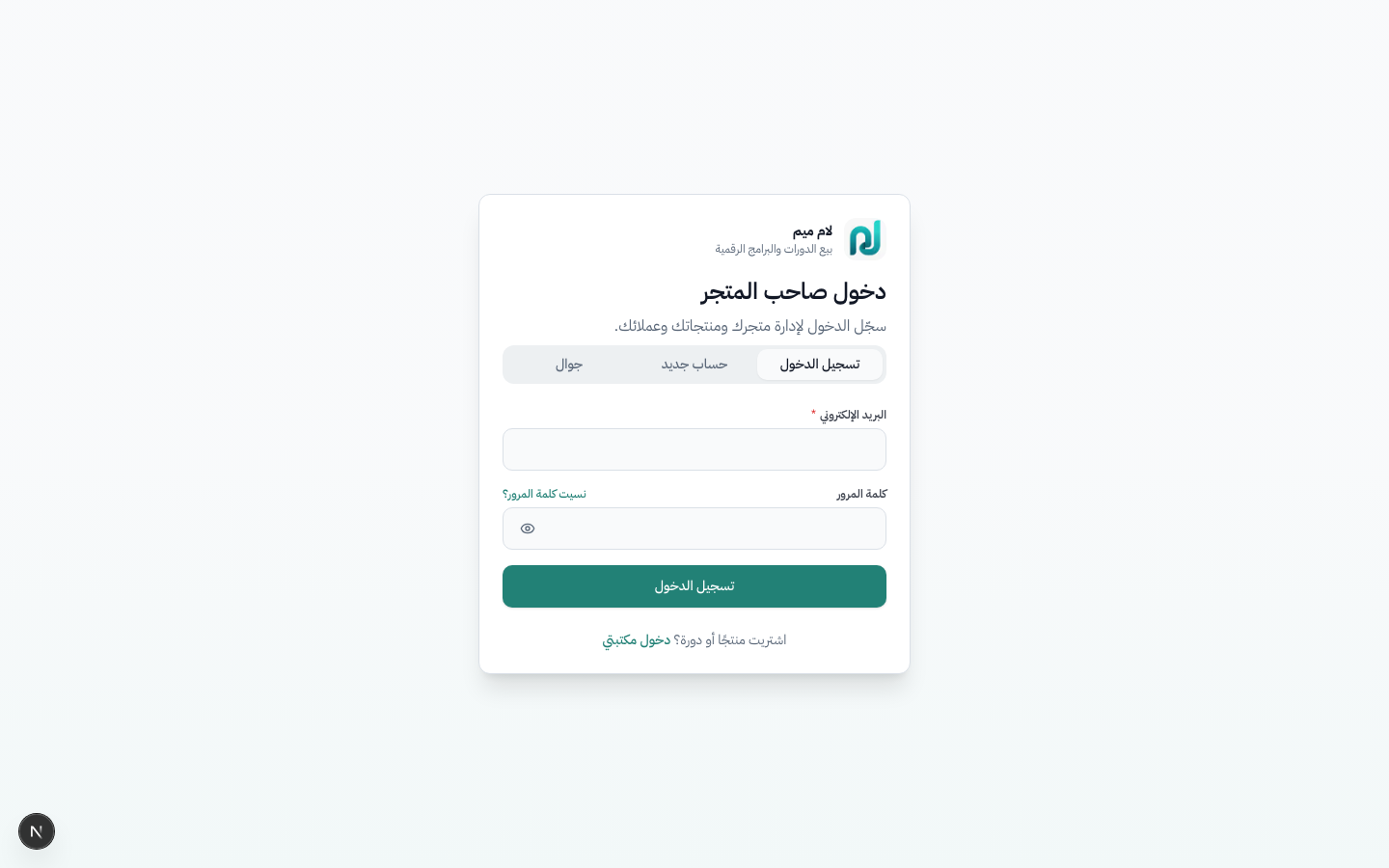
/auth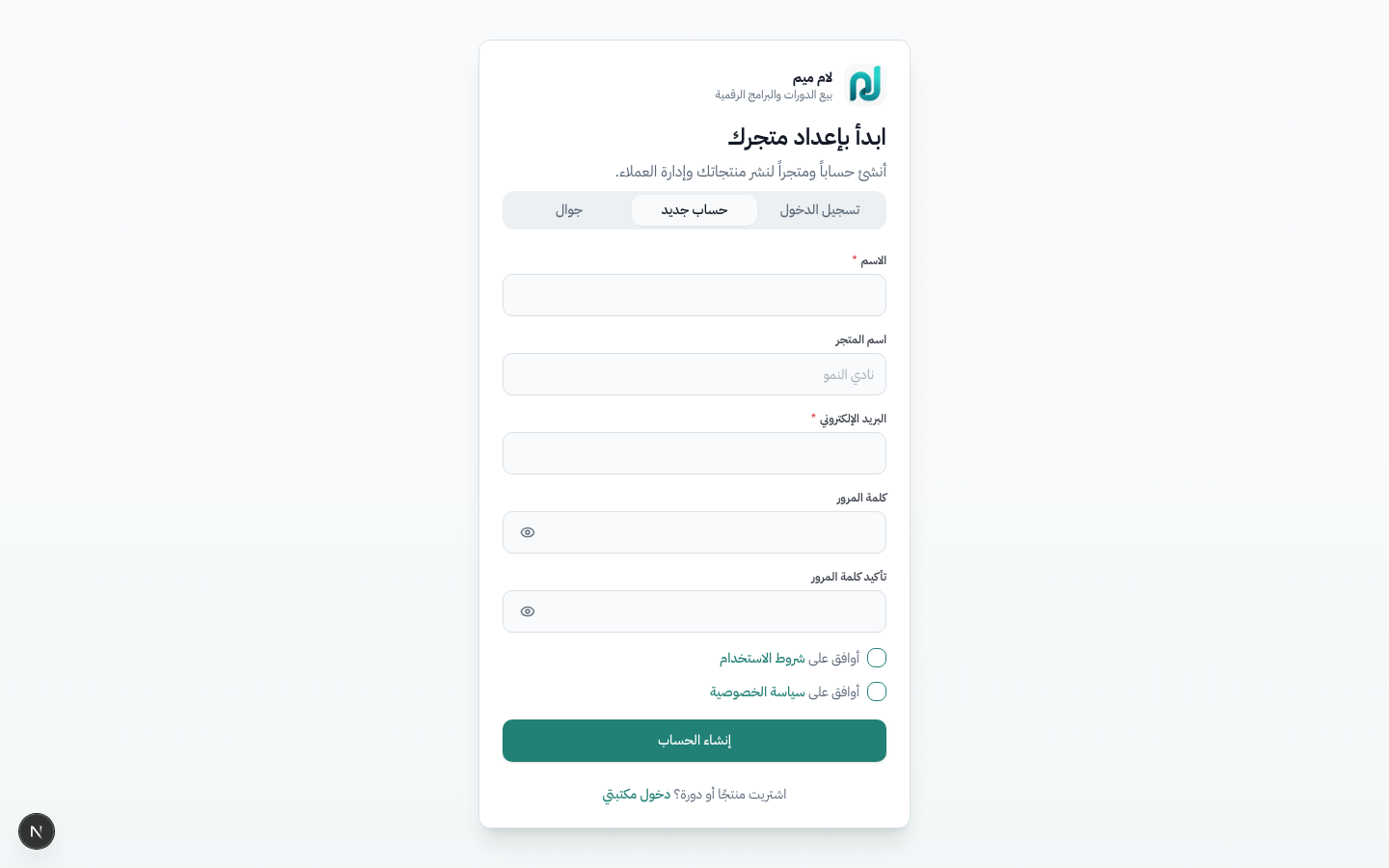
/auth?mode=signup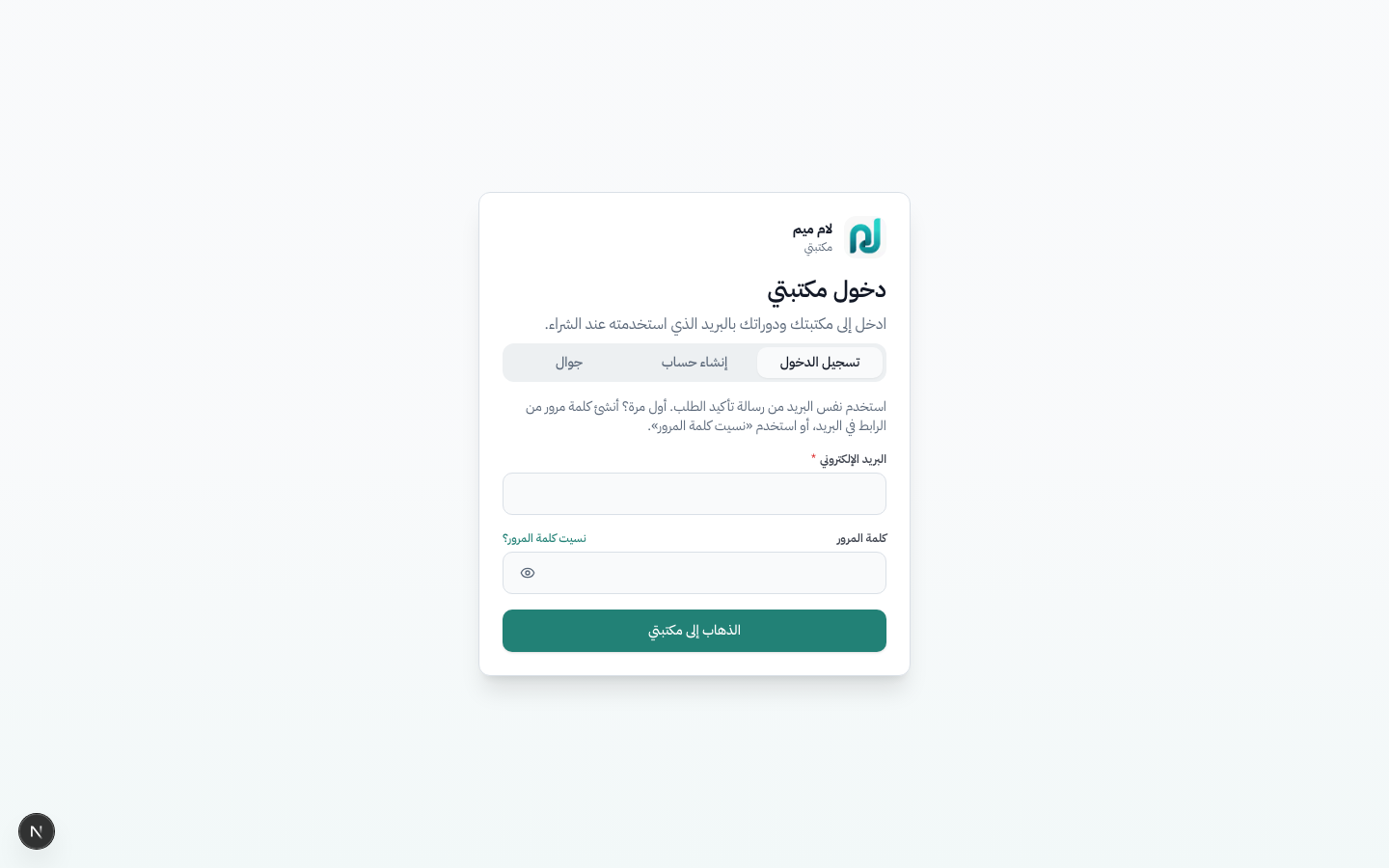
/auth/customer/auth)Three tabs:
The تعبئة الحساب التجريبي (Fill demo account) button
auto-fills creator@example.com in development.
/auth/customer)Buyers who purchased products sign in here to access their library. Button: الذهاب إلى مكتبتي (Go to my library).
/auth (creator form),
they are redirected to /library, not the dashboard.
/auth?mode=signup
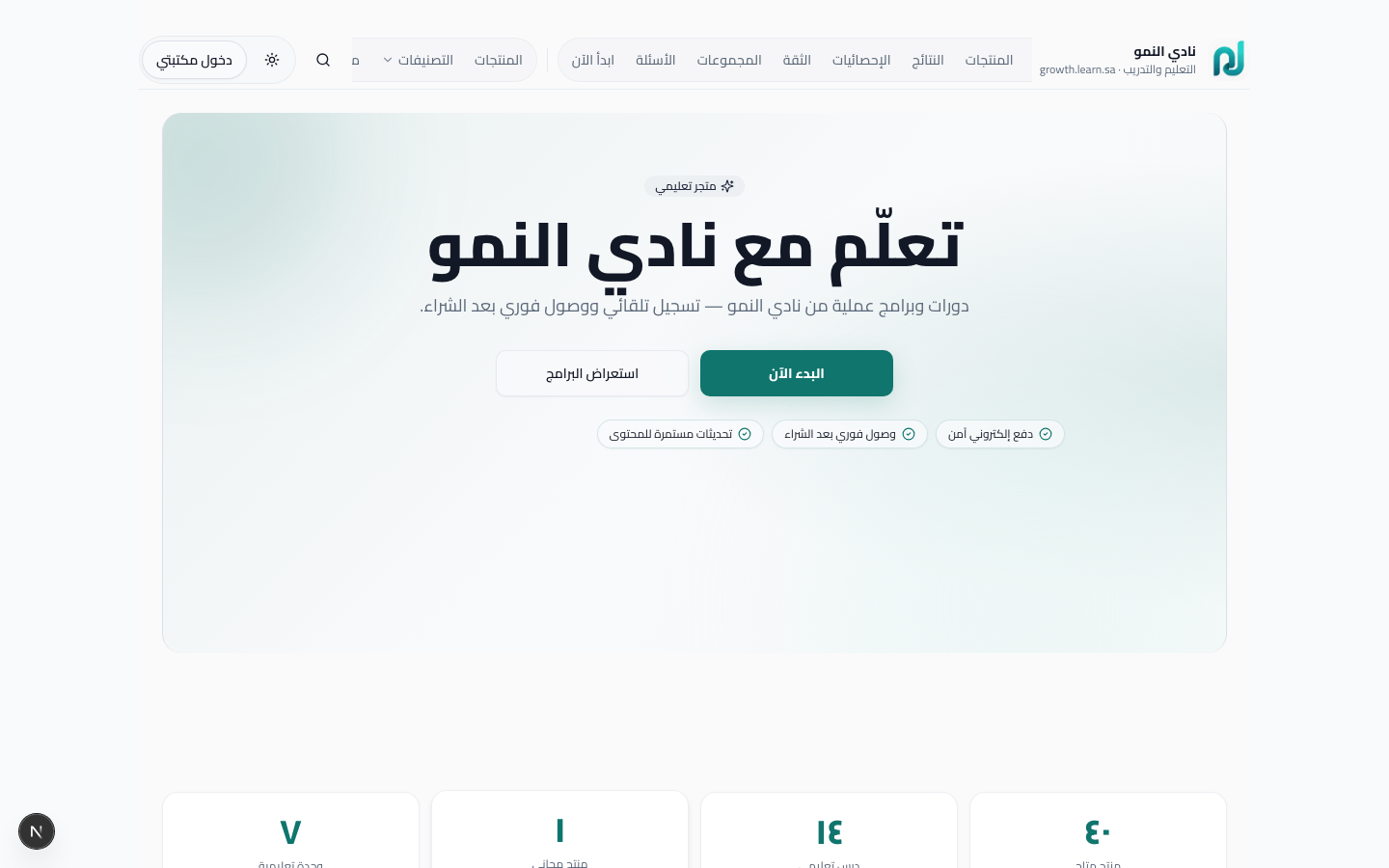
Each workspace gets a public storefront at /s/{workspace-slug}.
This is the link creators share in campaigns, WhatsApp, social profiles, and ads.
Demo: https://lammem.com/s/growth-club
Explain what buyers see before purchase: storefront, catalog, product pages, and booking pages.
Before sharing a store link or reviewing the buyer path from browsing to product detail.
Individual products live at /p/{workspace-slug}/{product-slug}. Use these pages to explain benefits, show curriculum or availability, and send buyers to checkout or booking.
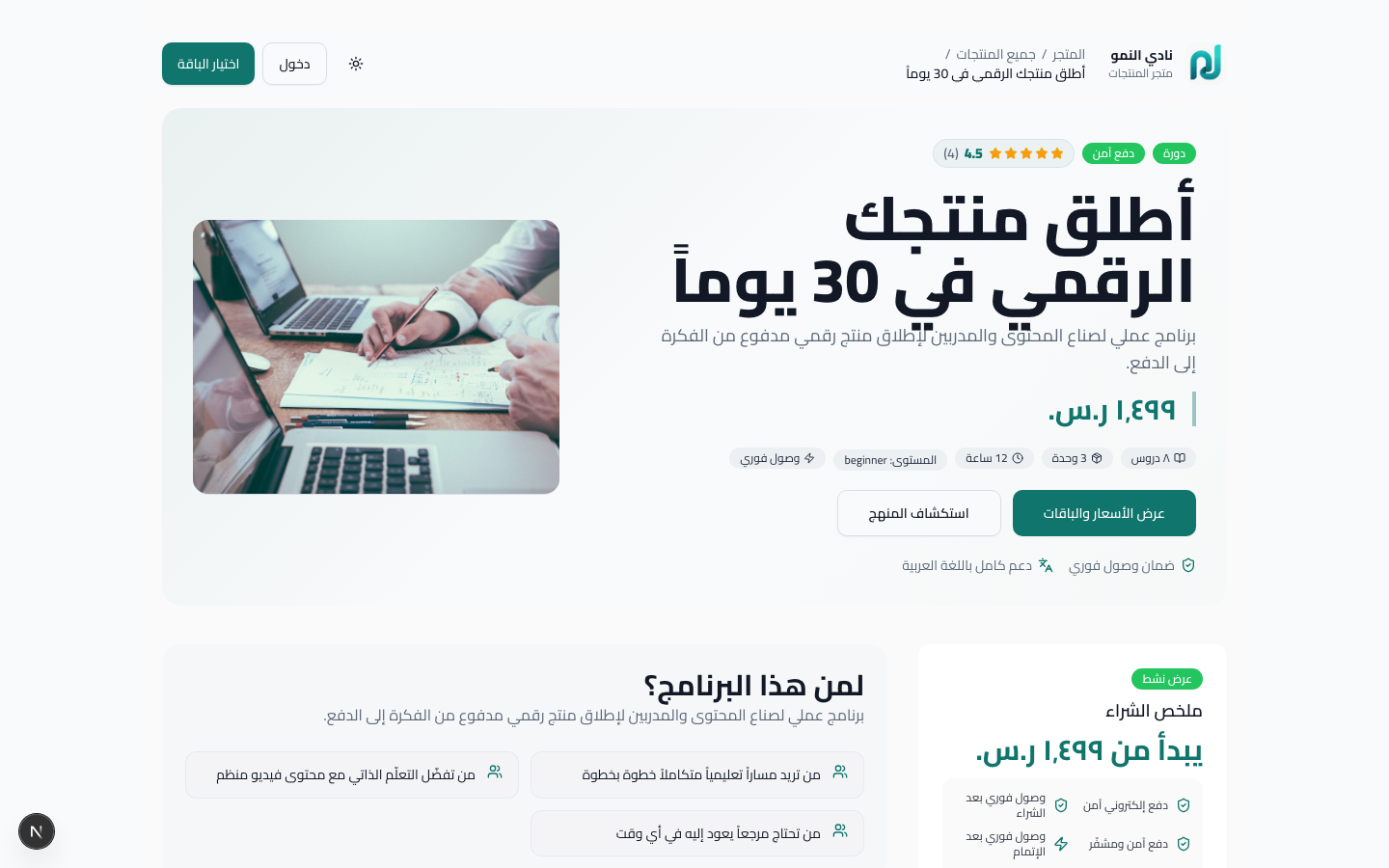
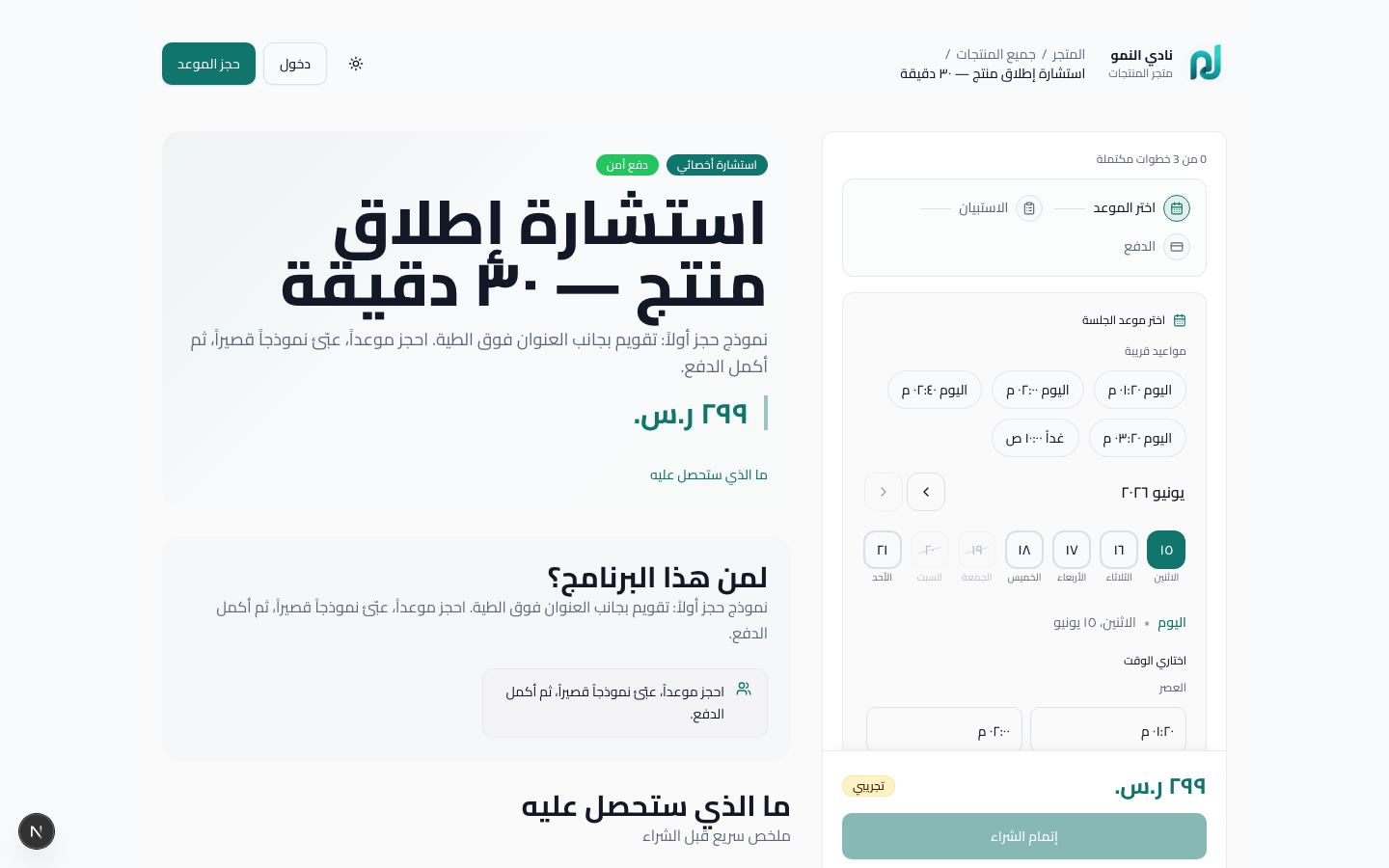
Demo consultation: https://lammem.com/p/growth-club/consultation-30min
Unified checkout for courses, downloads, memberships, and bookings. The buyer starts on a product page
(/p/{slug}/{product}), reviews the offer and price, then finishes on a thank-you page with instant library access.
Show what happens from clicking buy or book to payment confirmation and library access.
When testing checkout, coupons, refunds, bookings, or Moyasar production setup.
sequenceDiagram
  participant Buyer
  participant Store
  participant Pay as Moyasar
  participant Library
  participant Dashboard
  Buyer->>Store: Click Buy or Book now
  Store->>Pay: Send offer and amount
  Pay-->>Store: Payment confirmed
  Store->>Library: Grant product access
  Store->>Dashboard: Record order and customer
  Library-->>Buyer: Open content or session
/checkout/{offerId} — review offer and price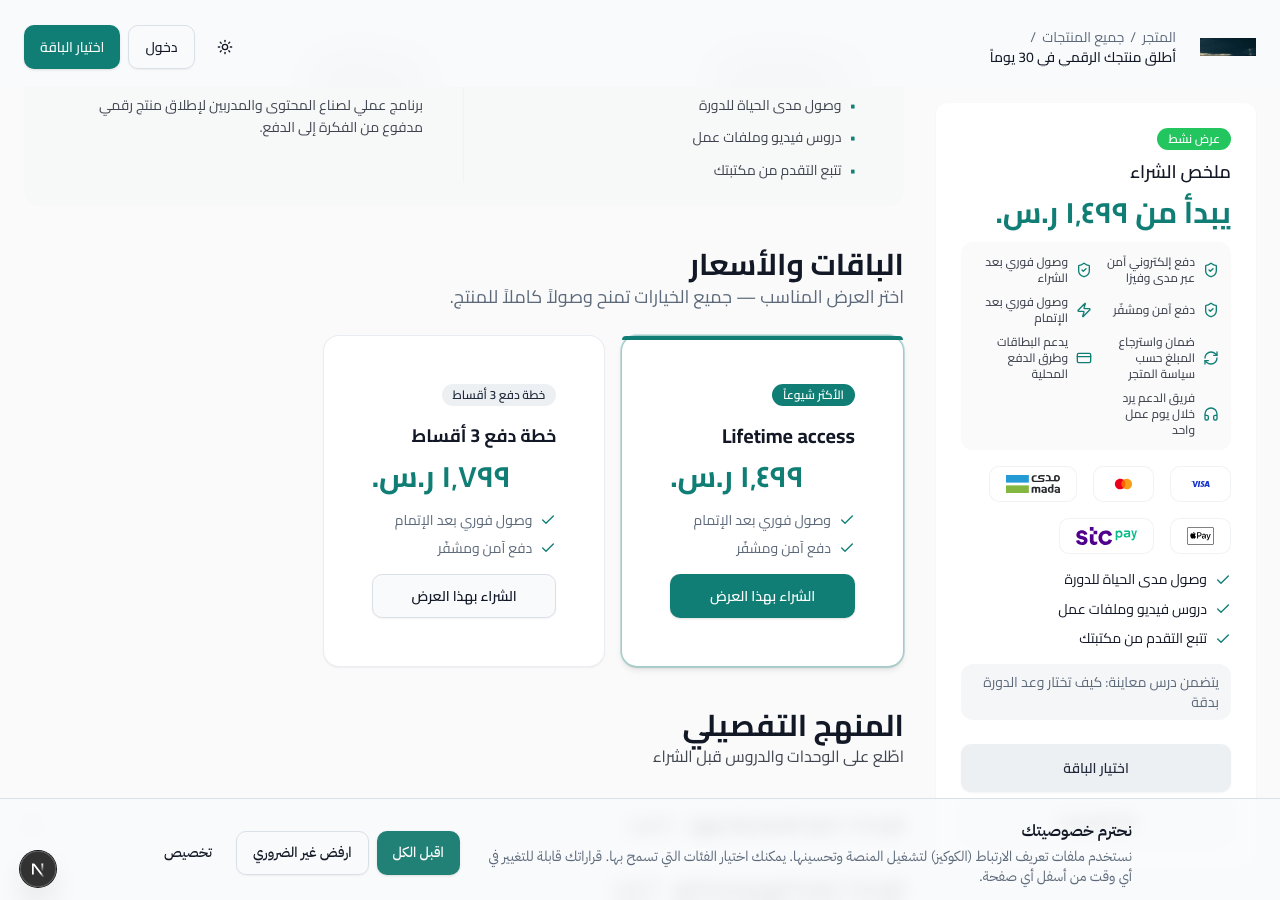
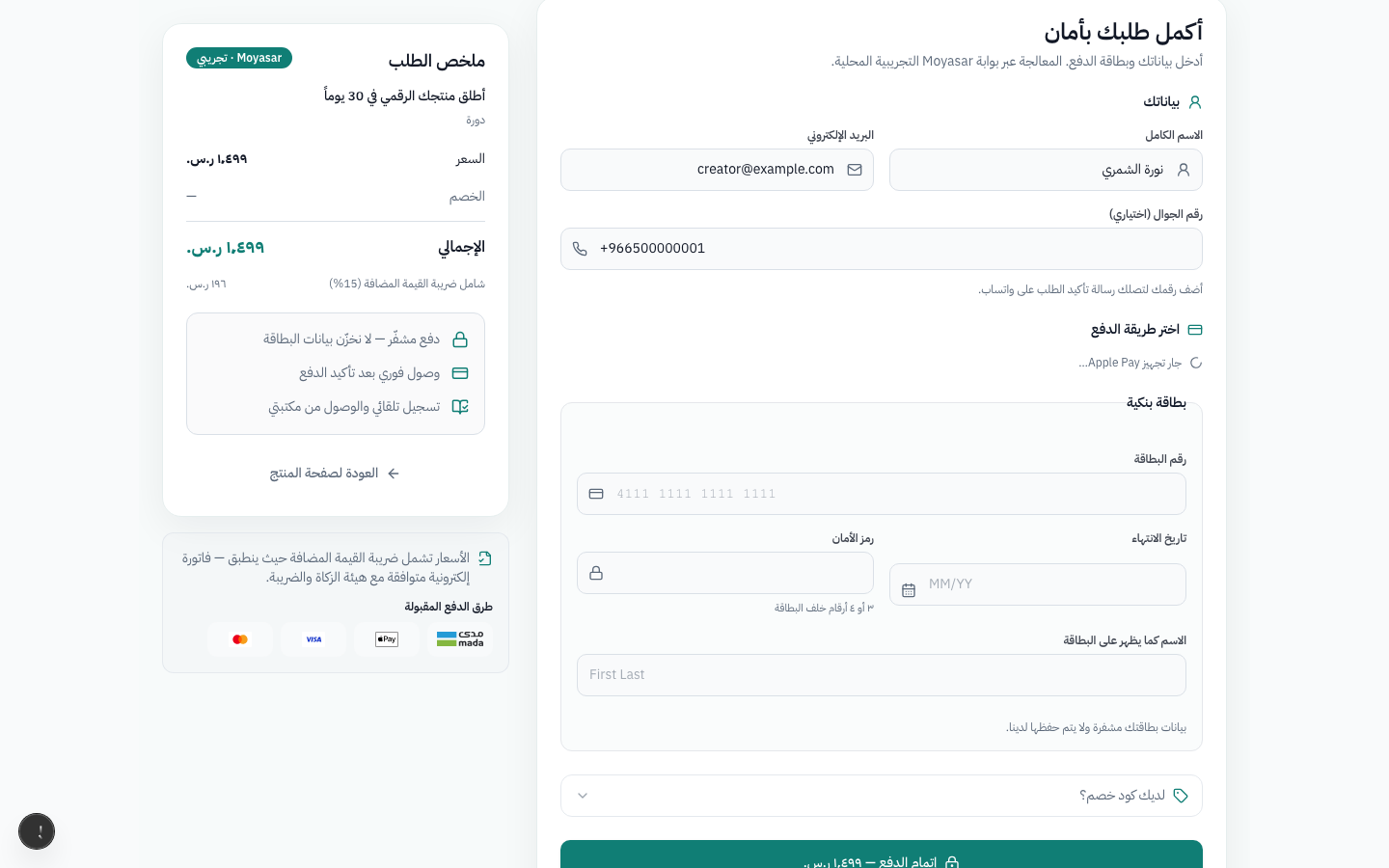
After successful payment (or free enrollment), buyers land on
/thank-you/{orderId} with order summary, library link, and optional password setup
for first-time buyers.
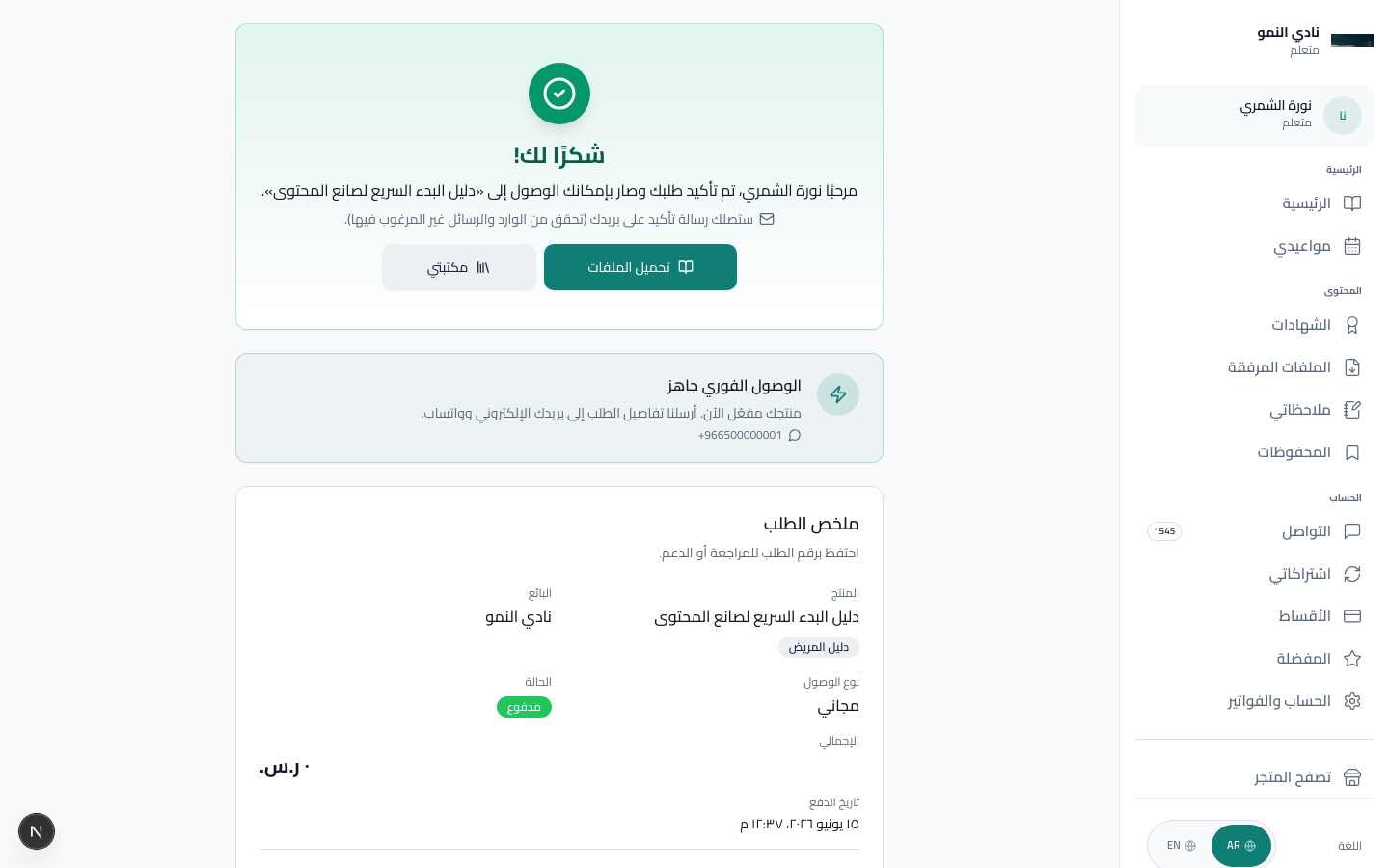
| Element | What the buyer sees |
|---|---|
| Confirmation message | Order confirmed with product name |
| My library link | Direct access to enrolled content |
| Download files | For digital_download products — immediate file links |
| Set password | First purchase only — create password for future logins |
| Order summary | Product, seller, order ID for support |
/checkout/{offerId}, not the product ID. A product can have
multiple offers (full price, installment plan, free trial). The active default offer is used
when buyers click «Buy» on the storefront.
In development, set ALLOW_MOCK_CHECKOUT=true in your env file to complete
purchases without Moyasar keys. A Complete mock checkout button appears
instead of the card form.
/auth/customer with the same email or go straight to the library.
Use Moyasar when you are ready to accept real Saudi payments such as mada, cards, and Apple Pay.
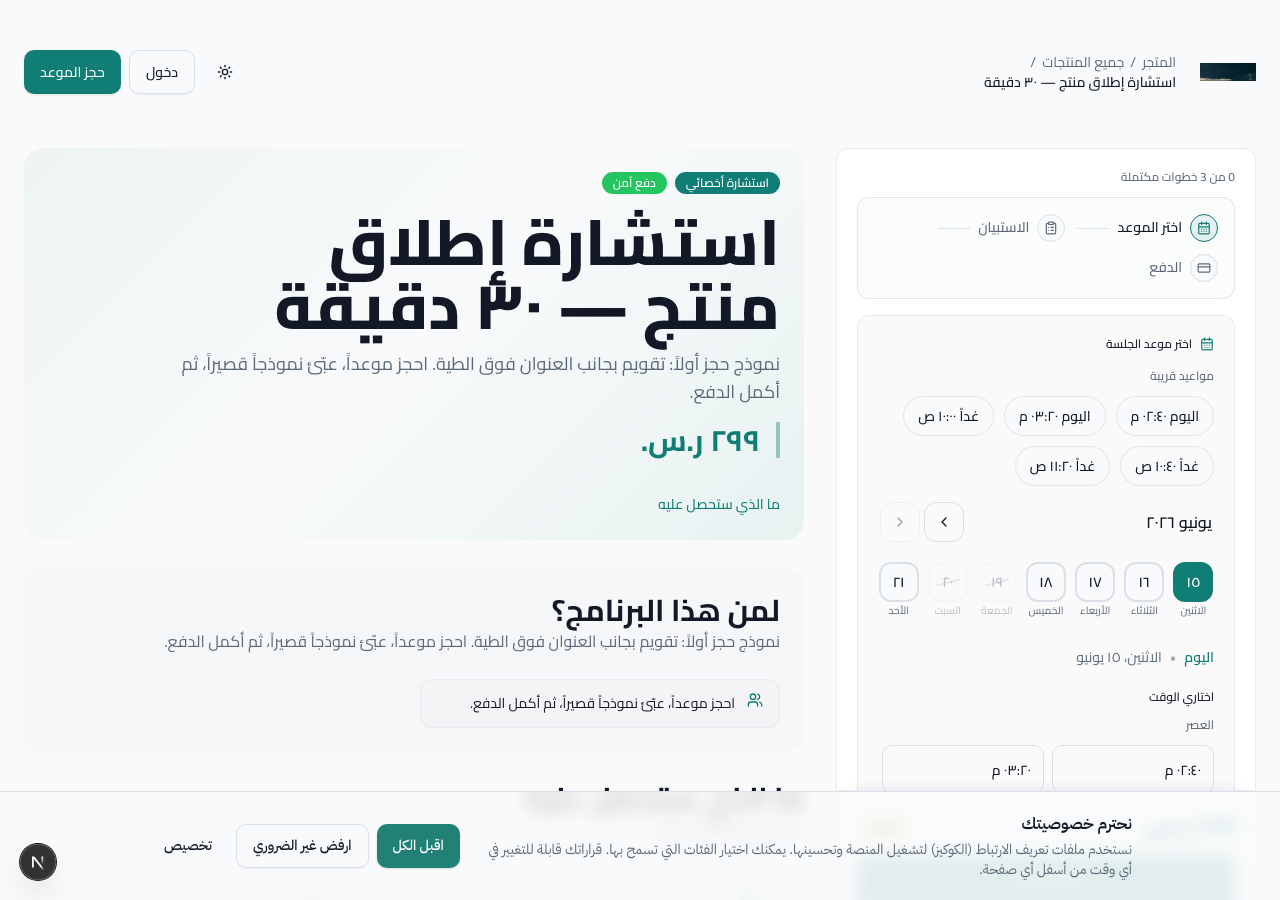
https://lammem.com/p/growth-club/launch-digital-product → click purchase CTAWELCOME10 from Coupons page)ALLOW_MOCK_CHECKOUT=true, click complete — no real card needed/auth/customer → course appears in libraryDashboard → Orders → open order → Refund. Full refunds may revoke library access depending on your product settings. See Sales & Orders for details.
| Method | Region | Notes |
|---|---|---|
| mada | Saudi Arabia | Primary debit card network — configure in Moyasar dashboard |
| Visa / Mastercard | GCC + international | 3-D Secure supported |
| Apple Pay | Supported devices | Requires Moyasar Apple Pay certificate |
| Mock checkout | Local dev only | ALLOW_MOCK_CHECKOUT=true |
The customer library is where buyers find everything they purchased or booked: courses,
downloads, sessions, certificates, and messages. After purchase, buyers get instant access
at /library without manual approval for digital products.
Explain the customer experience after purchase: access, learning, downloads, sessions, and certificates.
When verifying that a product appears correctly after checkout or manual enrollment.
/auth/customer (or «My library» from the storefront)student1@example.com / password123/library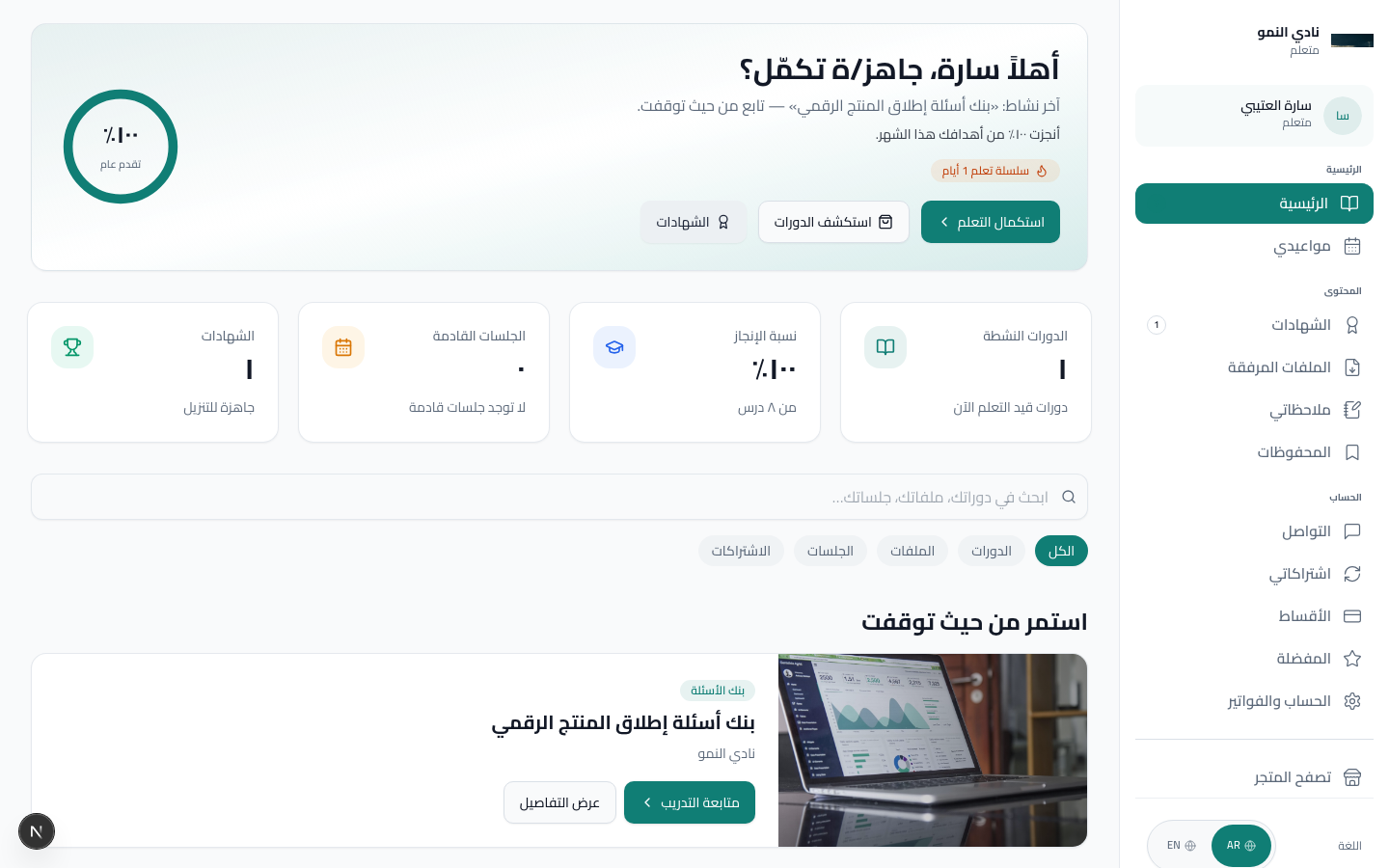
/learn/{courseId}When opening a course from the library, the student enters the learn player. The sidebar lists modules and lessons; the main area shows video, text, and quiz content. The goal is for students to always know where they are and what to do next.
| UI element | Function |
|---|---|
| Curriculum sidebar | Modules and lessons — drip-locked lessons show a lock icon |
| Video player | Main lesson video — playback position is saved |
| Lesson content | Rich text below the video (headings, lists, images) |
| Quiz | Multiple-choice questions — progress saved after submission |
| Navigation | Previous / next lesson — or pick from sidebar |
| Progress bar | Updates on the product card on the library home page |
student1@example.com / password123/library → click Continue learning or course cardIf the creator enabled drip scheduling, students see locked lessons until the release date or N days after enrollment. Free preview lessons are visible to visitors on the public product page without purchasing.
| Path | Purpose |
|---|---|
/library | Library home |
/learn/{courseId} | Learn player — first/last lesson |
/learn/{courseId}?lesson={id} | Specific lesson |
/auth/customer | Customer sign-in |
The creator dashboard at /dashboard is where you manage products, orders,
customers, marketing, operations, and settings. Sign in as creator@example.com
to explore with seeded data.
Give a high-level map of the daily operating center and key dashboard metrics.
When training a team, reviewing performance, or navigating between products, customers, and settings.
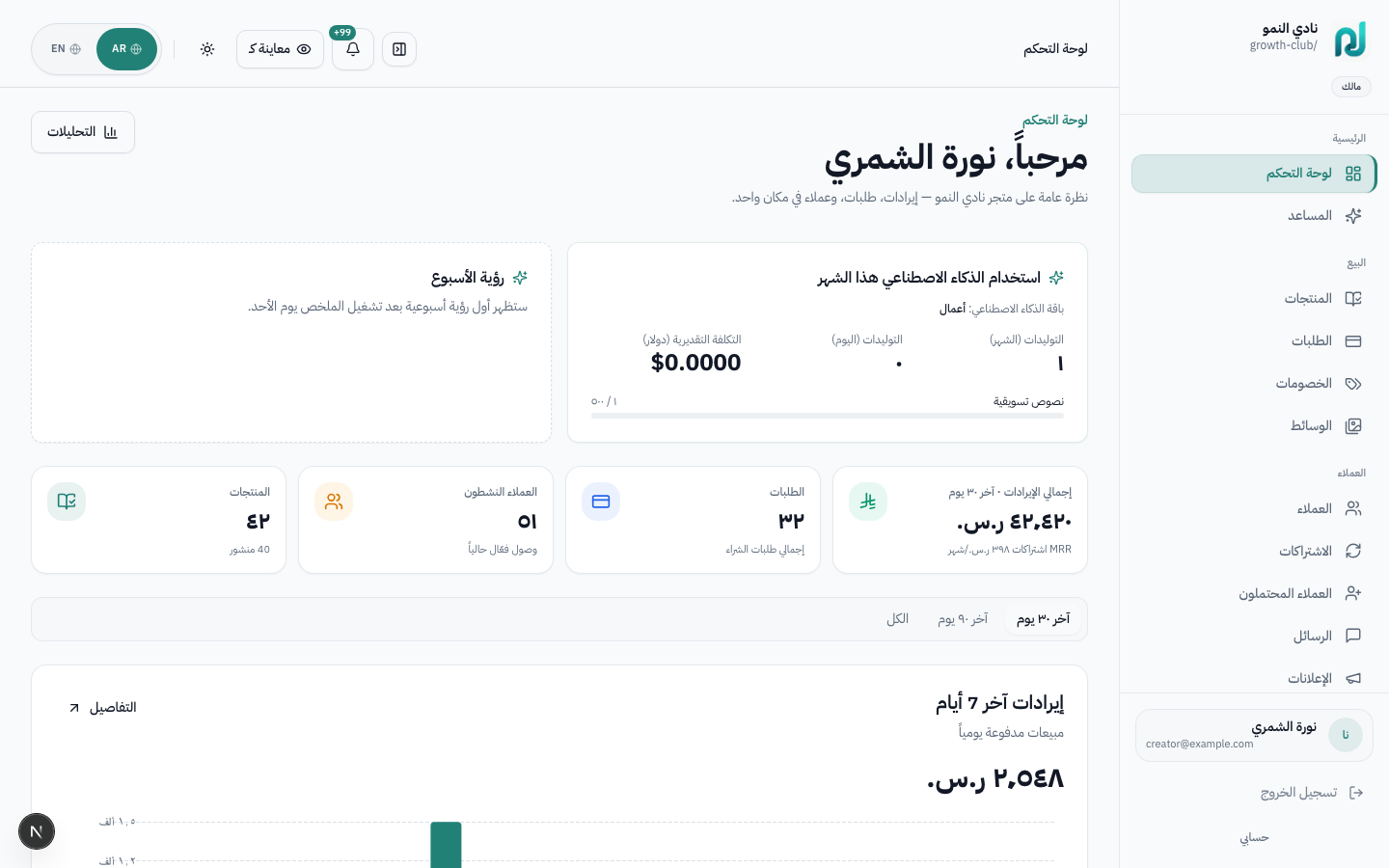
Dashboard, AI Assistant
Products, Orders, Coupons, Media
Customers, Subscriptions, Leads, Messages, Announcements
Analytics, Affiliates, Coaching, Campaigns, Automations, Funnels
Locations, Payouts, Audit log
Settings, Billing, Terminology, Notifications, Integrations, Apps, My Stores
| Metric | Arabic | Explanation |
|---|---|---|
| Revenue | الإيرادات | Total paid order amount in selected period (excludes refunds) |
| Orders | الطلبات | Count of successful checkout completions |
| Customers | العملاء | Unique buyers with at least one paid enrollment |
| AI usage | استخدام الذكاء الاصطناعي | Monthly token/generation count vs plan limit |
| Weekly insight | رؤية الأسبوع | AI-generated summary of trends and suggested actions |
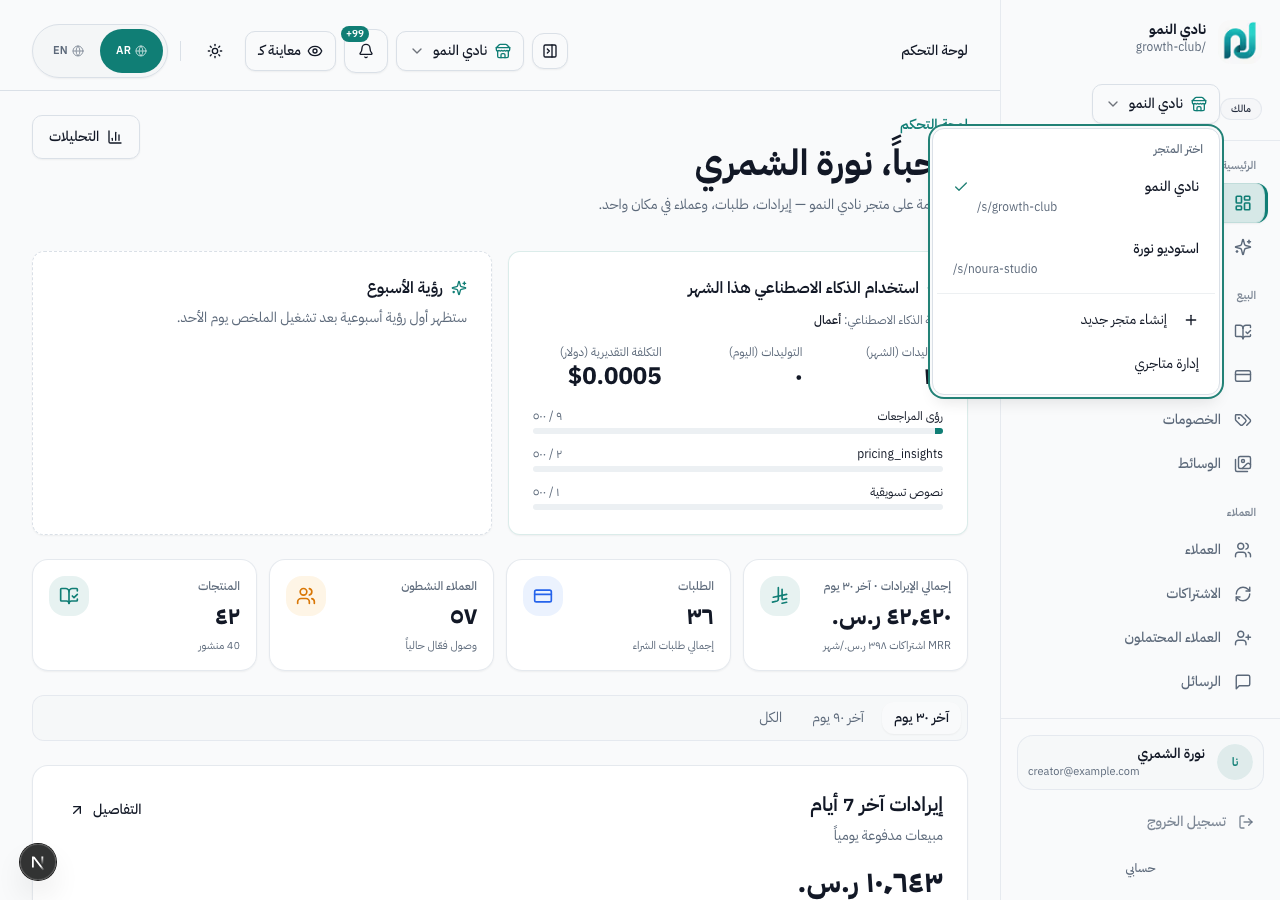
A single Lam Meem account can own more than one store (workspace). Each store has its own
products, customers, storefront, and settings. Switch between stores from the header
switcher or manage them at /dashboard/stores.
Explain how creators run separate brands or verticals without separate logins.
When launching a second brand, a coaching studio plus a course catalog, or testing a new niche.
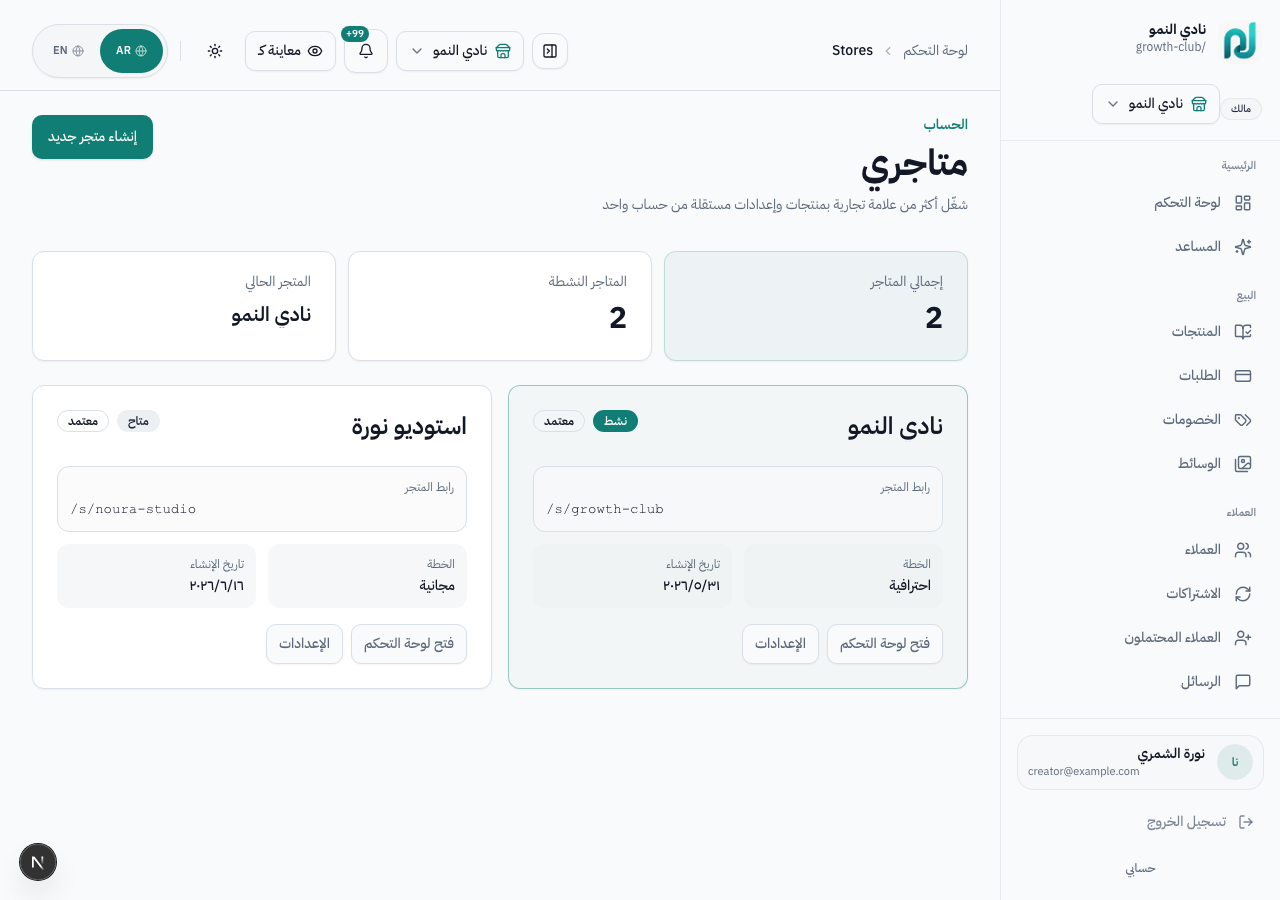
Open /dashboard/stores (متاجري in the sidebar) to see every store you own,
its slug, plan, and approval status. The active store is marked; others show
Open dashboard to switch context.
The header dropdown lists all your stores. Pick one to reload the dashboard in that workspace context — products, orders, and analytics stay isolated per store.
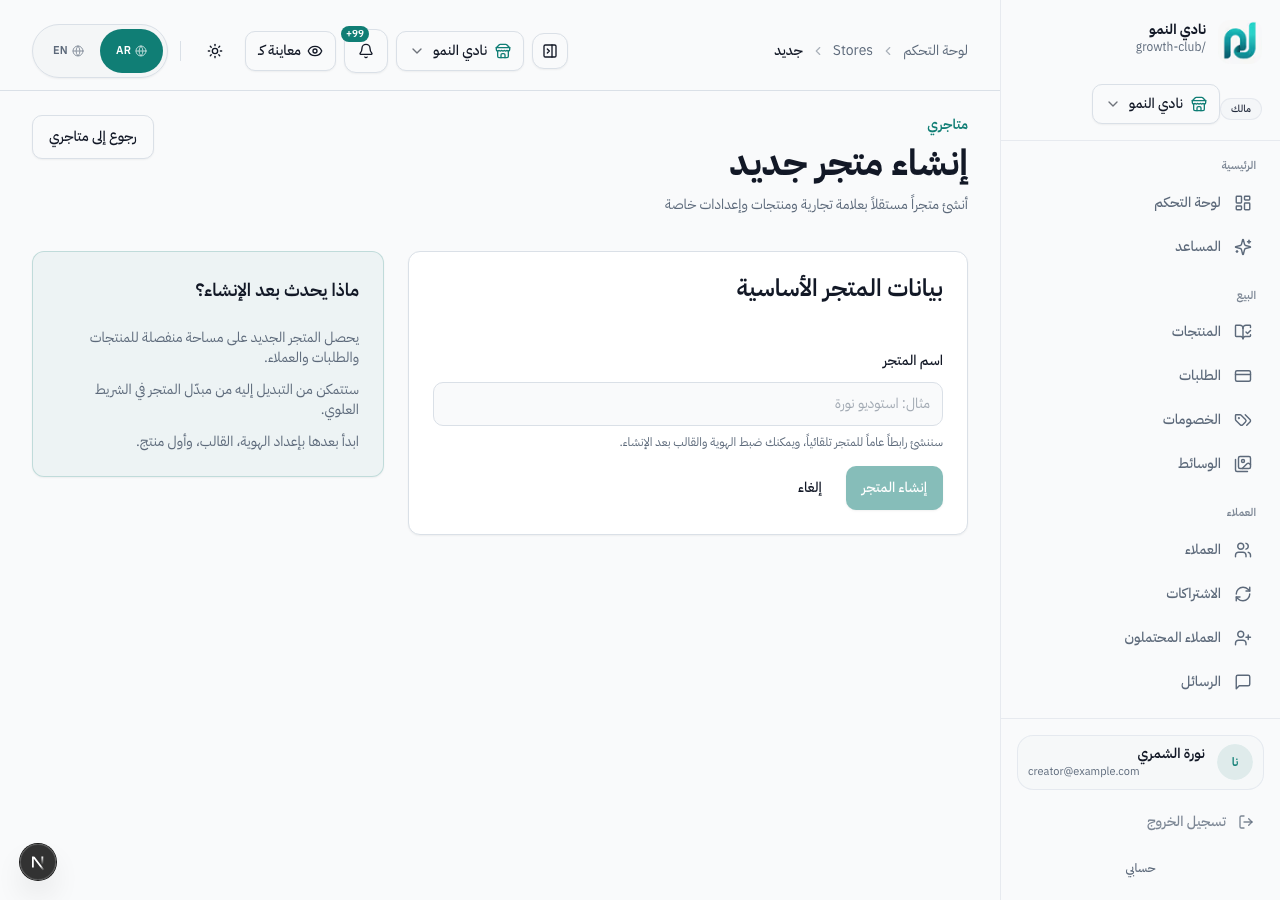
npm run db:seed:apps-marketplace-demo -w @ellm/db,
creator@example.com owns Growth Club (growth-club)
and Noura Studio (noura-studio).
| Path | Purpose |
|---|---|
/dashboard/stores | List owned stores and switch active workspace |
/dashboard/stores/create | Create an additional store |
/dashboard?w={workspaceId} | Deep-link to a specific workspace (trusted server hint) |
/dashboard/settings/workspace?w={id} | Settings for a non-active store |
/dashboard/products is the catalog for everything you sell: courses,
consultations, memberships, bundles, and digital downloads. Each product gets a public
sales page at /p/{workspace-slug}/{product-slug} and can have multiple pricing offers.
Show where product catalog, statuses, product links, and list actions are managed.
When creating a product, finding an existing product, or opening the editor for review.
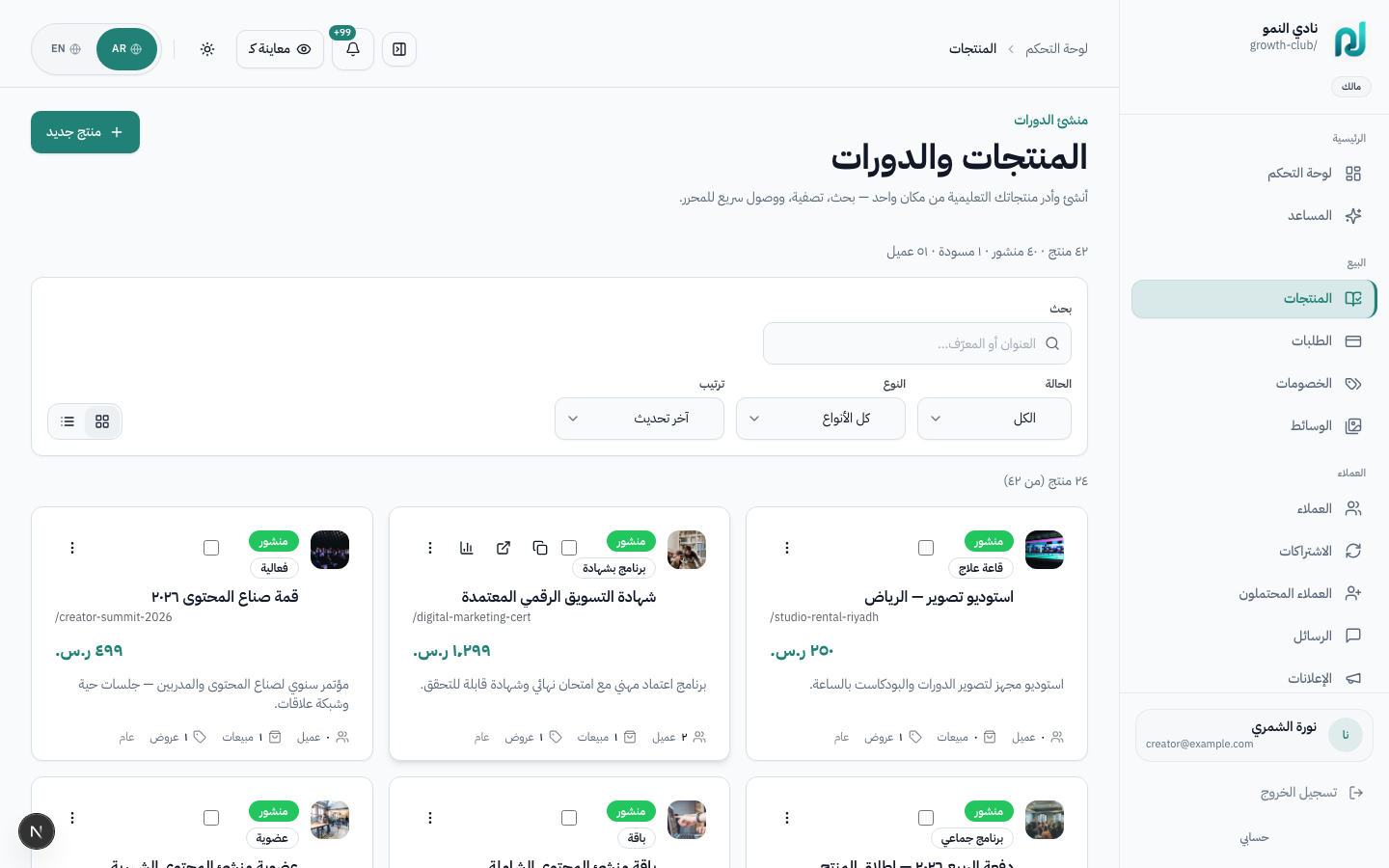
| Action | Arabic label | What it does |
|---|---|---|
| New product | منتج جديد | Opens the creation wizard at /dashboard/products/new |
| Search / filter | بحث · تصفية | Filter by product type, status (draft/published/archived), or search by title |
| Row click | — | Opens the product editor for that item |
| Preview | معاينة | Opens the public product page in a new tab |
/dashboard/products/new to start creating,
or append ?mode=ai, ?mode=quick, or ?mode=full to skip the path selector.
Product creation gives you three paths depending on how ready your idea is: AI-assisted creation for a quick first draft, quick create for a simple draft, or the full builder when you want to configure details before creation.
Explain the three product creation paths and how each one leads into the editor.
When starting a new product and deciding whether AI, quick create, or full builder fits best.
flowchart TD
  start["New product"] --> choice{"How ready is the idea?"}
  choice -->|"Rough idea"| ai["AI-assisted creation"]
  choice -->|"Basic details ready"| quick["Quick create"]
  choice -->|"Full launch setup"| full["Full builder"]
  ai --> editor["Review, then product editor"]
  quick --> editor
  full --> editor
  editor --> publish["Publish checklist"]
From the products list, click منتج جديد. You arrive at the path selector with three options:
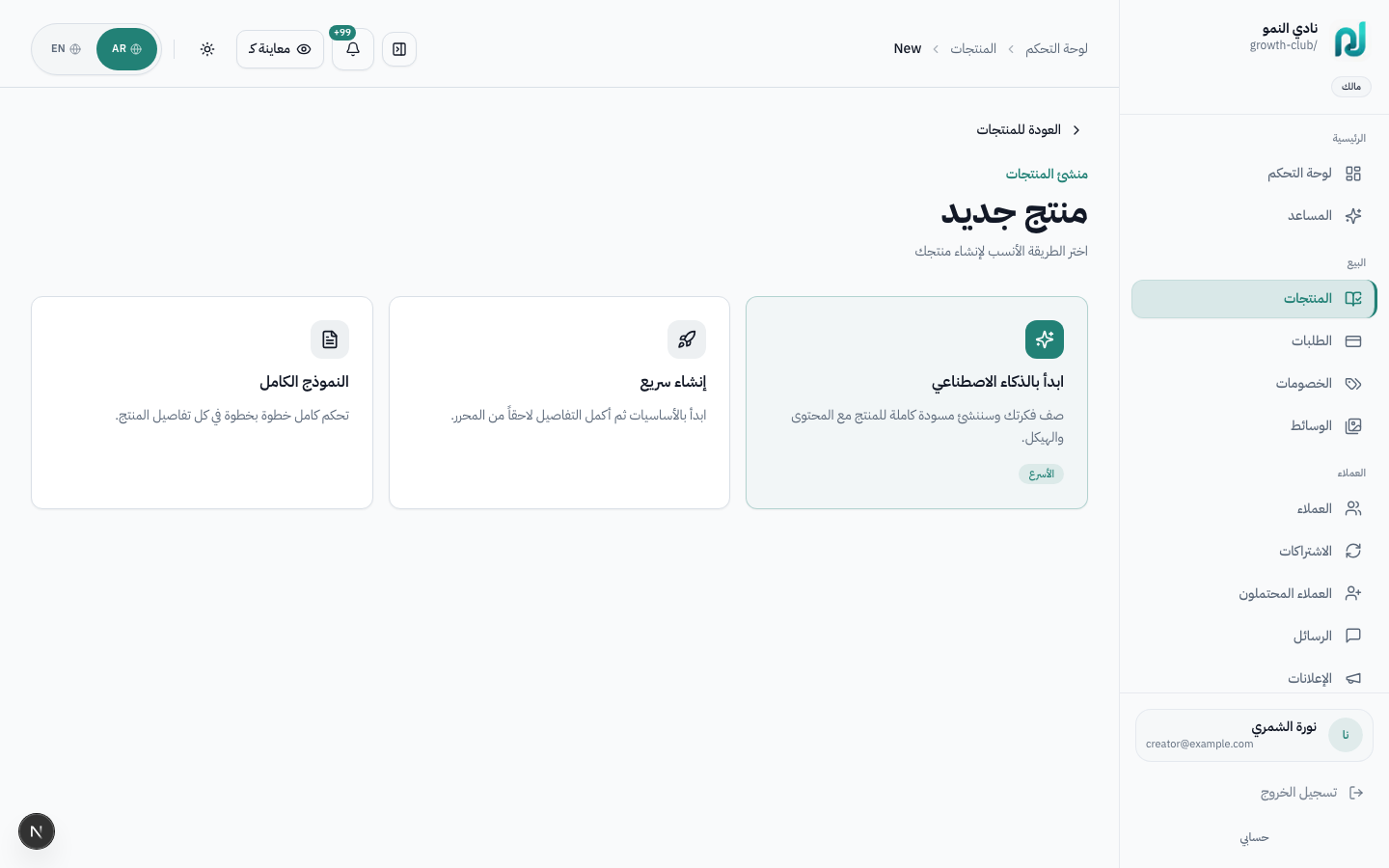
Best when you have an idea but need help shaping the title, sales copy, price, category, and course structure. Write in plain Arabic and edit the generated draft before applying it.
?mode=ai
Best when you already know the type and price and want a draft immediately. Add media, description, and settings later in the editor.
?mode=quick
Best for serious launches where you want pricing, type-specific fields, cover image, description, visibility, and advanced settings configured up front.
?mode=full
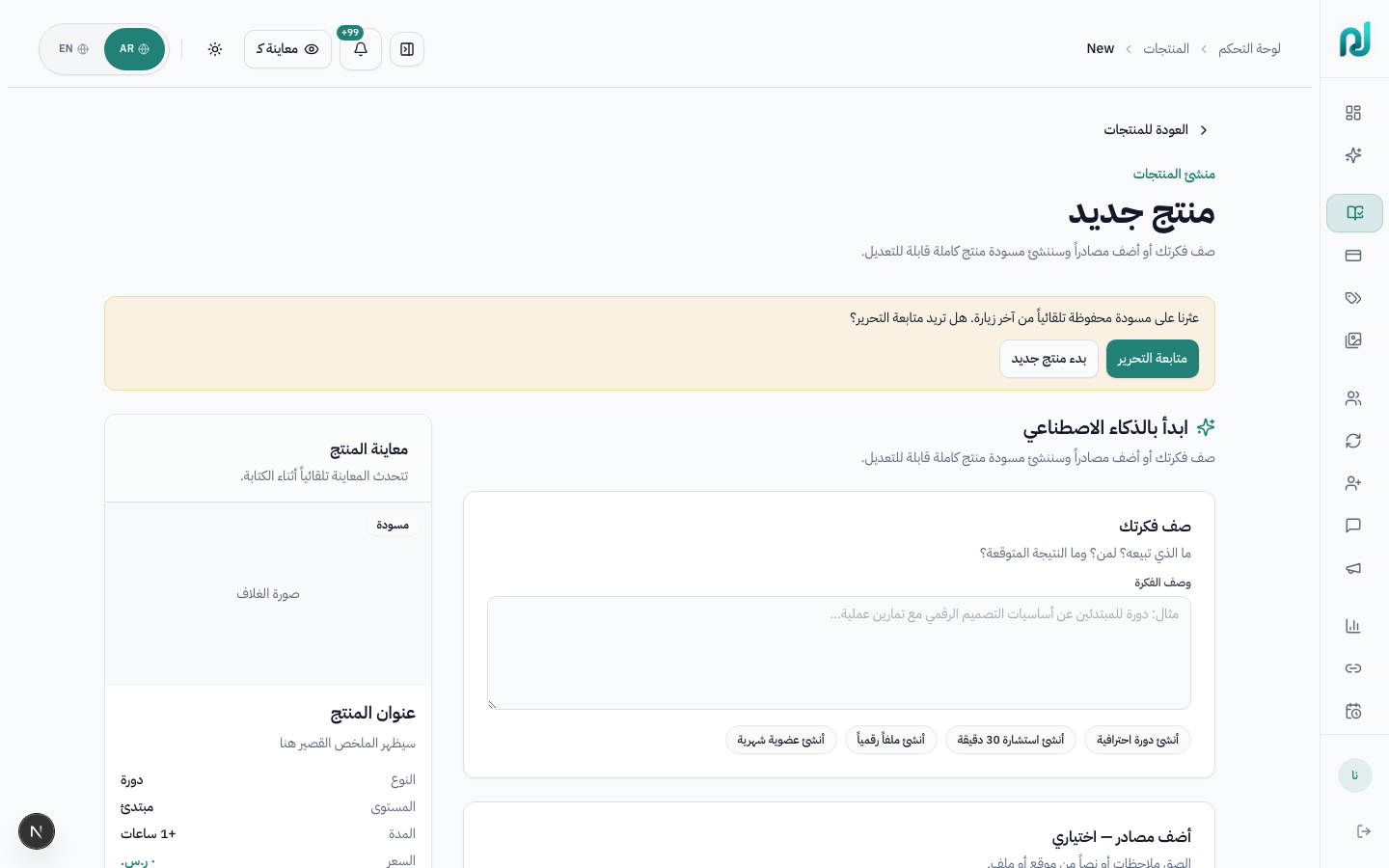
OPENROUTER_API_KEY, AI returns deterministic
Arabic demo output — useful for testing the flow without API spend.
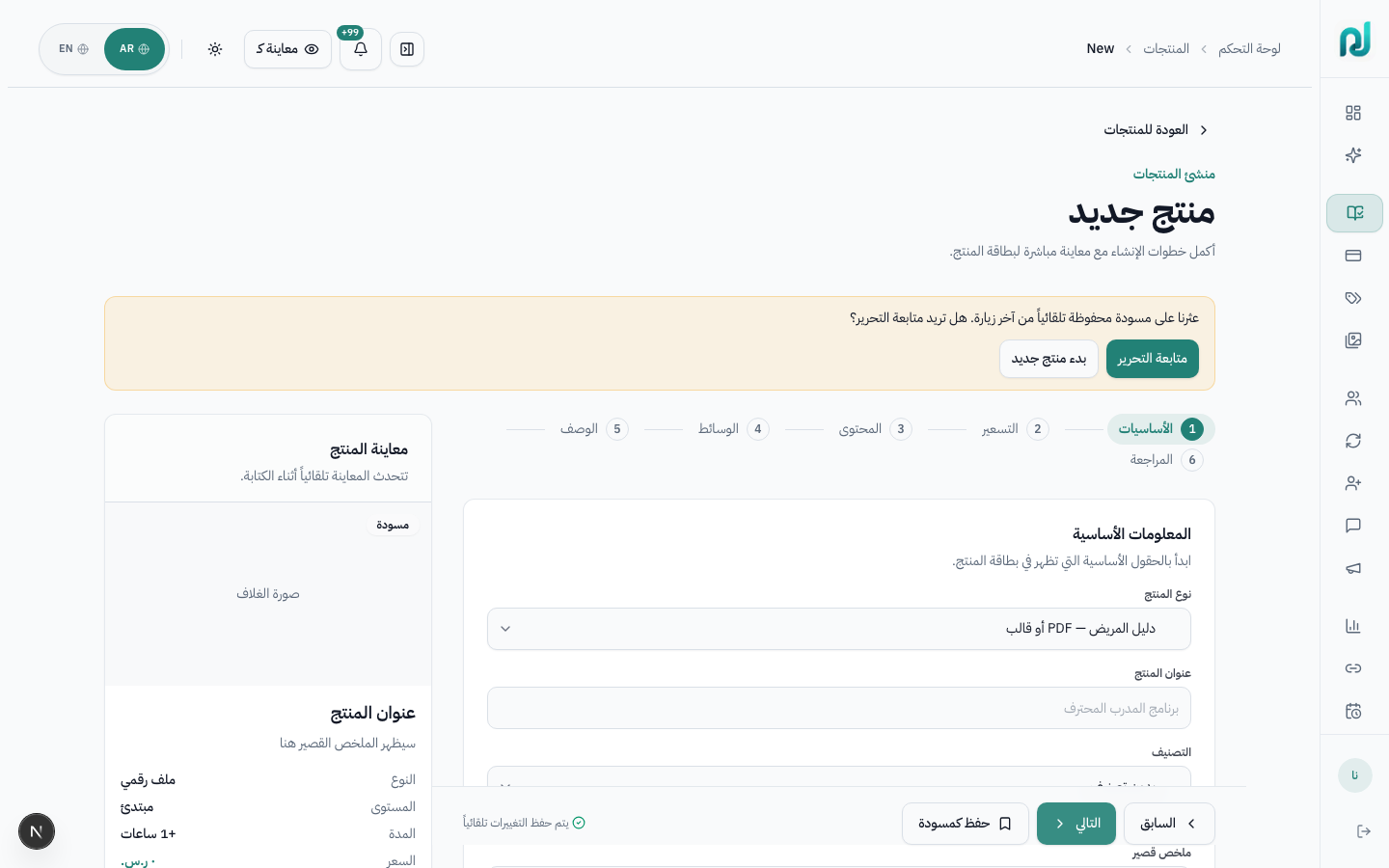
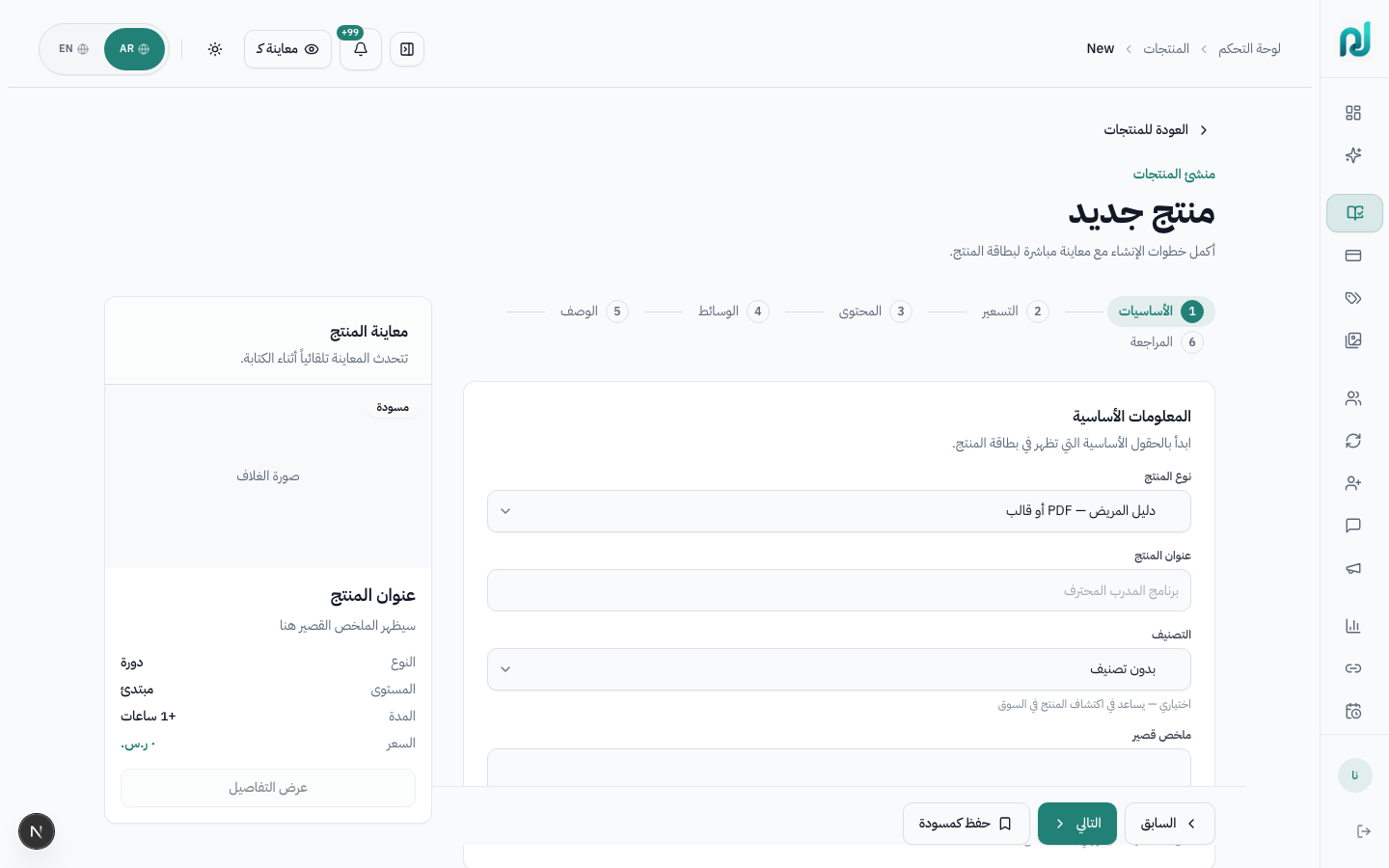
| Field | Arabic | Required | Notes |
|---|---|---|---|
| Product type | نوع المنتج | Yes | Dropdown with all 11 types and descriptions |
| Title | عنوان المنتج | Yes (min 3) | Must be unique in workspace |
| Category | التصنيف | No | Organizes storefront catalog |
| Short summary | ملخص قصير | No | Max 200 chars — shown on product card |
| Price | السعر | No | Defaults to 0 (free). Max 999,999 SAR |
| Currency | العملة | No | Defaults to workspace currency (SAR) |
Click إنشاء مسودة (Create draft). You are redirected to the product editor with a checklist of remaining tasks.
The full wizard shows a stepper (خطوات إنشاء المنتج) and a live preview card on the left that updates as you type. Changes autosave locally, so you can leave and return later without losing the draft.
| Step | Arabic | Purpose |
|---|---|---|
| 1. Basics | الأساسيات | Type, title, category, short summary |
| 2. Pricing | التسعير | Price, currency, status, course level/duration |
| 3. Content | المحتوى | Type-specific settings (sessions, dates, intervals) |
| 4. Media | الوسائط | Cover image (optional, 1600×900) |
| 5. Description | الوصف | Full Markdown description + advanced settings |
| 6. Review | المراجعة | Summary of all fields → create product |
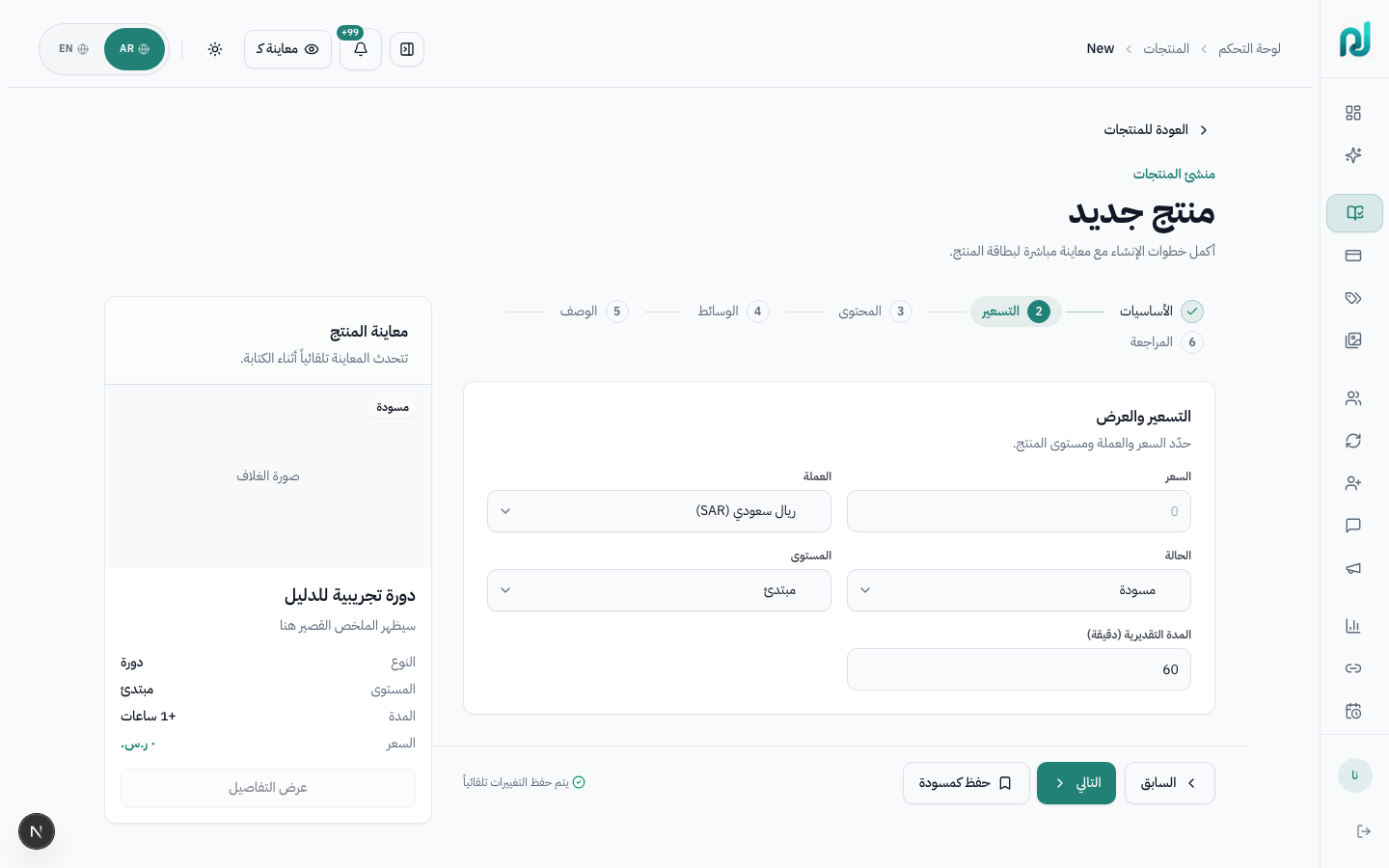
| Field | Arabic | Details |
|---|---|---|
| Price | السعر | 0 = free. Creates an offer with appropriate billing type per product type. |
| Currency | العملة | SAR, USD, AED, etc. |
| Status | الحالة | مسودة (draft) or منشور (published) |
| Level | المستوى | Courses only: beginner / intermediate / advanced |
| Duration | المدة التقديرية | Courses only: estimated minutes |
Default billing type by product type:
| Product type | Billing created |
|---|---|
| course, coaching, cohort, bundle, digital_download, event, facility, certification, exam_prep, service | One-time payment |
| membership | Subscription (monthly or yearly interval from step 3) |
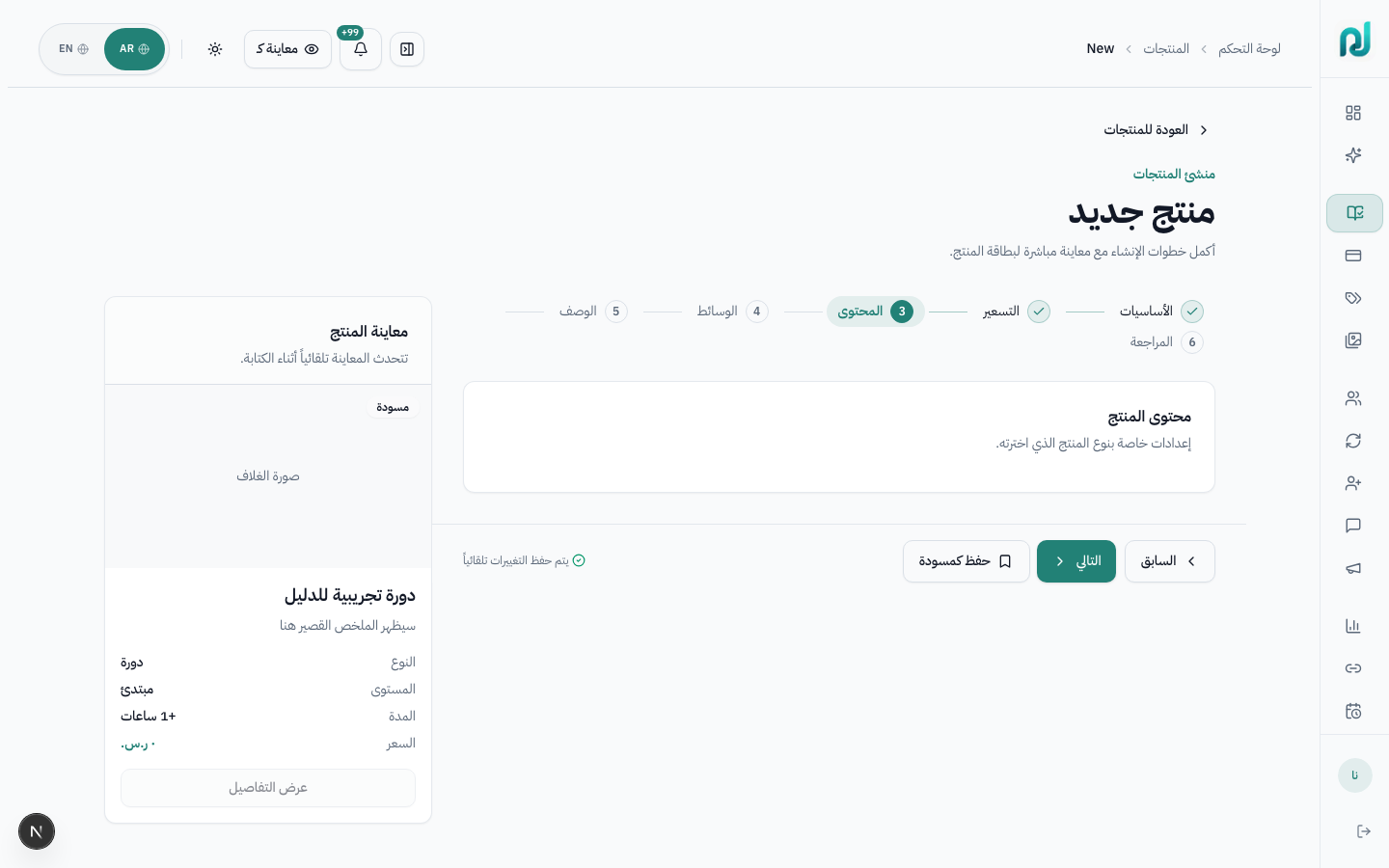
| Type | Fields in this step | What gets created |
|---|---|---|
course |
— (level/duration in step 2) | Empty course with 1 module + 1 placeholder lesson |
coaching |
Sessions included | Booking config with session count |
cohort |
Start date, capacity | Cohort booking config with dates |
membership |
Billing interval (monthly/yearly) | Subscription offer |
event |
Start/end datetime | Event time window |
facility |
Facility type, min booking hours | Facility rental config |
certification |
Issuing body, validity months | Certification metadata |
bundle |
Hint: add products later | Empty bundle — add items in editor Contents tab |
digital_download |
Hint: upload files later | Empty download product — add files in editor Files tab |
exam_prep |
— | Empty question bank — add questions in editor |
service |
— | Service appointment config (30-min default) |
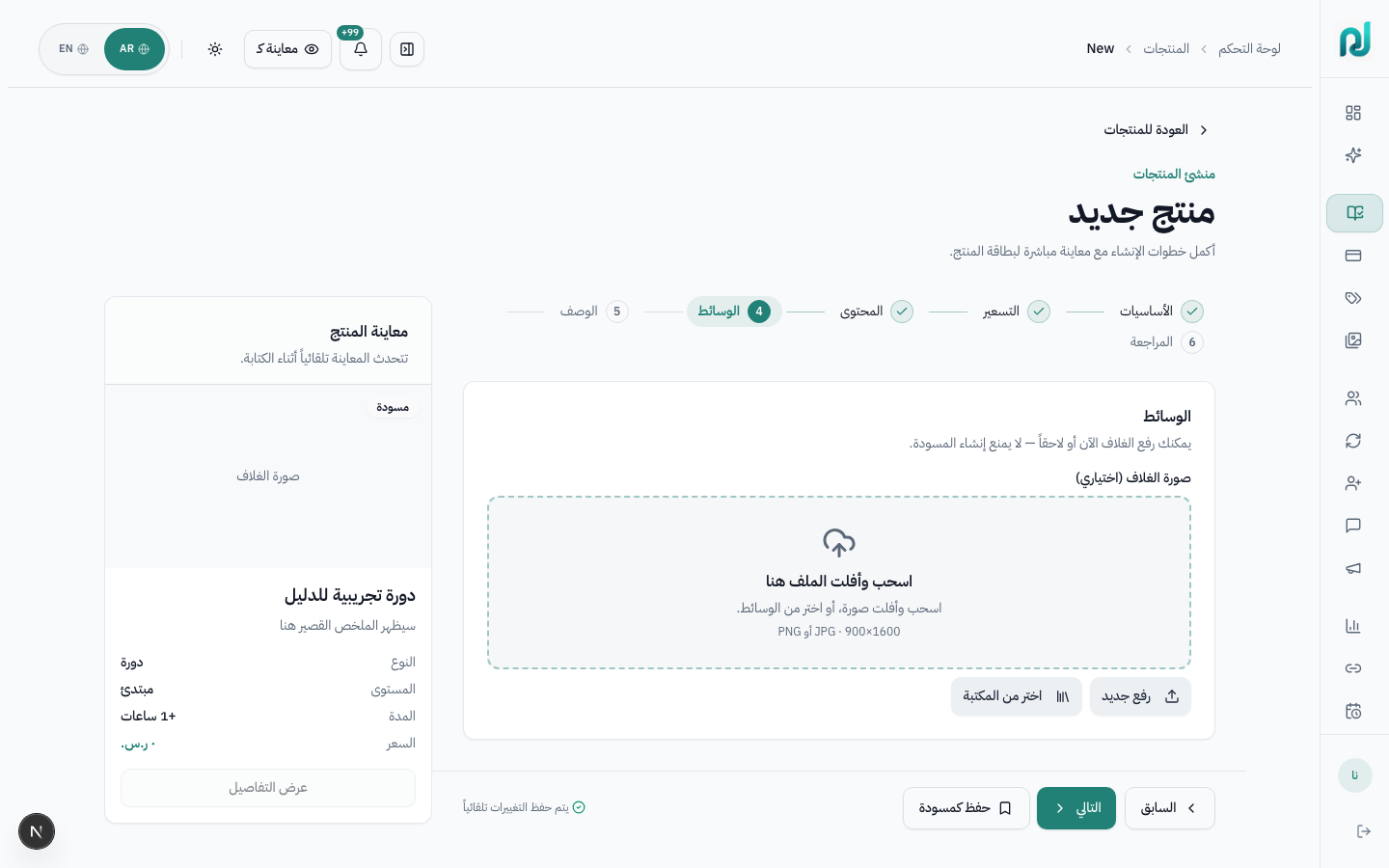
OPENAI_API_KEY)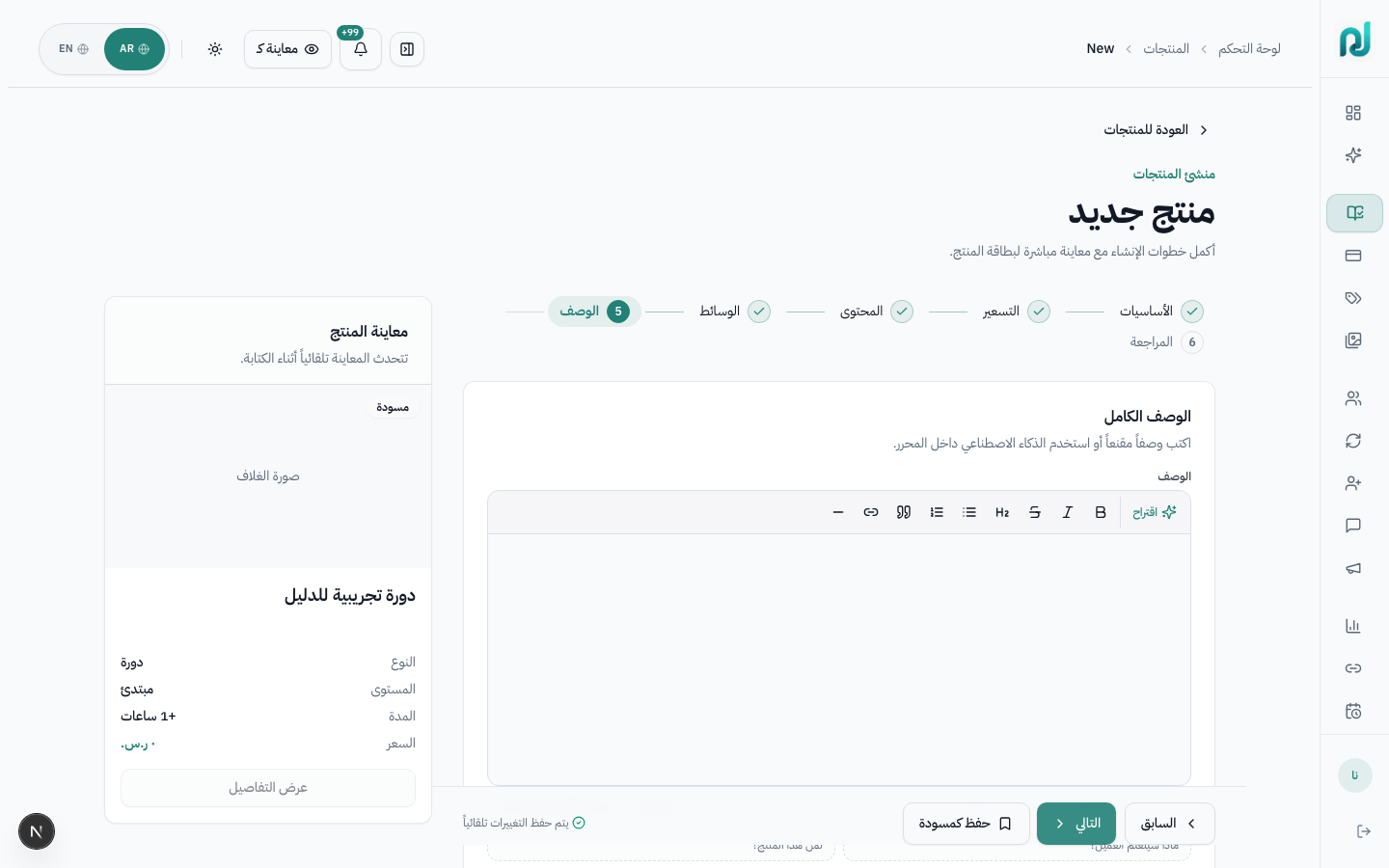
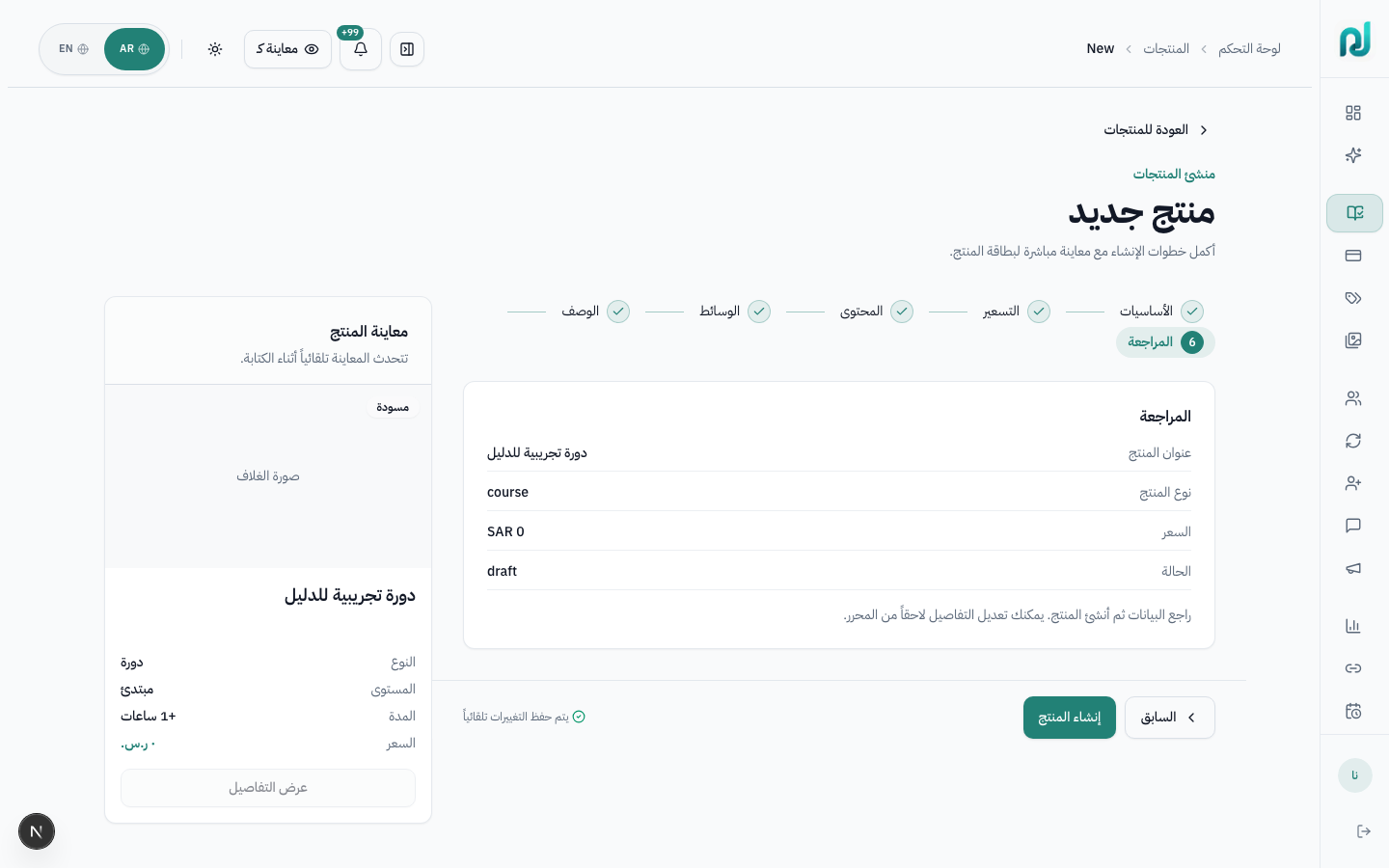
Review title, type, price, and status. Click إنشاء المنتج
(Create product). On success you are redirected to the product editor with
?next=checklist to highlight remaining tasks.
| Button | Arabic | When shown |
|---|---|---|
| Back | السابق | Steps 2–6 in full wizard |
| Next | التالي | Steps 1–5 in full wizard (validates current step) |
| Create product | إنشاء المنتج | Review step and quick create |
| Save as draft | حفظ كمسودة | Any step — saves without completing wizard |
Autosave: يتم حفظ التغييرات تلقائياً — your progress is stored locally. If you return, choose متابعة التحرير (Continue editing) or البدء من جديد (Start fresh).
After creation, every product opens in the editor at
/dashboard/products/{productId}. This is where you configure what the buyer sees:
sales page, content, offers, booking, settings, and publish status.
Explain where to edit the product after creation and how each tab affects the buyer experience.
When changing price, description, content, booking settings, visibility, or publish status.
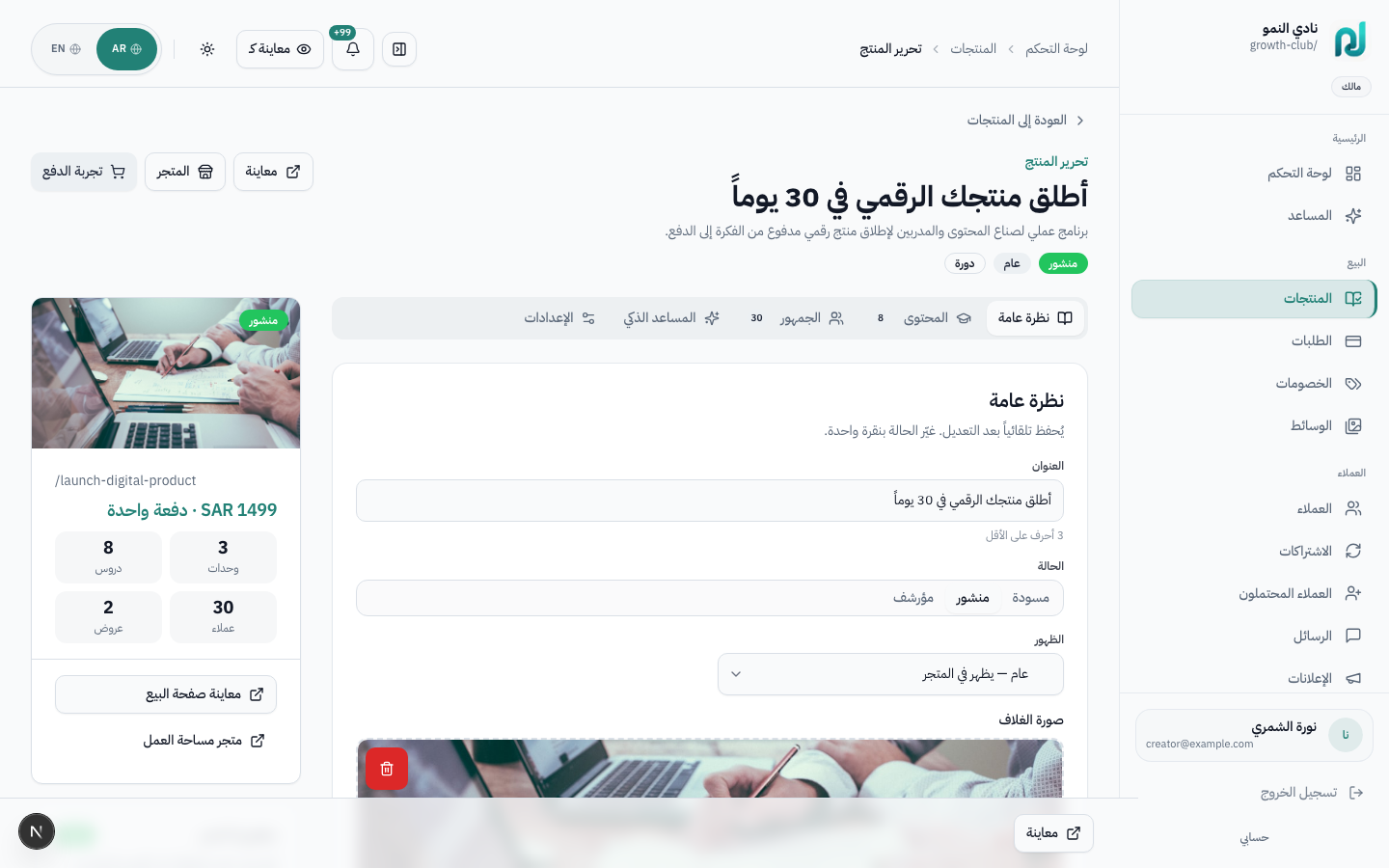
Product title, status badges, actions: معاينة (preview sales page), المتجر (store), تجربة الدفع (test checkout)
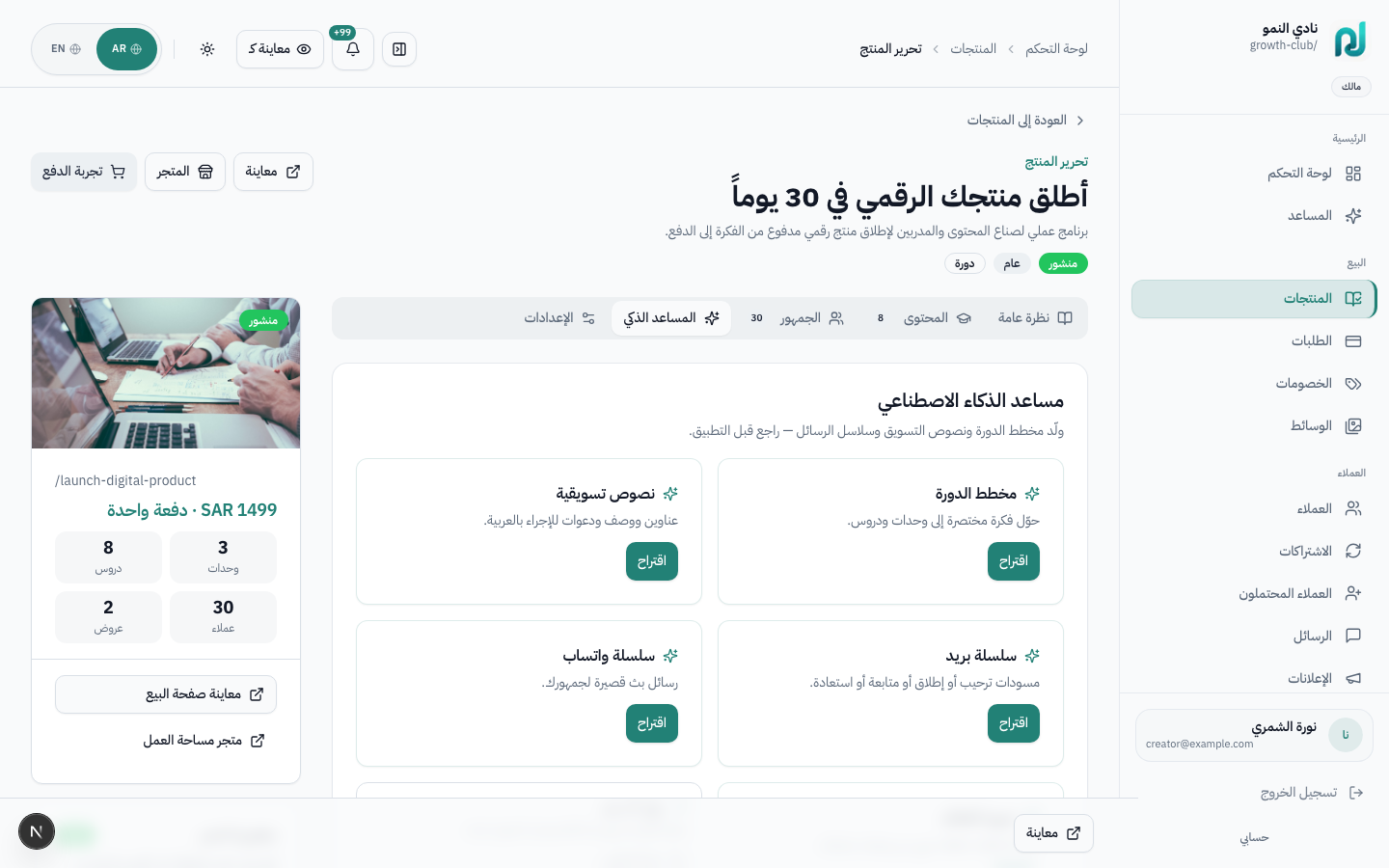
Overview, Content, Audience, AI Assistant, Settings — visibility varies by product type
Cover thumbnail, slug, price, stats (modules, lessons, customers, offers), publish checklist
Start here because these fields most directly affect buyer trust and conversion: title, price, cover, description, and visibility.
| Section | Arabic | What you configure |
|---|---|---|
| Title | العنوان | Product name (min 3 chars) |
| Status | الحالة | Draft / Published / Archived toggle |
| Visibility | الظهور | Public (in store) / Private (enrolled only) / Unlisted (link only) |
| Cover image | صورة الغلاف | Upload, replace, or delete cover |
| Description | الوصف | Full sales page Markdown |
| Category | التصنيف | Storefront category |
| Offers & pricing | العروض والتسعير | Multiple offers: one-time, subscription, payment plans, free |
| Extra details | تفاصيل إضافية | Level, duration, language (courses); booking settings (coaching) |
Label and contents vary by product type:
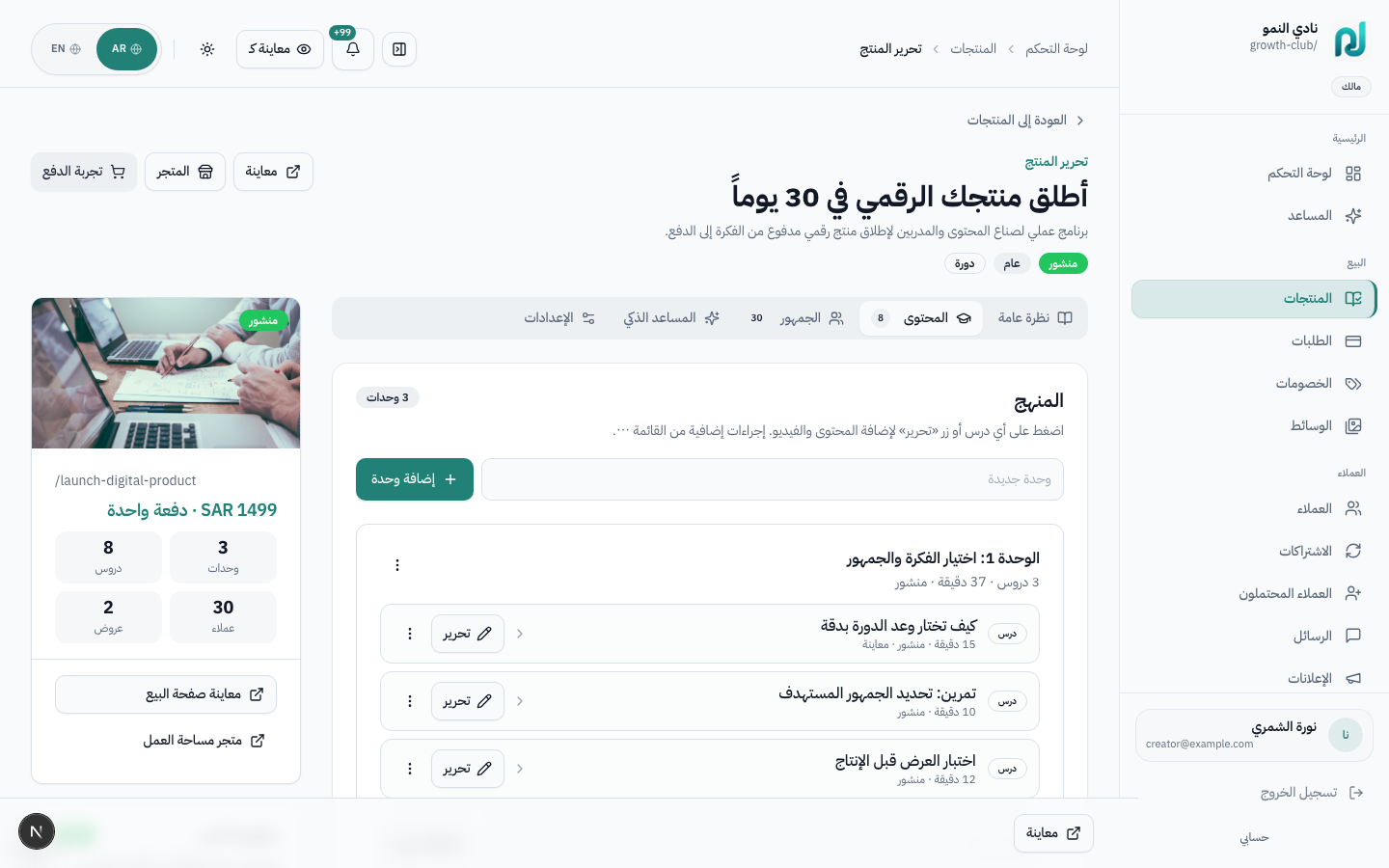
| Product type | Tab label | What you manage |
|---|---|---|
| course, cohort | المحتوى | Modules → lessons (video, text, quiz). Drip schedule, completion rules |
| digital_download | الملفات | Upload downloadable files customers receive after purchase |
| bundle | المحتويات | Select which products are included in the bundle |
| exam_prep | بنك الأسئلة | Question banks, flashcards, spaced repetition settings |
| coaching, service | — | No content tab — booking is configured in Overview/Settings |
See the detailed guide: Course content — modules, lessons, quizzes.
| Section | Applies to | Configure |
|---|---|---|
| Availability rules | coaching, service, facility | Weekday/time slots, capacity, buffer, recurrence, linked locations |
| Intake forms | coaching | Pre-session questionnaire linked to booking |
| Certificates | course, certification | Completion certificate template, QR verification |
| Drip schedule | course, cohort | Release lessons on a schedule after enrollment |
| SEO | All types | Meta title, description, OG image for search/social |
| Slug | All types | URL path — changing slug updates the public link |
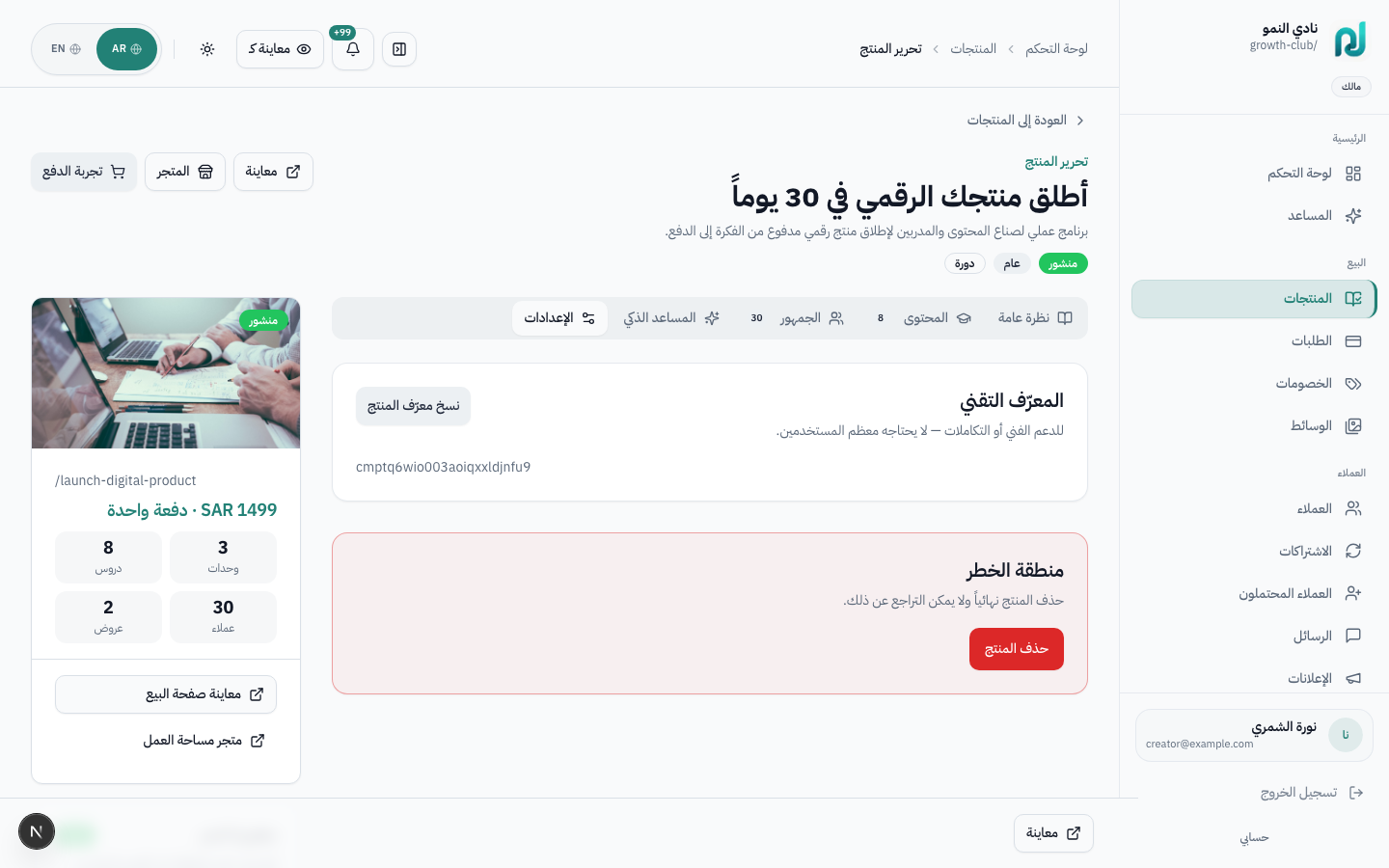
| Danger zone | All types | Archive or permanently delete product |
The left sidebar shows a checklist that updates as you complete requirements. Click any incomplete item to jump to the relevant tab/section.
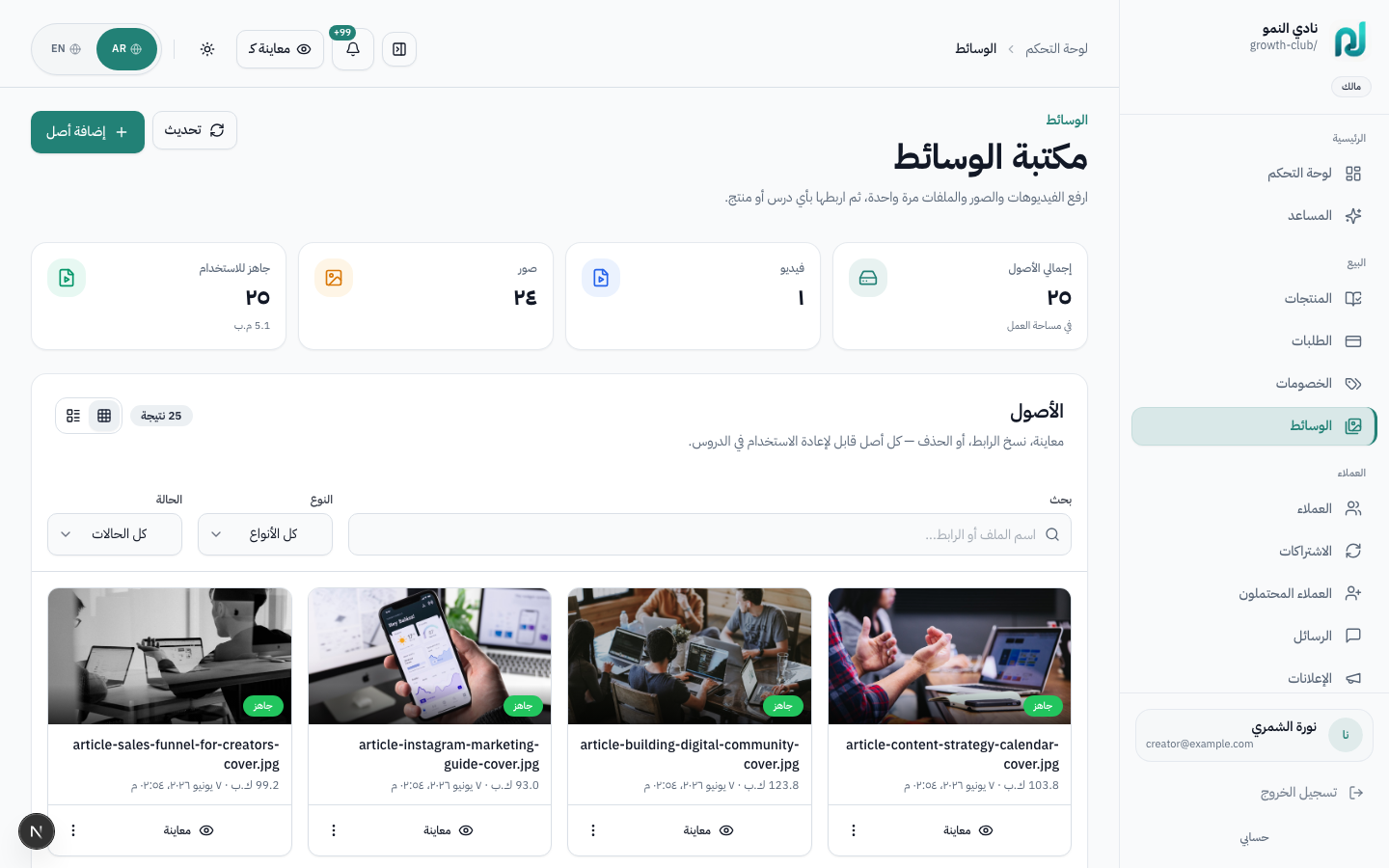
/dashboard/media) — central upload hub reused across products
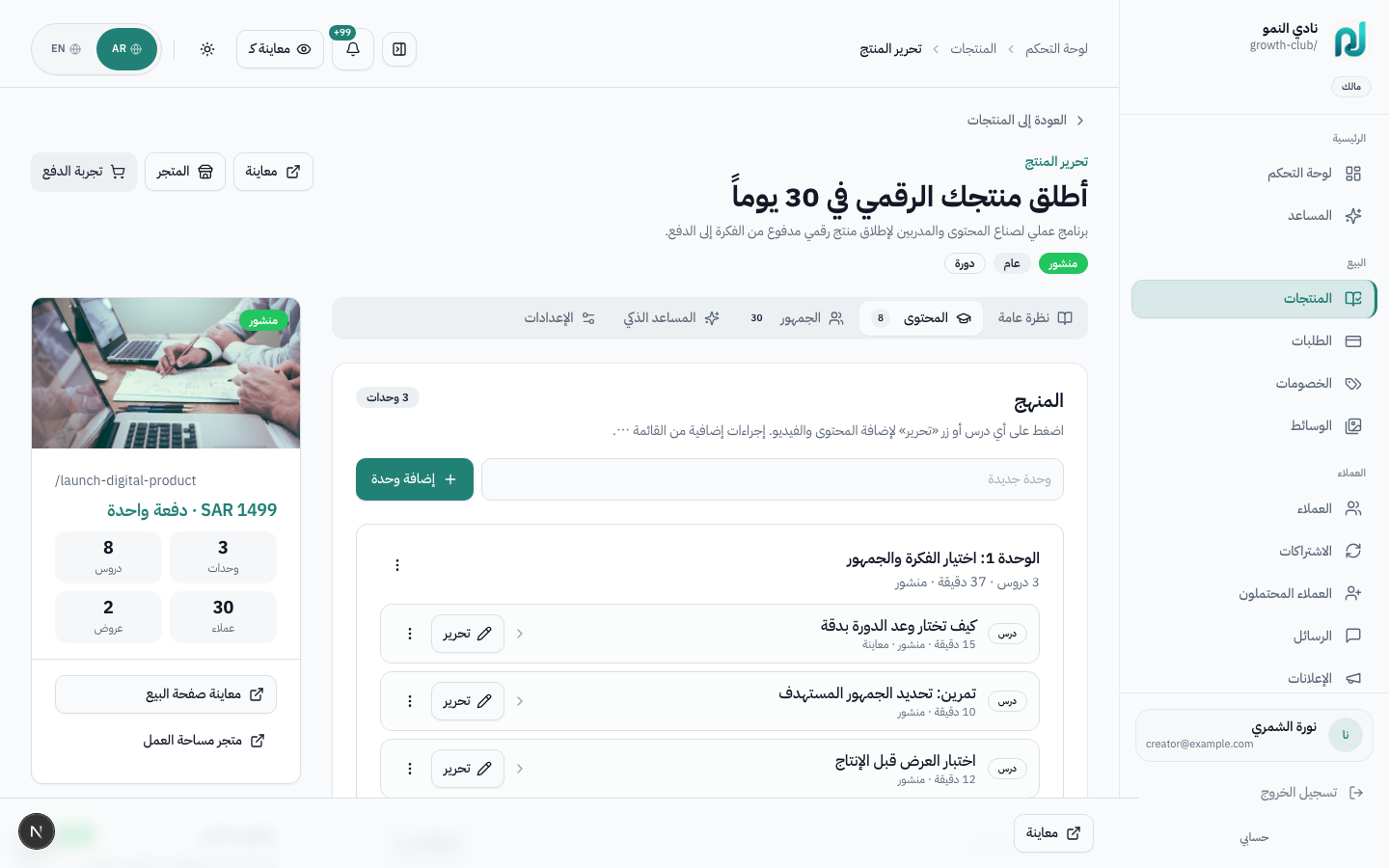
course and cohort products have a curriculum:
Modules (chapters) → Lessons → text + video + quiz.
Managed from the product editor Content tab; each lesson has its own editor.
Explain how a course idea becomes modules, lessons, videos, text, and quizzes.
When building a course, editing a lesson, adding a quiz, or reviewing what students see.
Product (course)
├── Module 1 — e.g. "Basics"
│   ├── Lesson 1 — video + text + quiz
│   ├── Lesson 2 — text only
│   └── Lesson 3 — video + free preview
├── Module 2 — e.g. "Practice"
│   └── ...
└── Module 3
| Action | Arabic | Purpose |
|---|---|---|
| Rename | إعادة تسمية | Change module title |
| Draft / Publish | تحويل إلى مسودة / نشر | Control publish status |
| Move up / down | نقل لأعلى / لأسفل | Reorder modules |
| Delete module | حذف الوحدة | Deletes module and all its lessons |
/dashboard/lessons/{id}| Action | Purpose |
|---|---|
| Edit content | Open lesson editor |
| Lesson Q&A | Manage student questions |
| Preview lesson | Free for visitors before purchase |
| Schedule release (Drip) | Set date/time when lesson unlocks |
| Move up / down | Reorder within module |
| Delete lesson | Permanent delete |
Fill the tabs, then click Save lesson (حفظ الدرس) once at the bottom.
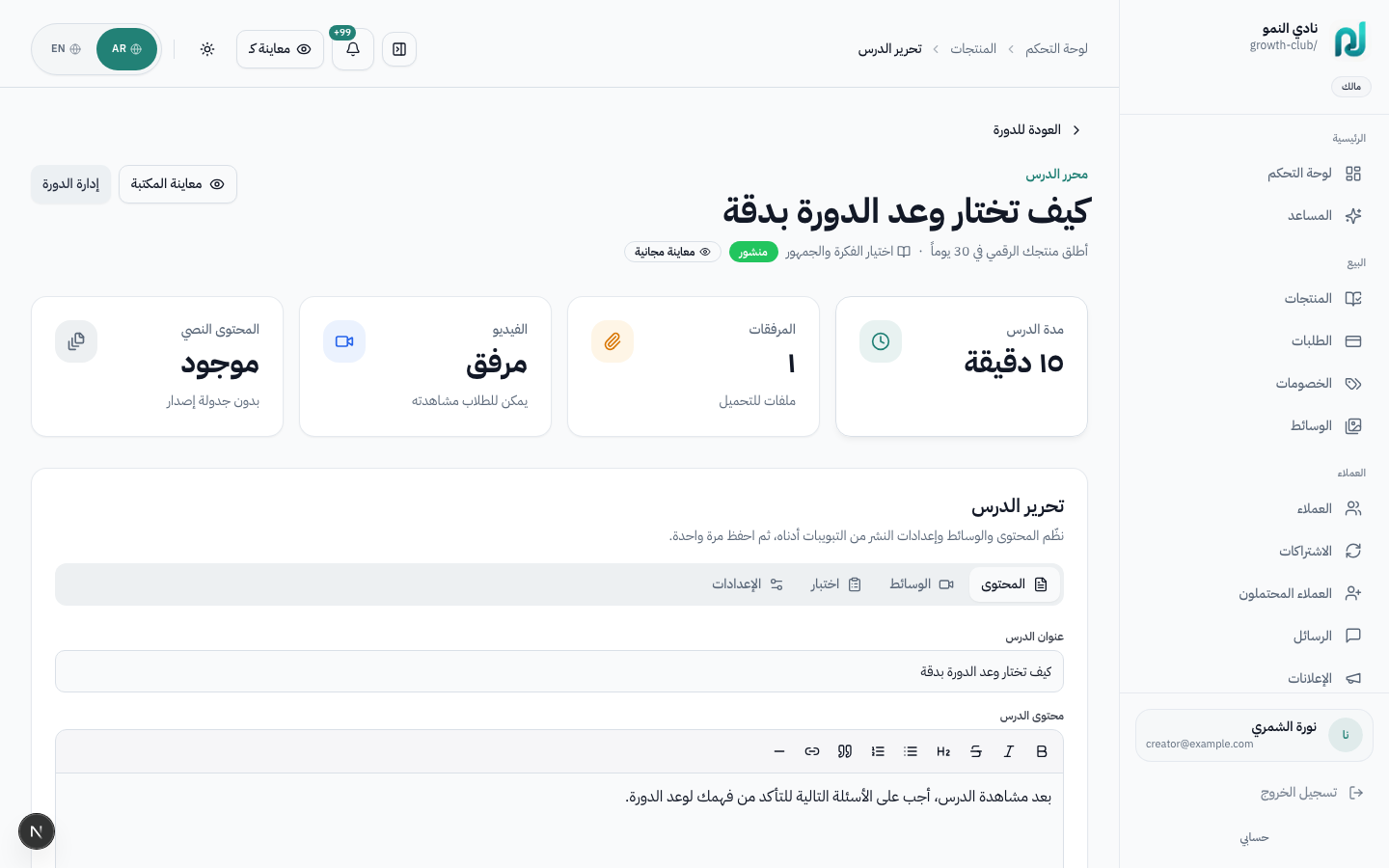
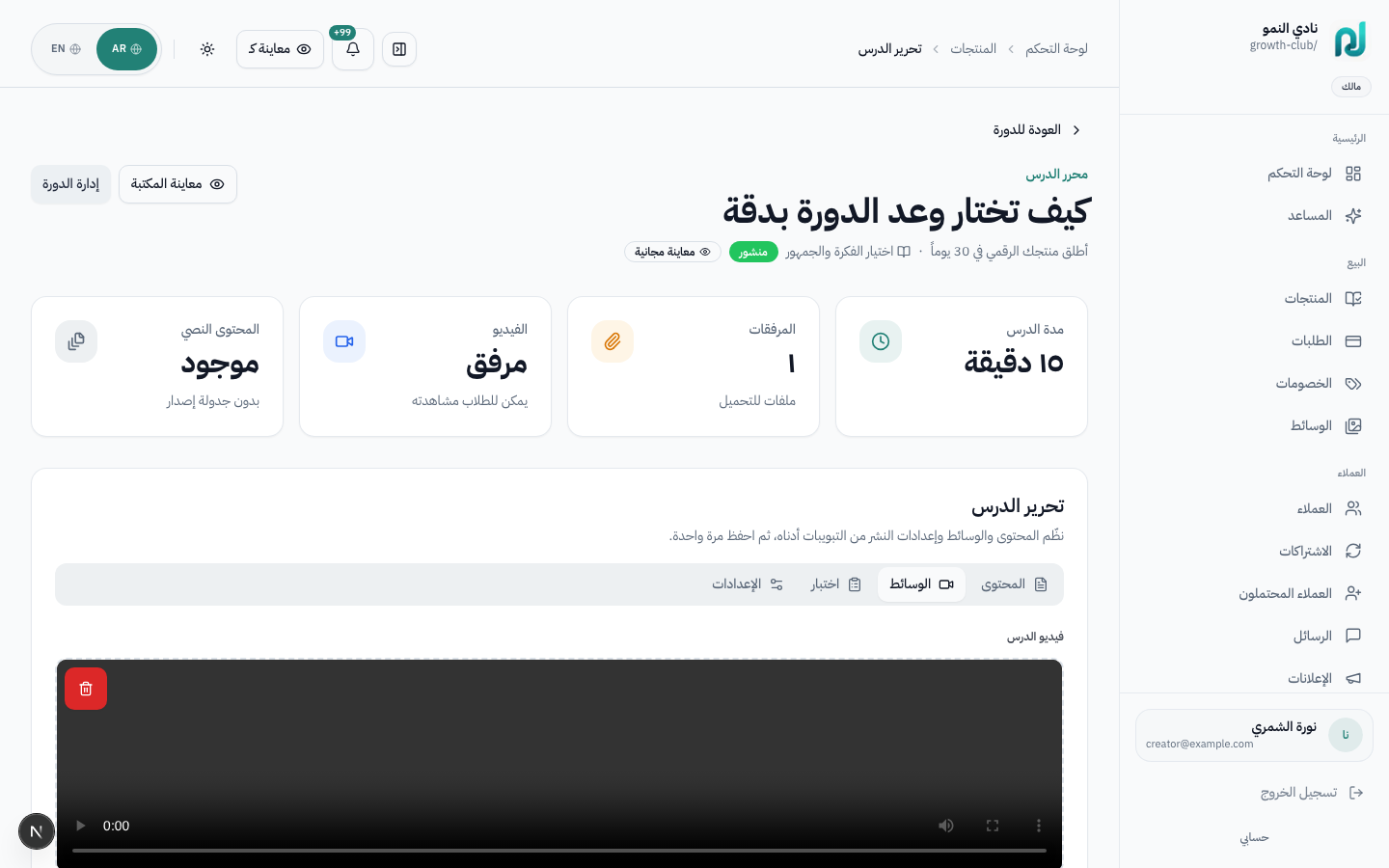
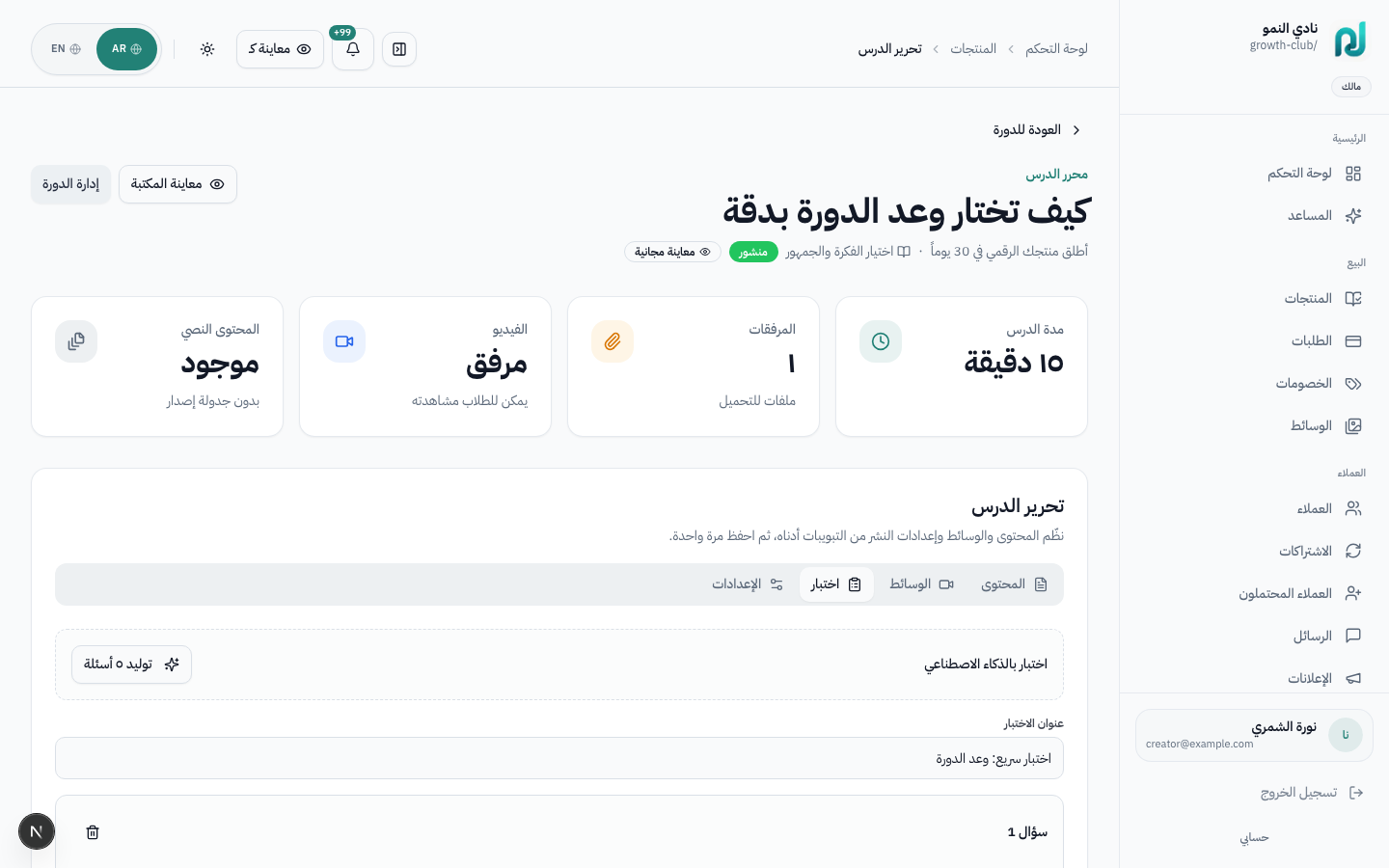
Option A — AI: Click Generate quiz → review → Apply → Save lesson.
Option B — Manual: Quiz title → Add question → prompt + 4 choices + correct answer → Save.
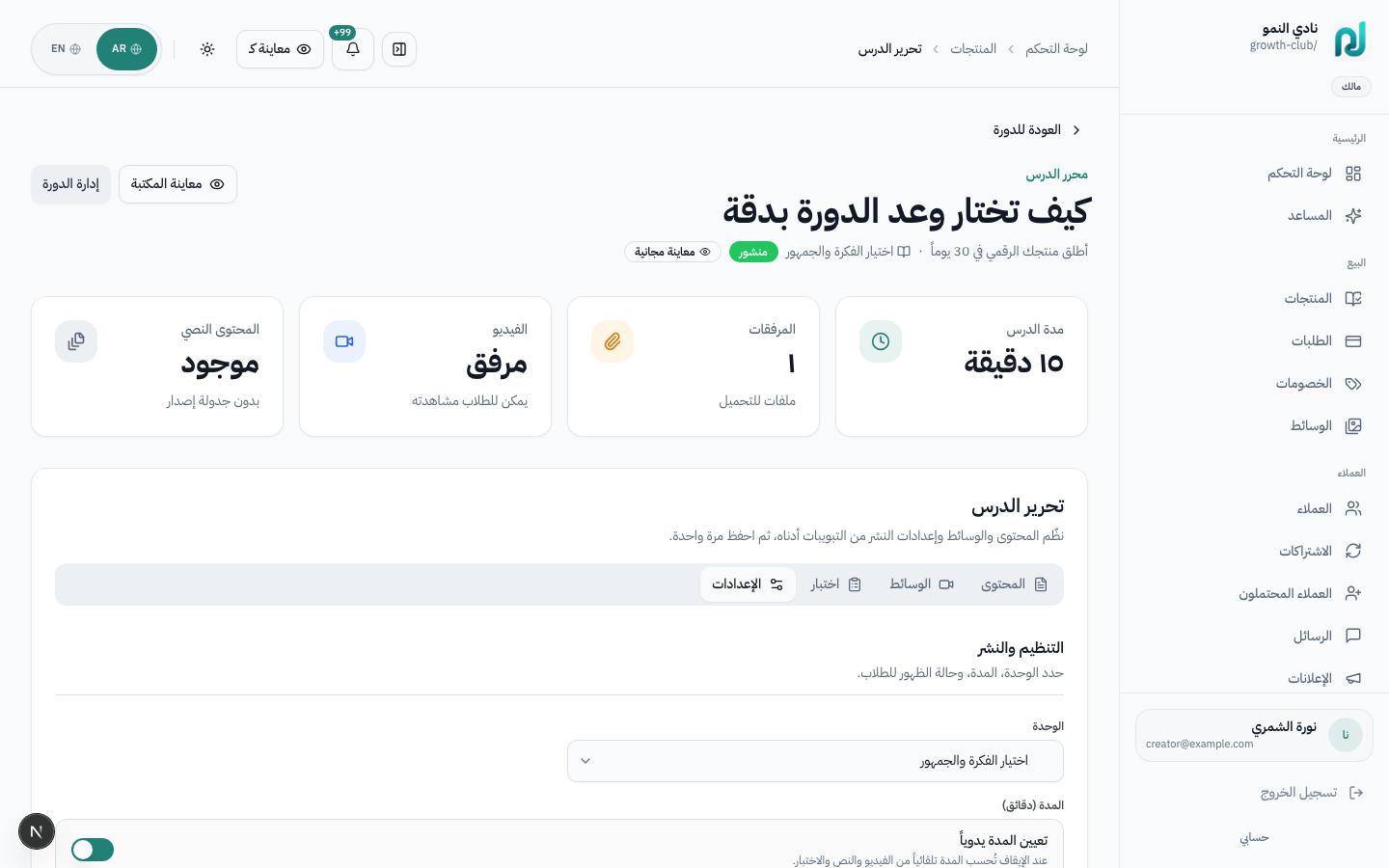
| Method | Where |
|---|---|
| Per-lesson schedule | Lesson ⋯ menu → Schedule release (Drip) |
| Release date in editor | Settings tab → Release date |
| Course drip schedule | Product Settings → Drip schedule |
/librarydigital_download uses Files tab;
exam_prep uses Question bank;
bundle uses Contents.
From /dashboard/settings/storefront you control the look and content of your public
storefront (/s/{slug}). Changes appear to visitors after save — use the
Preview button in the top bar to verify.
Show how to configure brand identity, templates, sections, SEO, and storefront copy.
Before launching the storefront or updating branding, content, offers, or trust sections.
/dashboard/settings/storefront)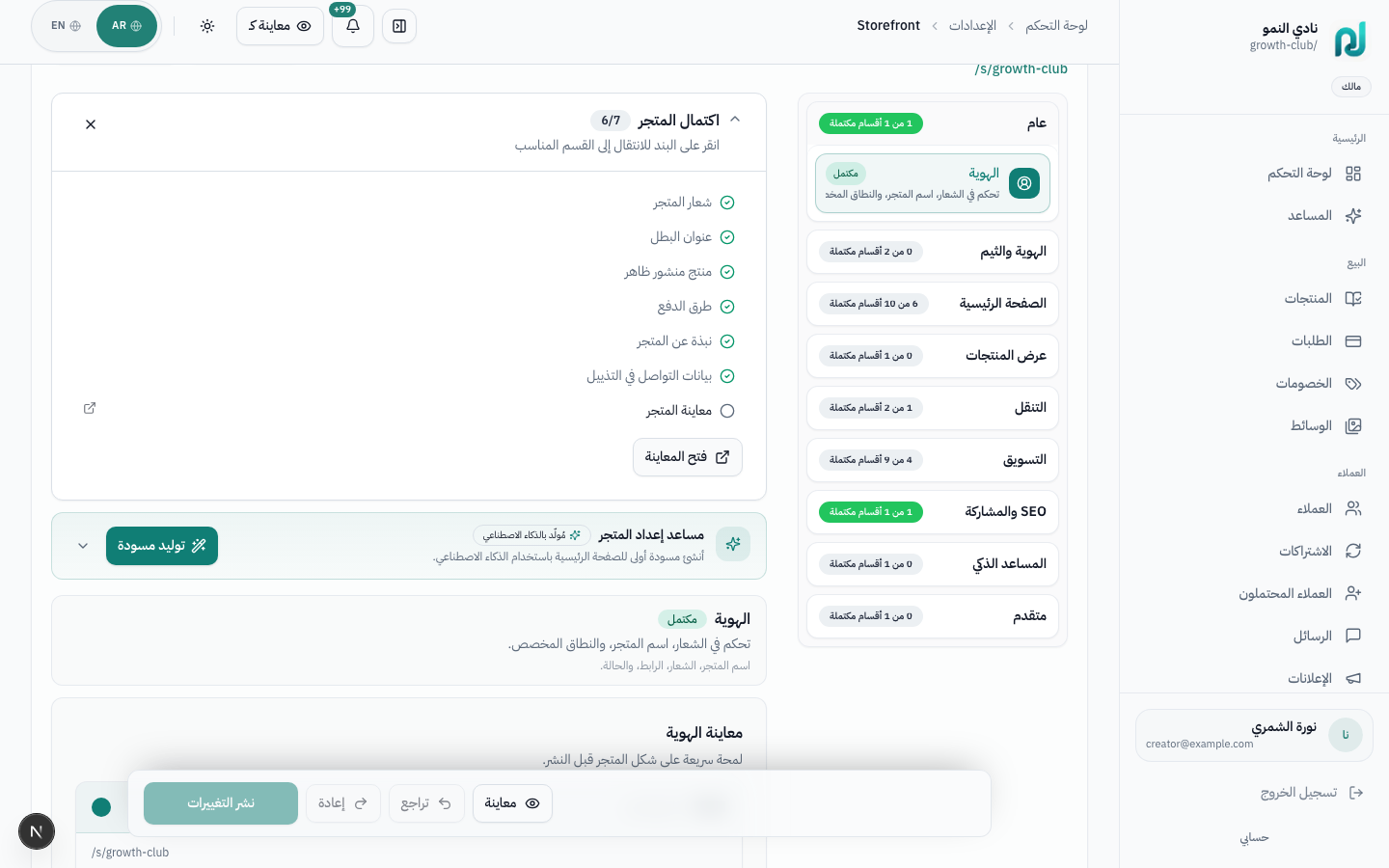
| Section | What you configure |
|---|---|
| Identity | Store name, logo, short description, contact links |
| General | Overall storefront behavior and display options |
| Slides | Rotating hero slides at the top of the home page |
| Navigation menu | Custom links in the storefront header |
| Section order | Enable/disable and reorder home page sections |
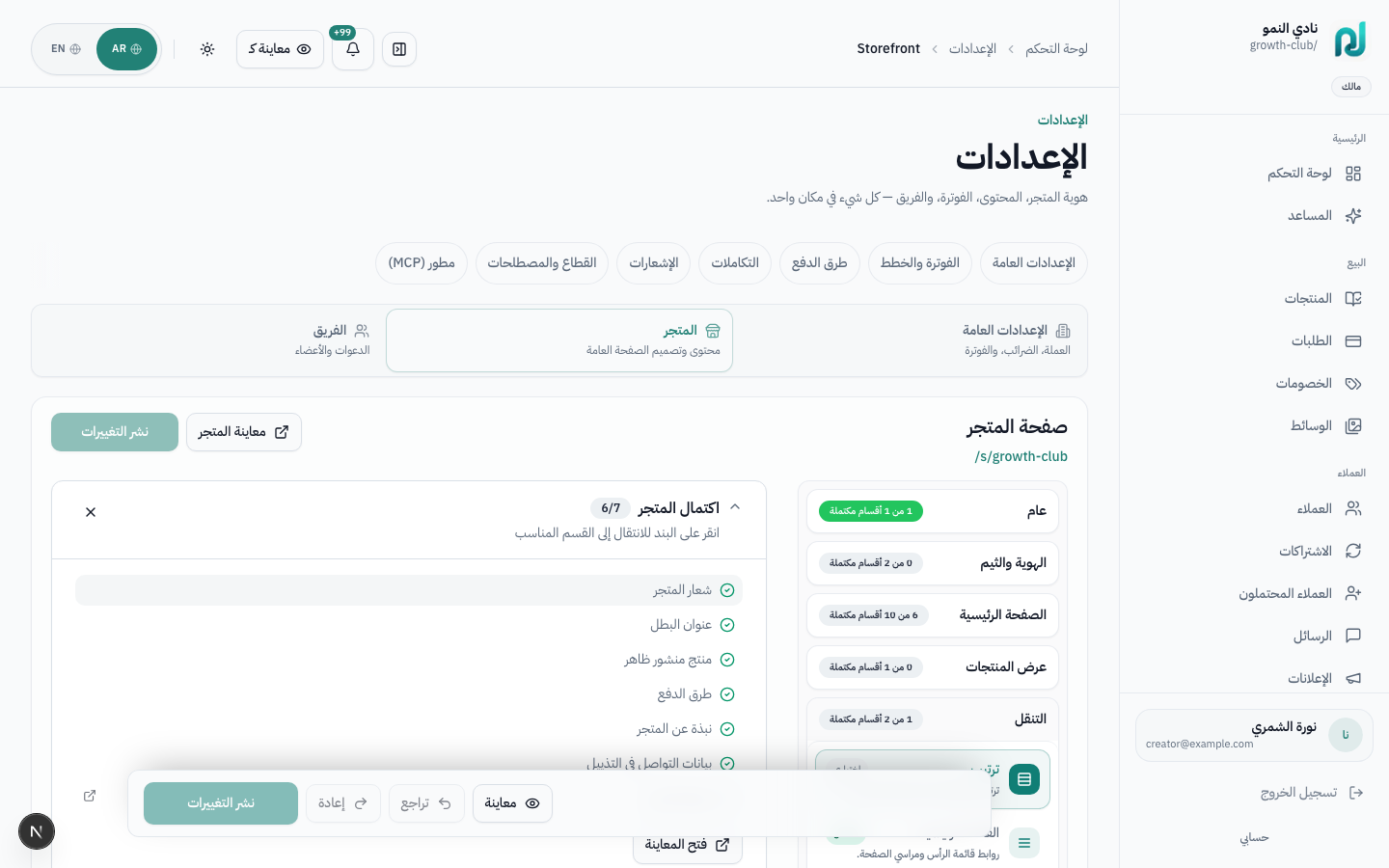
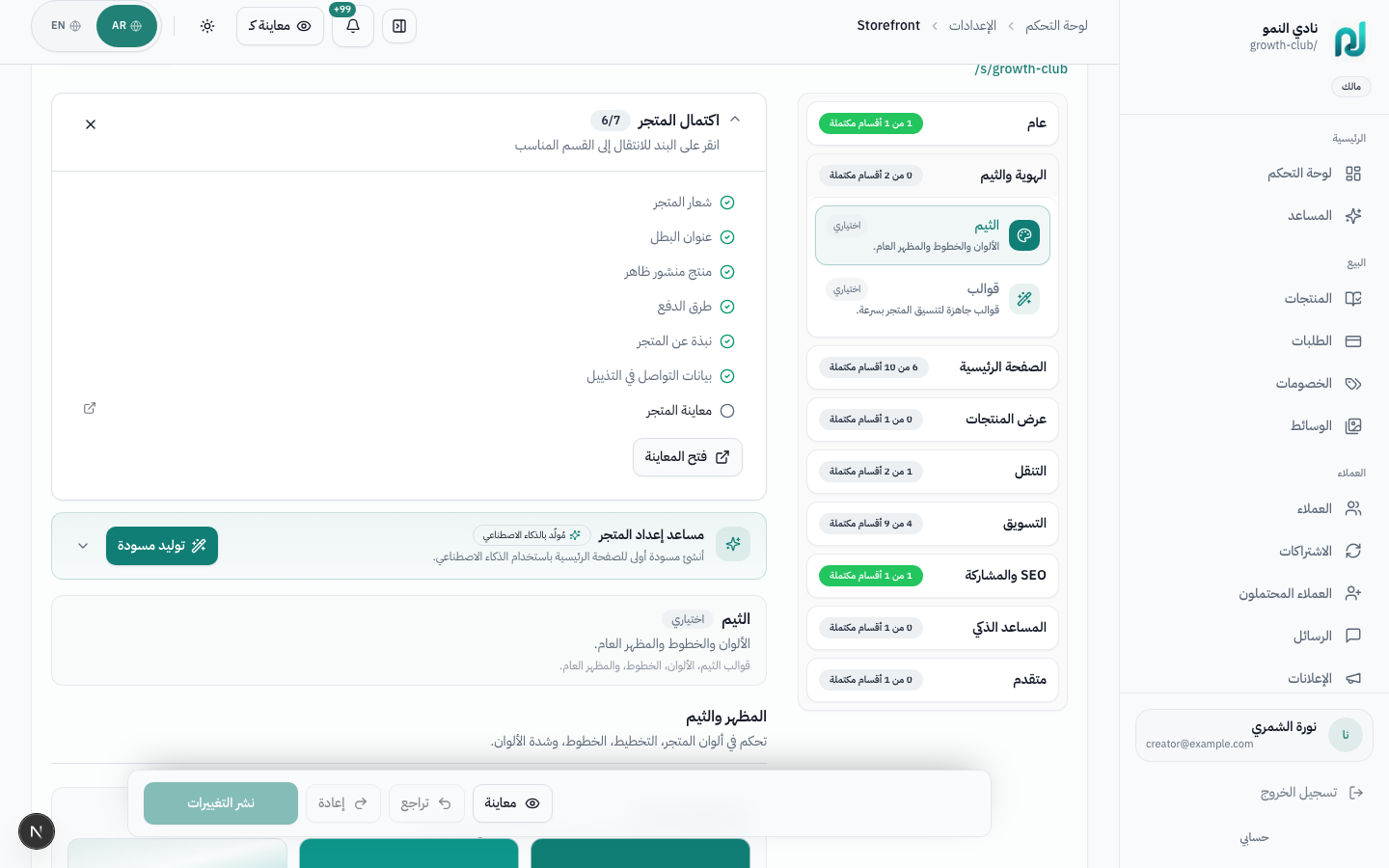
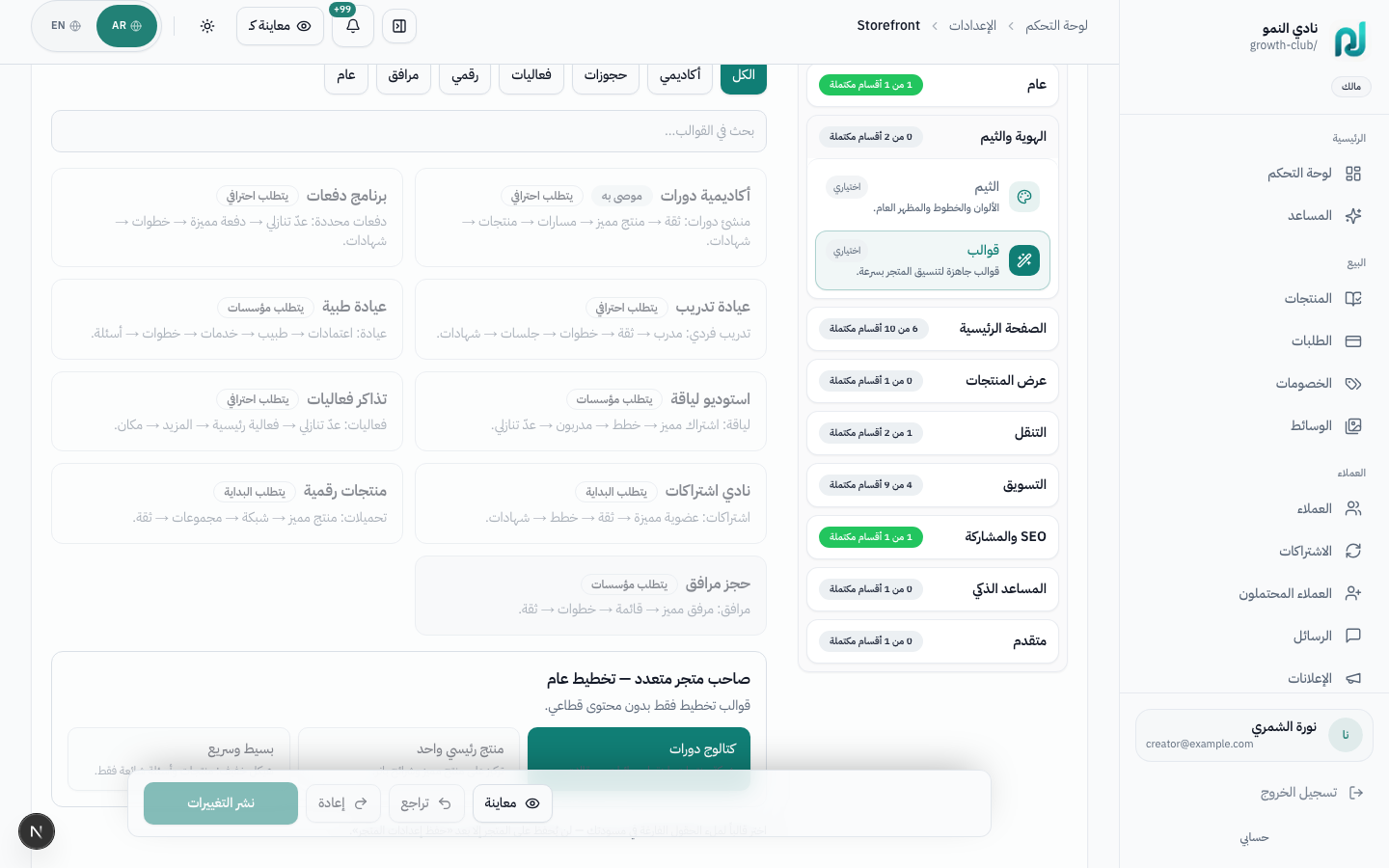
Two related areas: Theme for colors and fonts, and Templates for industry-ready layouts (training, consulting, centers, etc.).
Quotes and names — builds trust
Show coaches or consultants
Refund policy or results guarantee
Bio and photo for the hero
Limited offers or deadlines
Capture email before purchase
Email list signup
How the catalog appears (grid, list…)
Several sections offer AI suggest — generates Arabic copy suited to your industry (hero, FAQ, testimonials). Review before saving.
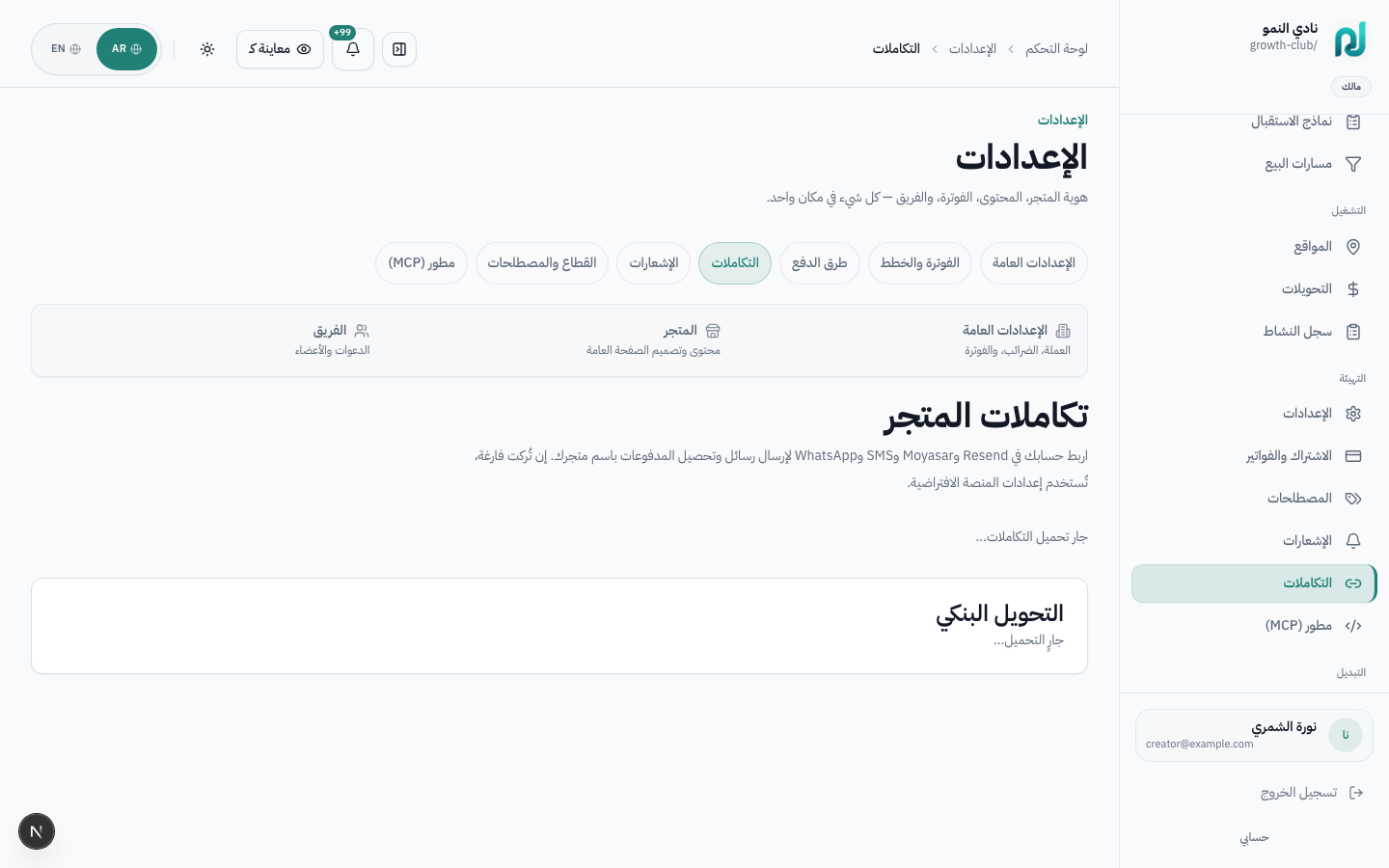
| Integration | Purpose |
|---|---|
| Moyasar | Accept mada, cards, Apple Pay — see Checkout & Booking |
| Google Calendar | Block busy slots on bookable products |
| Resend | Transactional email and campaigns |
| Automation and customer messaging |
https://lammem.com/s/growth-club.
coaching (1:1 consultation/training) and service (clinic visit/appointment)
products use availability windows and a calendar instead of a curriculum.
The buyer picks a slot on the product page → pays → the session appears in their library.
Explain bookable products that use calendars and availability instead of lesson content.
When launching consultations, clinics, in-person services, or any product that needs scheduled slots.
flowchart LR
  setup["Product setup"] --> availability["Availability windows"]
  availability --> page["Product page"]
  page --> slot["Buyer selects slot"]
  slot --> checkout["Checkout"]
  checkout --> session["Session in library"]
  checkout --> dashboard["Sessions dashboard"]
| Type | Use case | Example |
|---|---|---|
coaching | Individual sessions with a coach/consultant — fixed slot duration | 30-minute consultation |
service | In-person clinic or service appointments — capacity + location | Riyadh clinic visit |
coaching) or Service visit (service)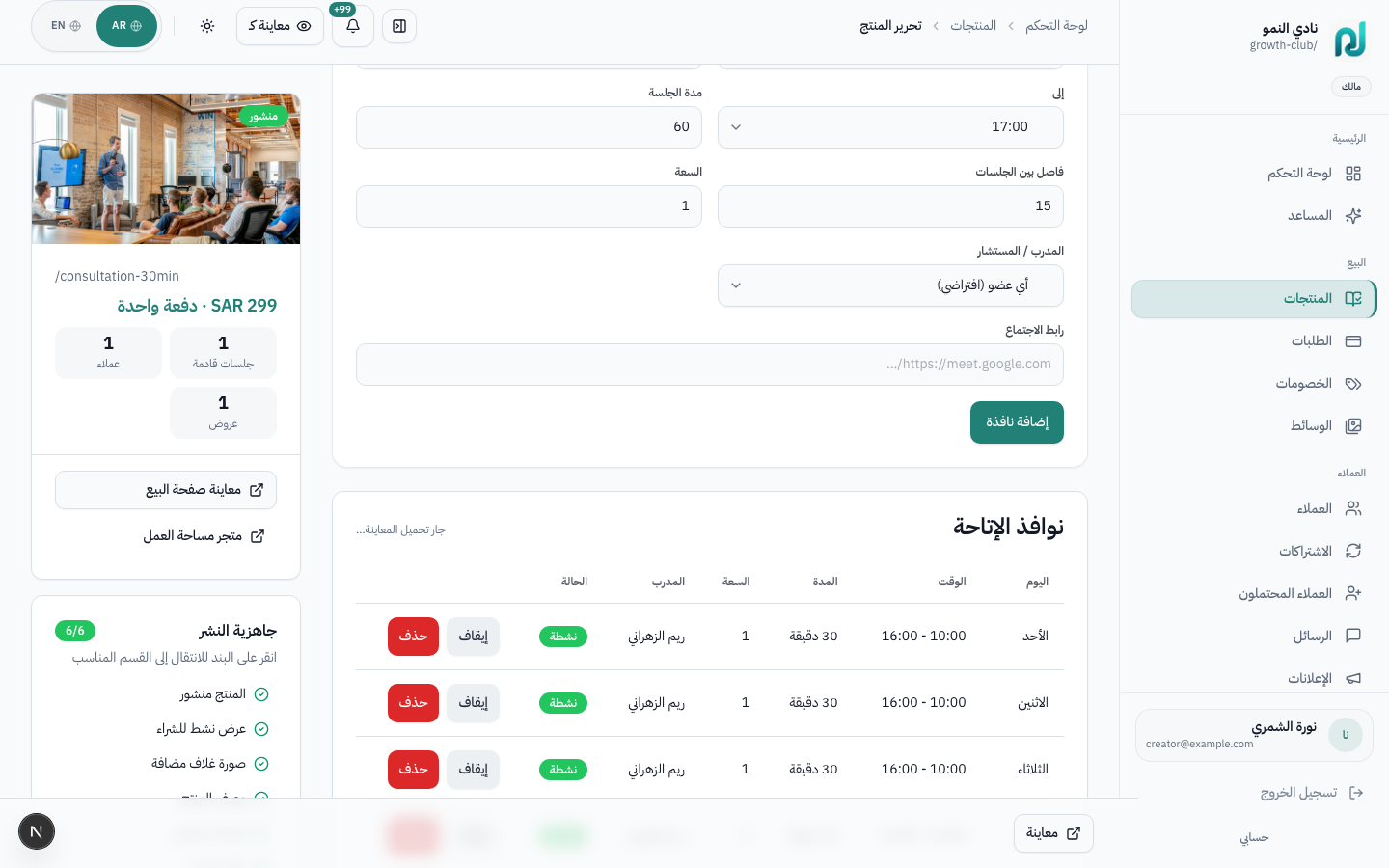
Add a time window per weekday (e.g. Sunday 9:00–17:00).
| Field | Function |
|---|---|
| Weekday | 0=Sunday … 6=Saturday (Asia/Riyadh timezone) |
| From / To | Start and end of booking window in minutes |
| Session duration | Length of each slot (e.g. 30 min) |
| Buffer | Gap between consecutive sessions |
| Capacity | Concurrent bookings per slot |
| Instructor | Assign window to a team member (optional) |
| Meeting URL | Zoom/Meet link sent to the customer |
Collect pre-session info (goals, background). Create forms at
/dashboard/intake-forms and link them to an availability rule or product settings.
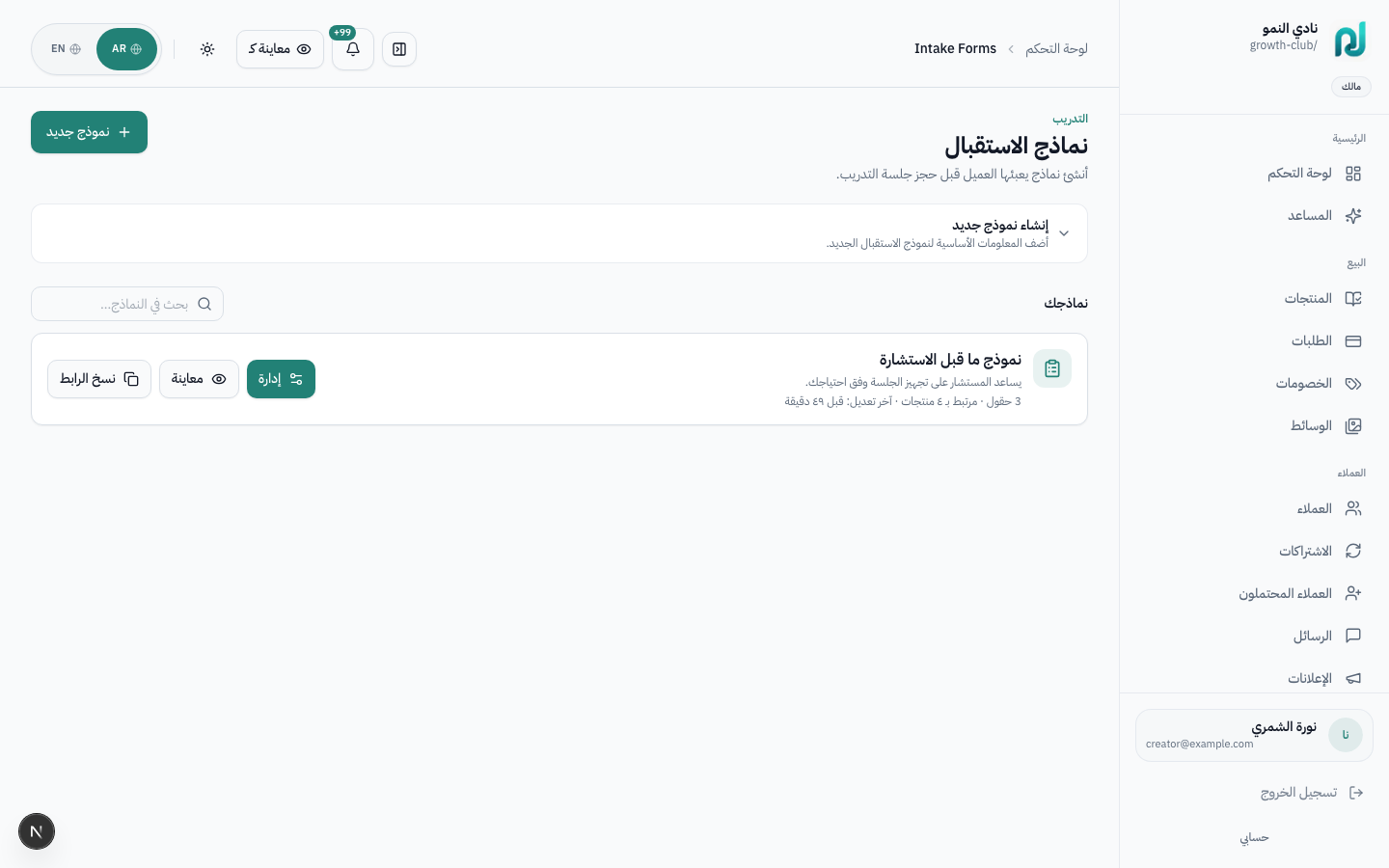
/dashboard/locations) — physical branch or virtual link in booking confirmationhttps://lammem.com/p/growth-club/consultation-30min
All upcoming and completed bookings live at /dashboard/coaching-sessions
(«My sessions» in the sidebar).
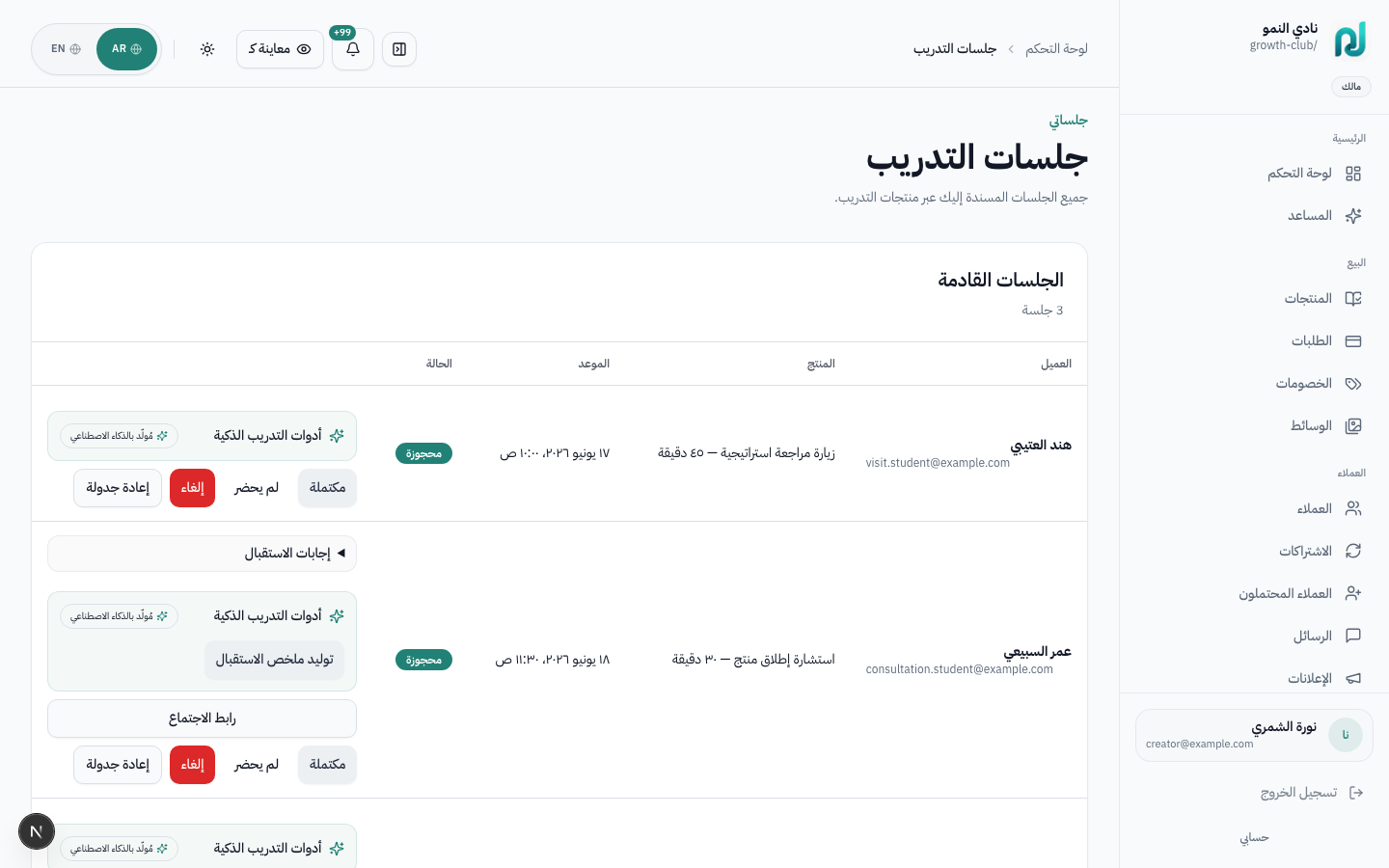
| Action | Result |
|---|---|
| View session details | Customer, product, time, intake responses |
| Private notes | Team-only — not visible to customer |
| Reschedule / cancel | Customer notified automatically |
| Mark complete | May trigger certificate or follow-up automation |
| AI summary | Generate session summary from notes (if enabled) |
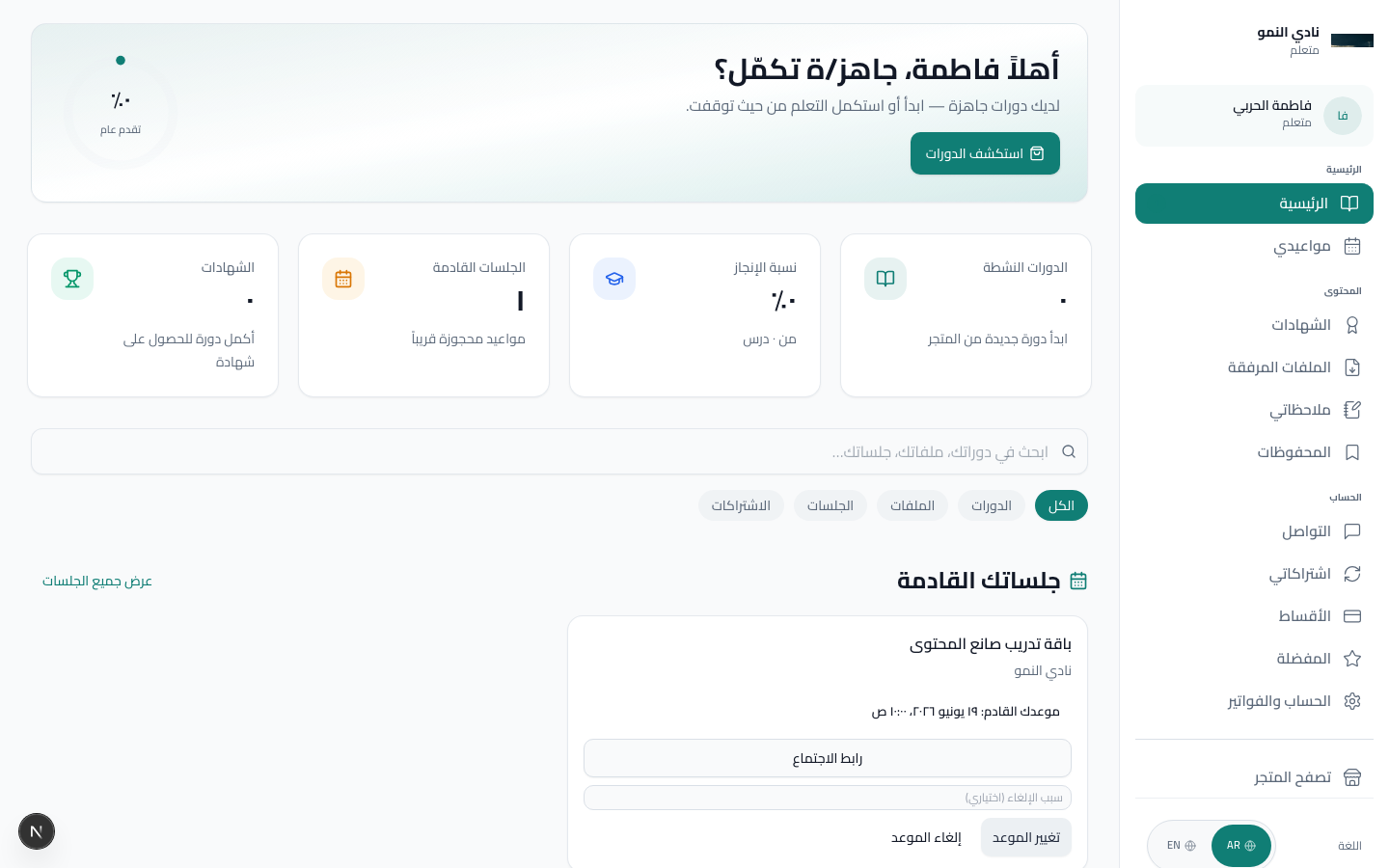
Demo account with sessions: coaching.student@example.com / password123
(email verification may be required outside dev).
coaching product → «30-minute consultation»
membership products sell recurring access (monthly/yearly) with auto-renewal.
Configure offers in the product editor; manage active subscriptions at
/dashboard/subscriptions.
Explain products that depend on recurring payment and ongoing access rather than one-time purchase.
When launching a membership, paid community, recurring content library, or annual subscription.
stateDiagram-v2
  [*] --> Trial
  Trial --> Active: first successful payment
  Active --> Active: renewal succeeds
  Active --> PastDue: payment fails
  PastDue --> Active: payment updated
  PastDue --> Cancelled: grace period ends
  Active --> Cancelled: customer or team cancels
membership)
| Field | Description |
|---|---|
| Billing type | subscription — auto-renewal via Moyasar |
| Interval | Monthly or yearly |
| Trial days | Free access before first charge (e.g. 14 days) |
| Price | Amount per billing cycle in SAR |
https://lammem.com/p/growth-club/creator-membership — 199 SAR/month with 14-day trial,
plus 1,599 SAR/year offer.
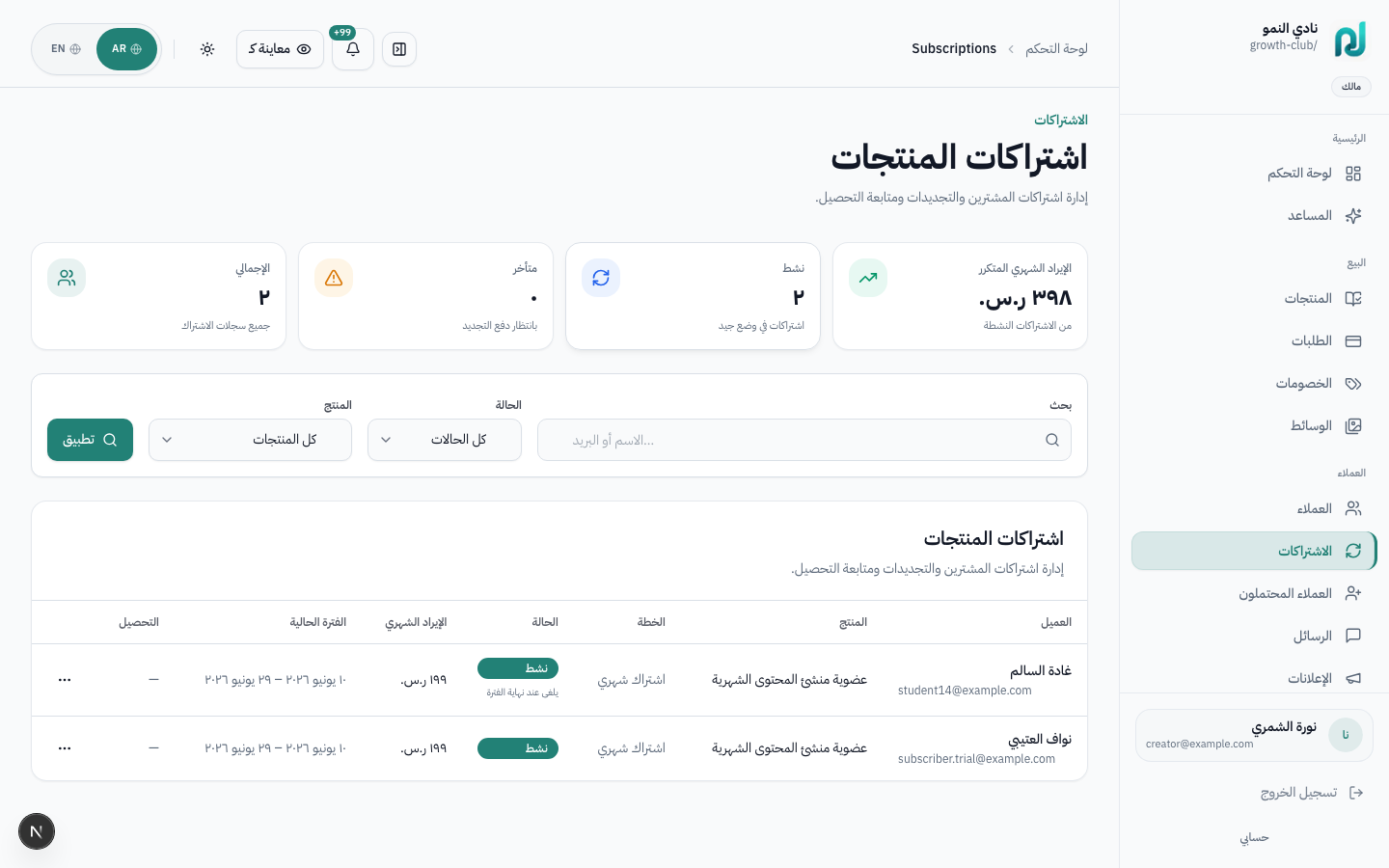
| Metric | Meaning |
|---|---|
| MRR | Monthly recurring revenue from active subscriptions |
| Active | Paid and current subscriptions |
| Past due | Renewal failed — needs follow-up |
| Cancelled / expired | Ended or not renewed |
A product can be saved as draft at any point. Before going live, make sure a buyer can understand the product, pay for it, and access the content or booking without manual help.
Turn an internal draft into a buyer-ready product on the storefront.
Before sharing a product link, running ads, or accepting the first customer.
| Checklist item | Arabic | Where to fix |
|---|---|---|
| Product published | المنتج منشور | Overview → status toggle |
| Active purchase offer | عرض نشط للشراء | Overview → offers section |
| Cover image added | صورة غلاف مضافة | Overview → cover section |
| Product description | وصف المنتج | Overview → description |
| Type | Additional checklist items | Tab |
|---|---|---|
| course | At least 1 module, at least 1 lesson | Content |
| coaching | Booking config, availability window | Overview (booking), Settings (availability) |
| service | Availability windows | Settings |
| digital_download | At least 1 downloadable file | Files (Content tab) |
| bundle | At least 1 bundled product | Contents (Content tab) |
| cohort | Cohort dates configured | Settings |
| exam_prep | At least 1 question | Question bank (Content tab) |
courseDetailed guide: Coaching & Booking.
coachinghttps://lammem.com/p/growth-club/consultation-30min — pick a slot and complete checkout.
/library and verify access.
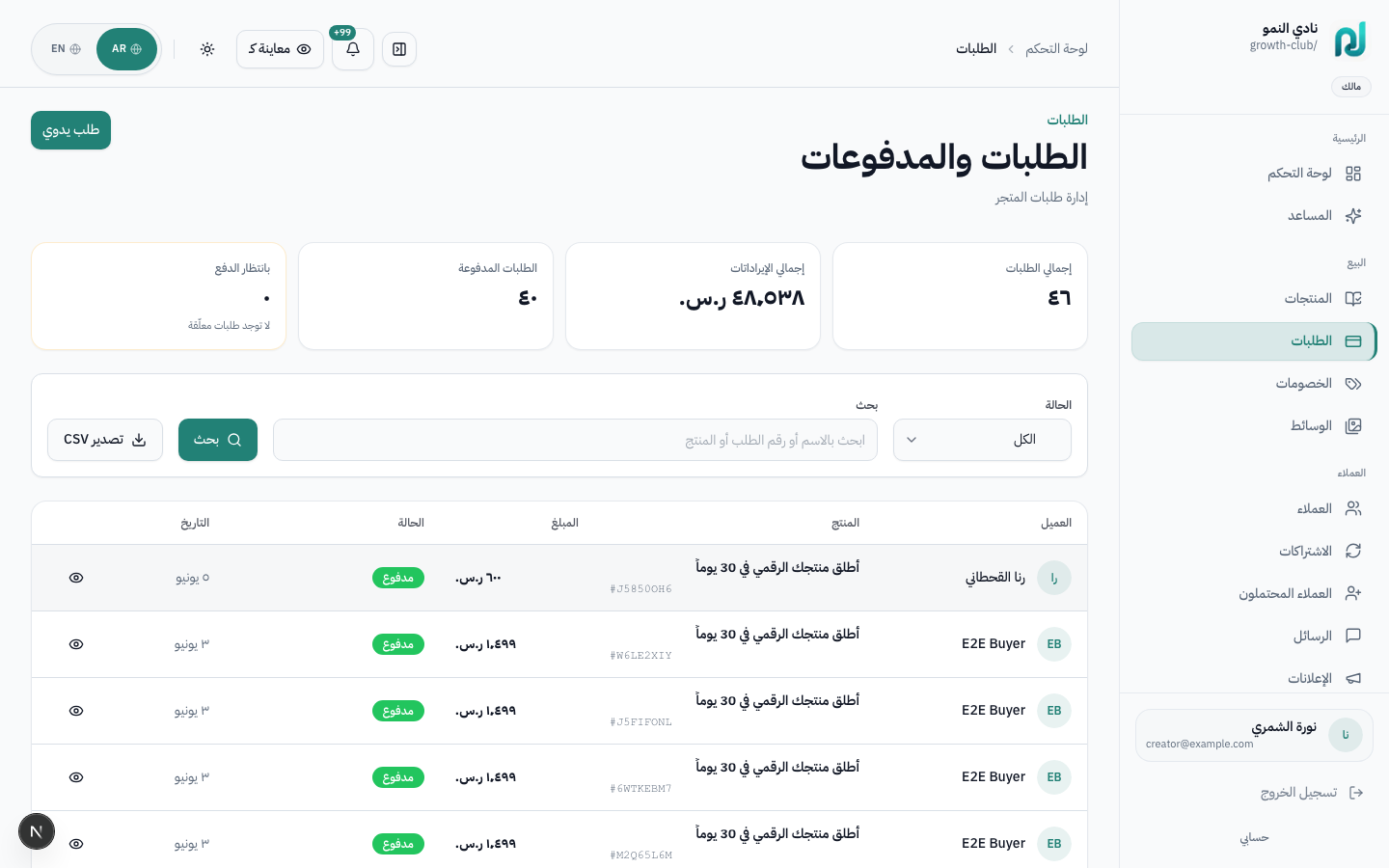
Use this section to track payments, coupons, refunds, and payouts after you start selling.
Track what happens after checkout: paid orders, coupons, refunds, and financial records.
When reviewing a customer order, issuing a refund, or preparing finance/accounting reports.
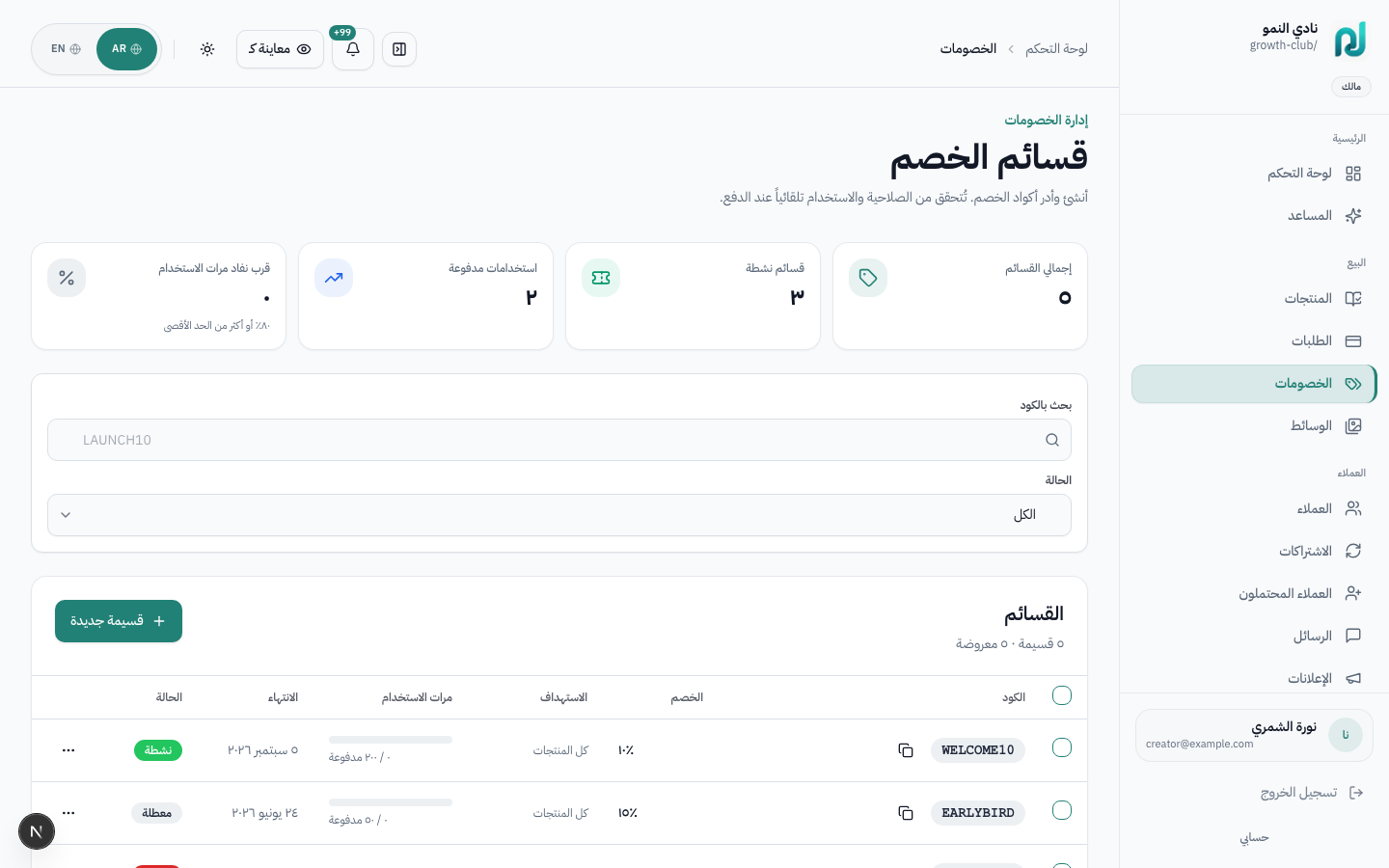
| Field | Example | Notes |
|---|---|---|
| Code | LAUNCH20 | Uppercase, no spaces — customers type at checkout |
| Type | Percentage | Or fixed amount (e.g. 50 SAR off) |
| Value | 20% | Applied to offer price before tax |
| Max uses | 100 | Optional cap for limited campaigns |
| Expires | 2026-12-31 | Code stops working after this date |
| Products | One course only | Or all products in workspace |
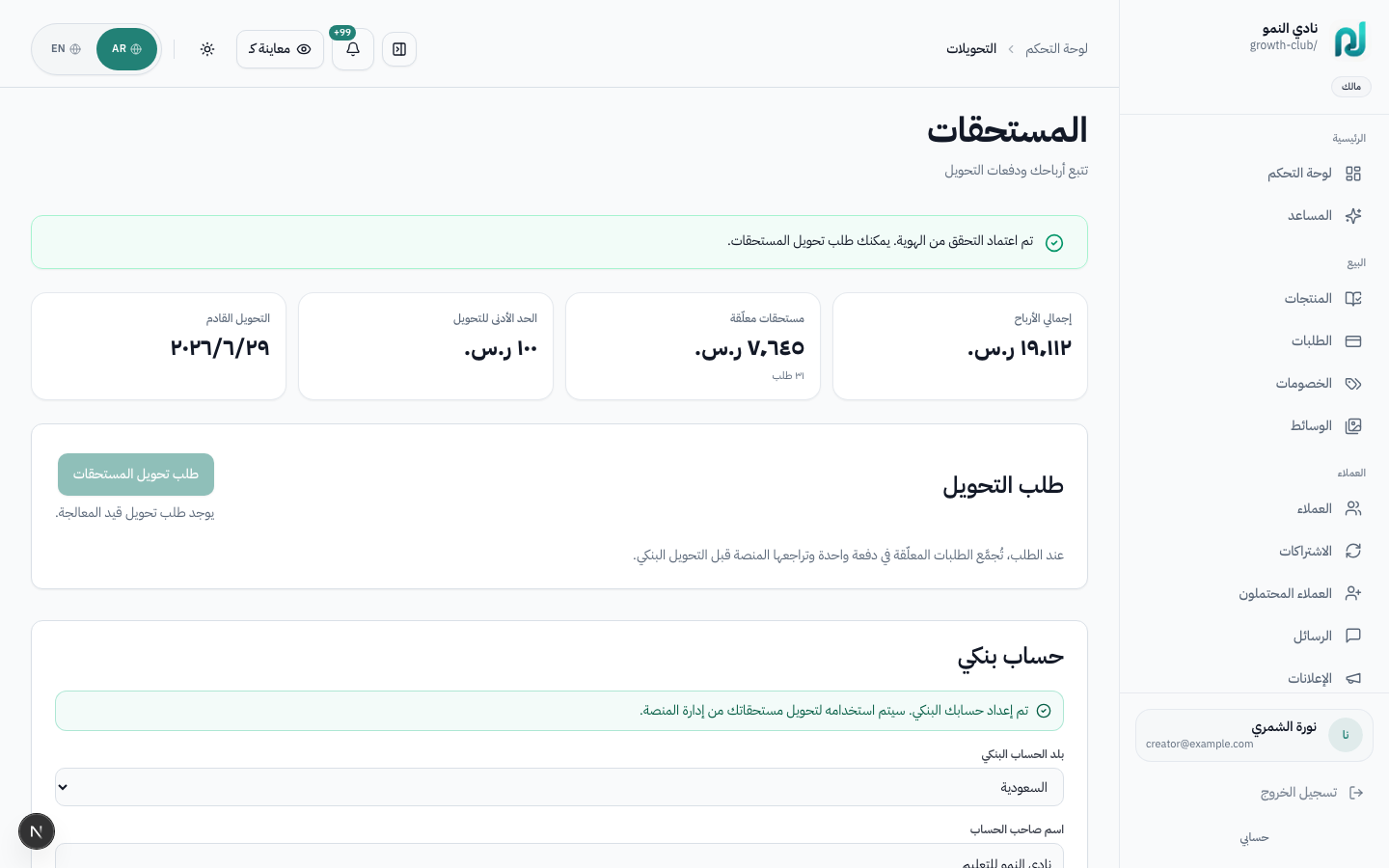
After Moyasar settles payments, net earnings appear on the Payouts page. Connect bank details in Settings → Billing, then request transfers according to your plan schedule.
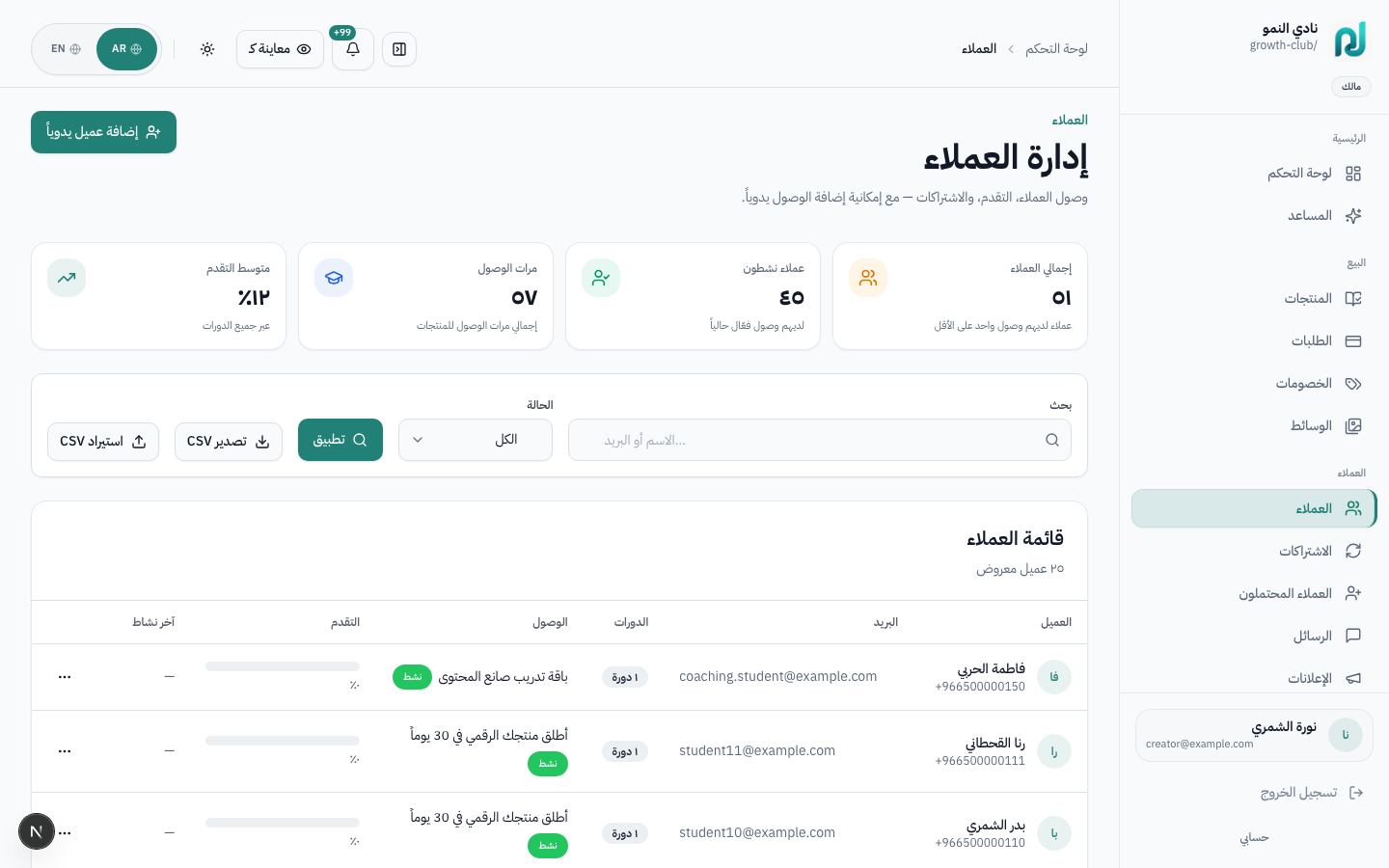
Use the Customers area to manage access, progress, messages, and manual enrollments for corporate or offline sales.
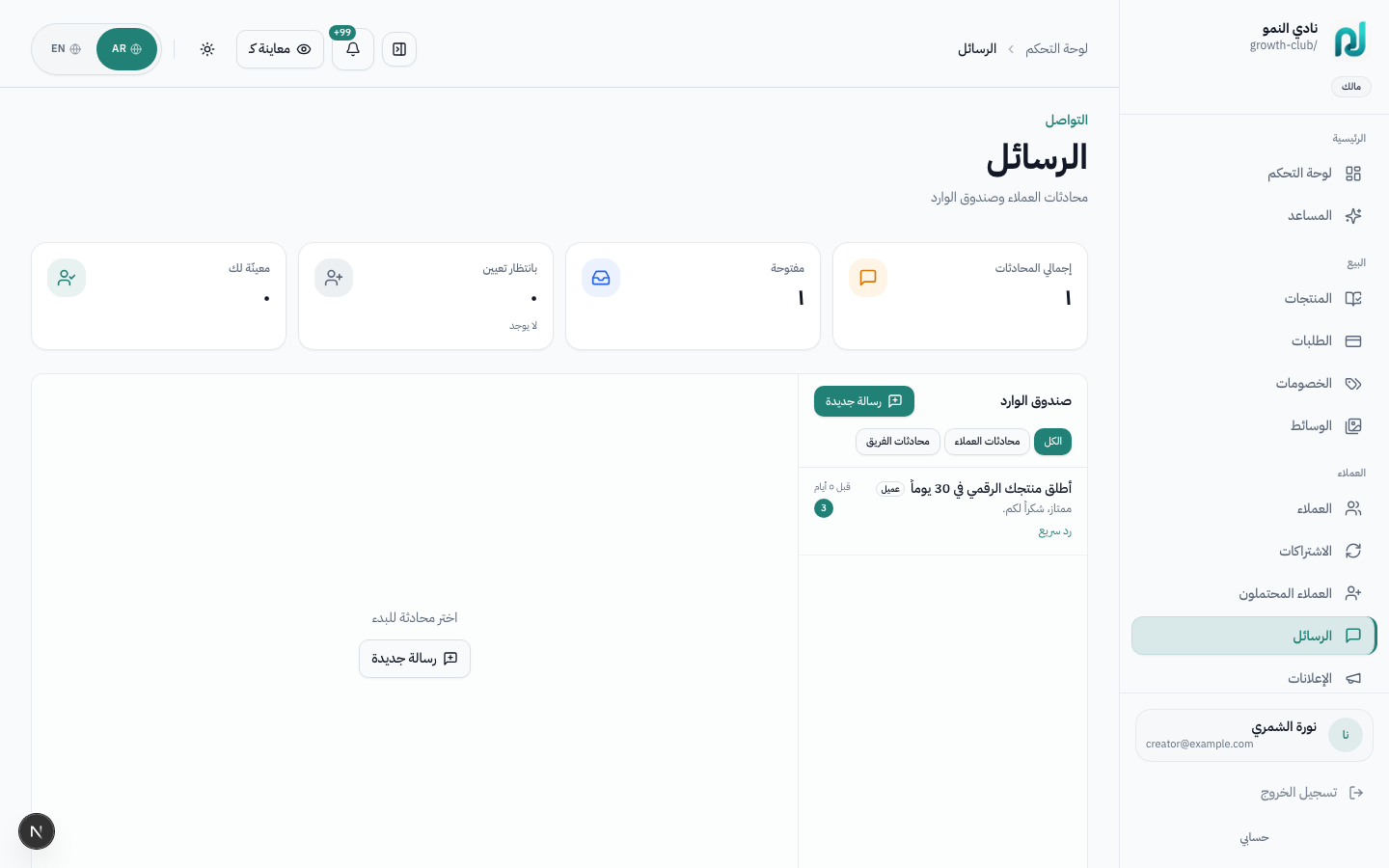
Manage the post-purchase relationship: access, messages, progress, announcements, and manual grants.
When supporting a customer, granting corporate access, sending an announcement, or checking learner progress.
/library
Capture emails via lead forms (/dashboard/forms) with optional double opt-in.
Intake forms (/dashboard/intake-forms) collect pre-session questionnaires for coaching.
After publishing products, growth tools help you understand performance, automate follow-up, and run email or WhatsApp campaigns.
Grow sales after launch by connecting analytics, funnels, automations, campaigns, affiliates, and leads.
When running a launch campaign, improving conversion, following up with leads, or building a referral program.
flowchart LR
  traffic["Traffic / ad"] --> funnel["Sales funnel"]
  funnel --> checkout["Checkout"]
  checkout --> auto["Welcome automation"]
  checkout --> analytics["Analytics"]
  analytics --> campaign["Email / WhatsApp campaign"]
  campaign --> affiliate["Affiliate partners"]
/dashboard/analytics)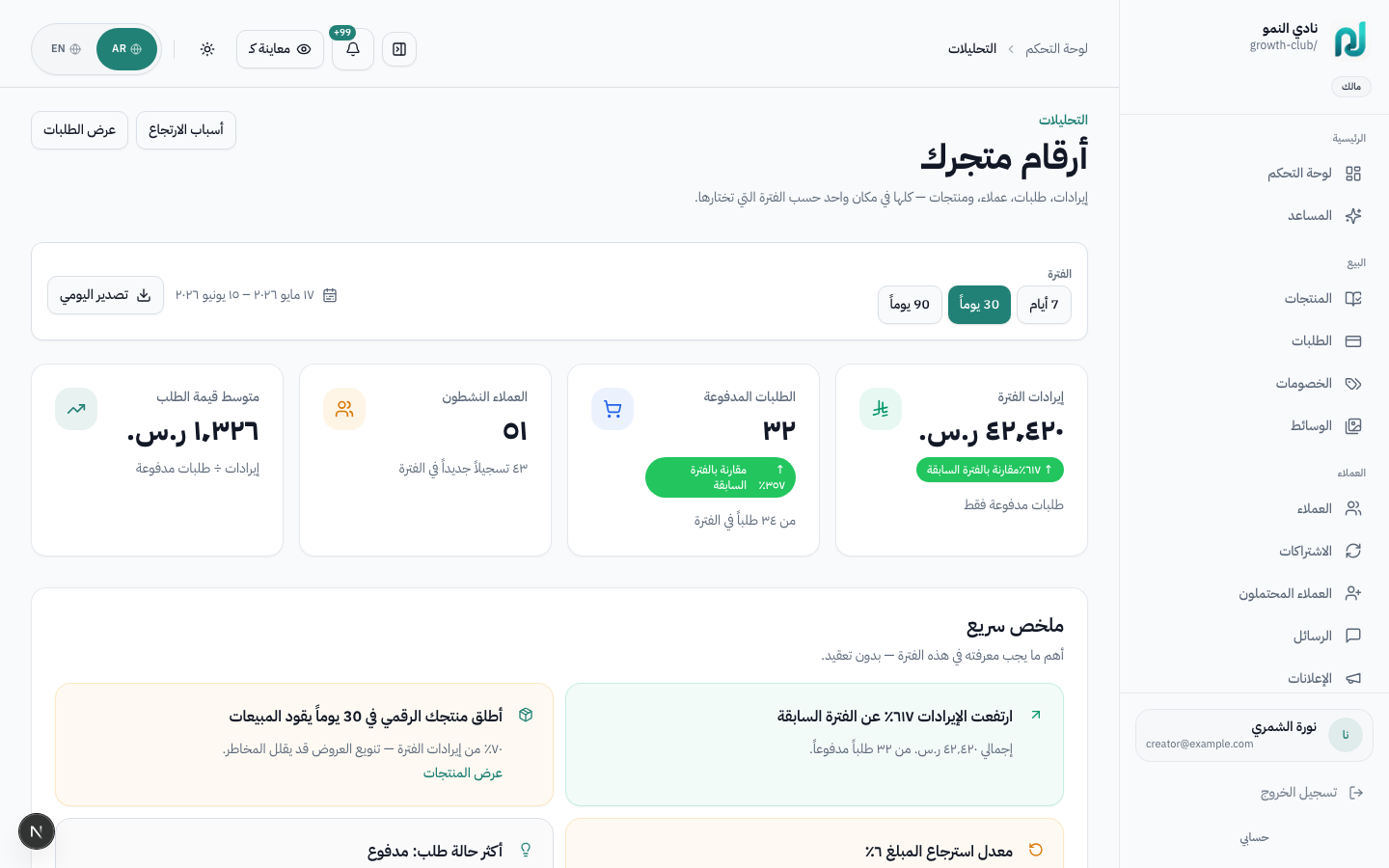
| Metric | Meaning |
|---|---|
| Revenue | Total sales in period |
| MRR | Monthly recurring from active memberships — see Subscriptions |
| Conversion | Visits → completed checkouts |
| Churn | Cancellations vs renewals |
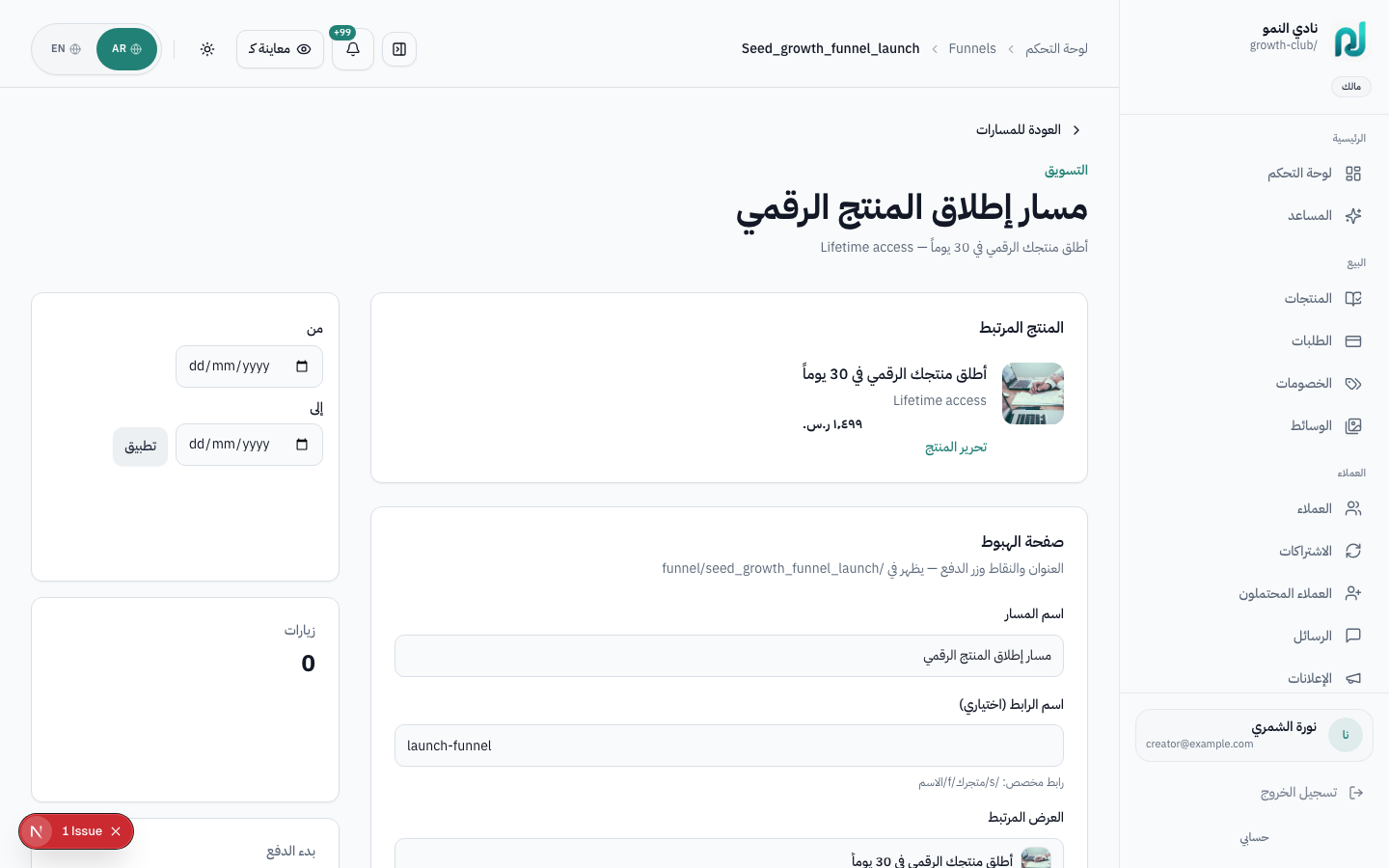
/dashboard/funnels)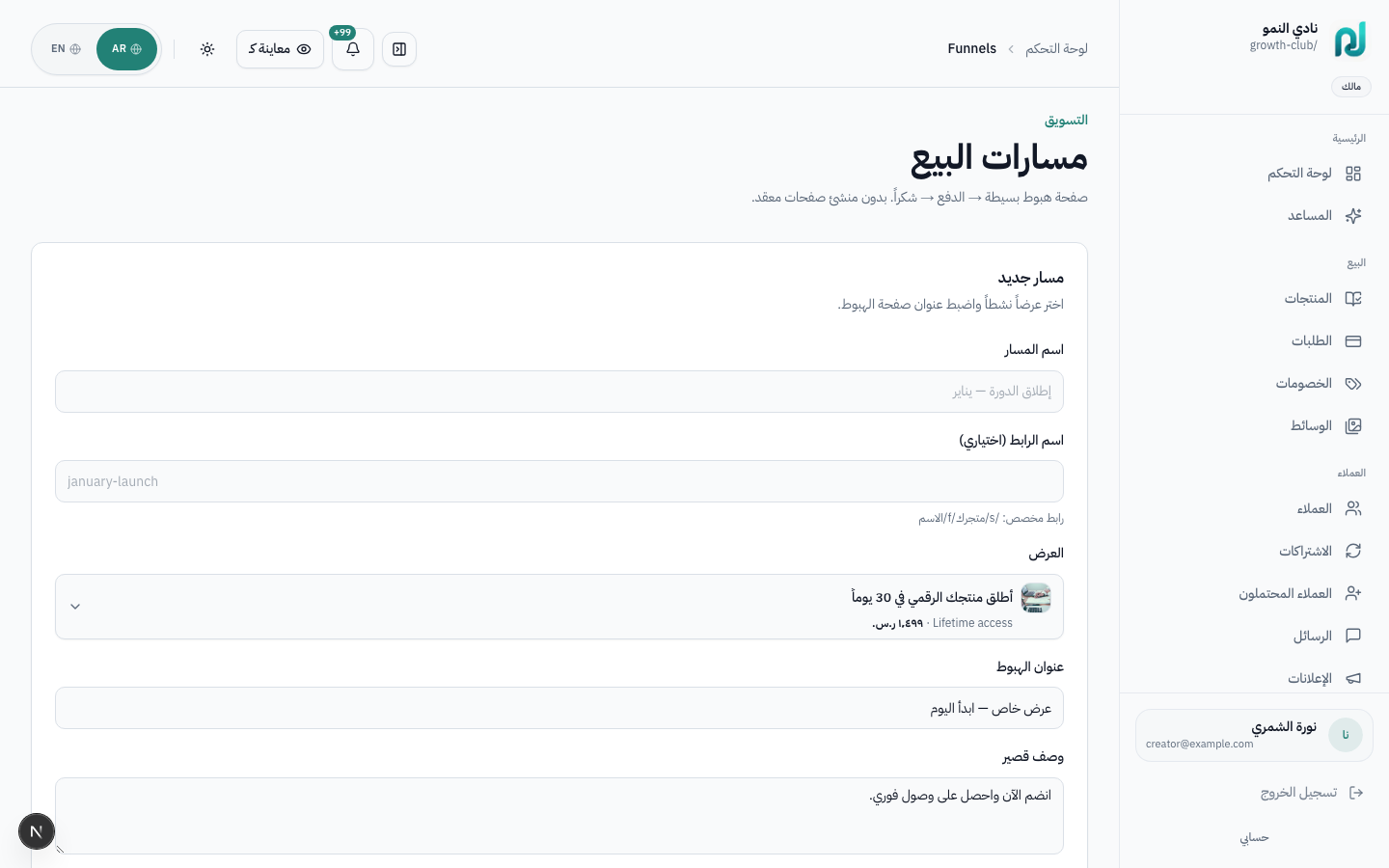
/dashboard/automations)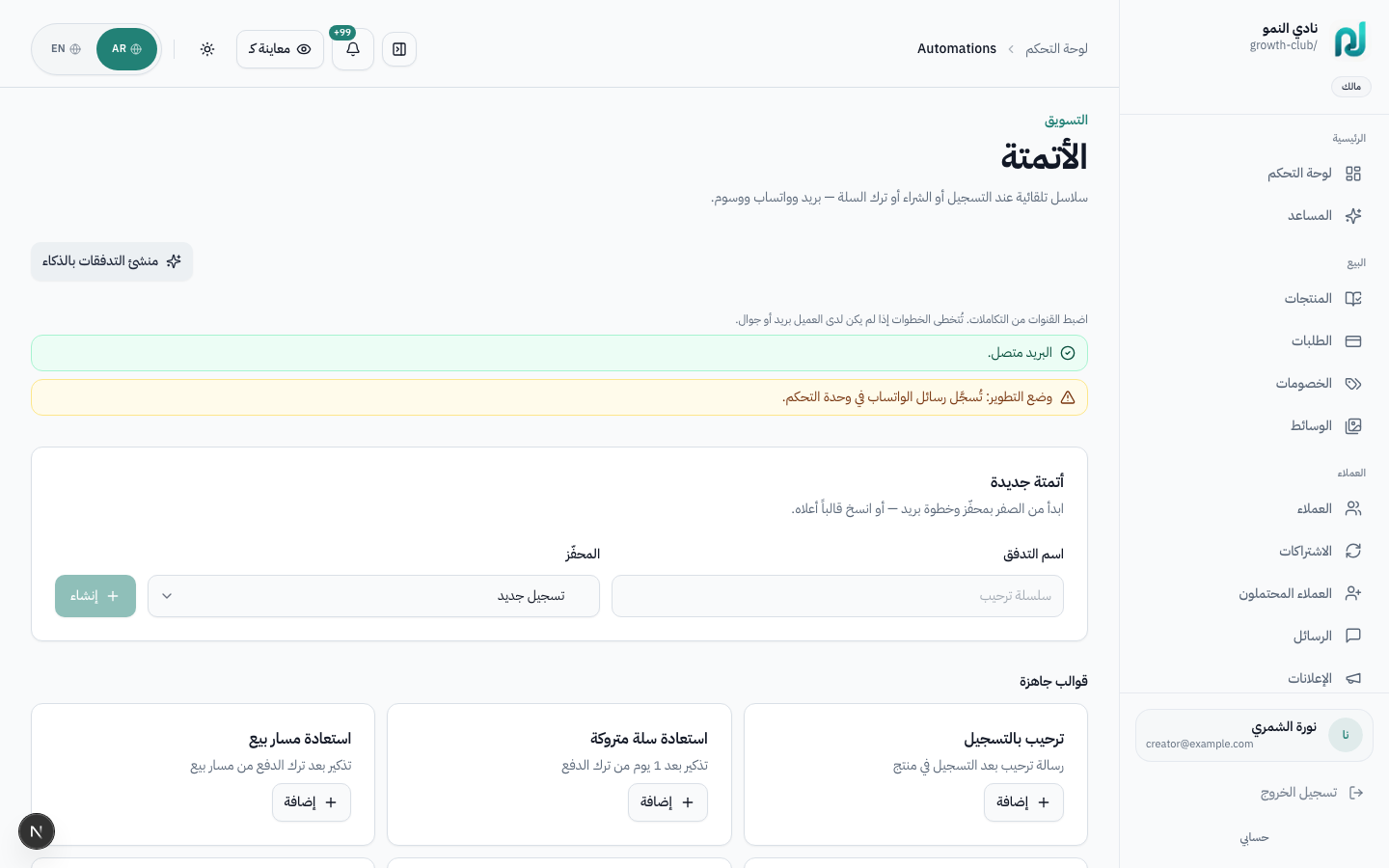
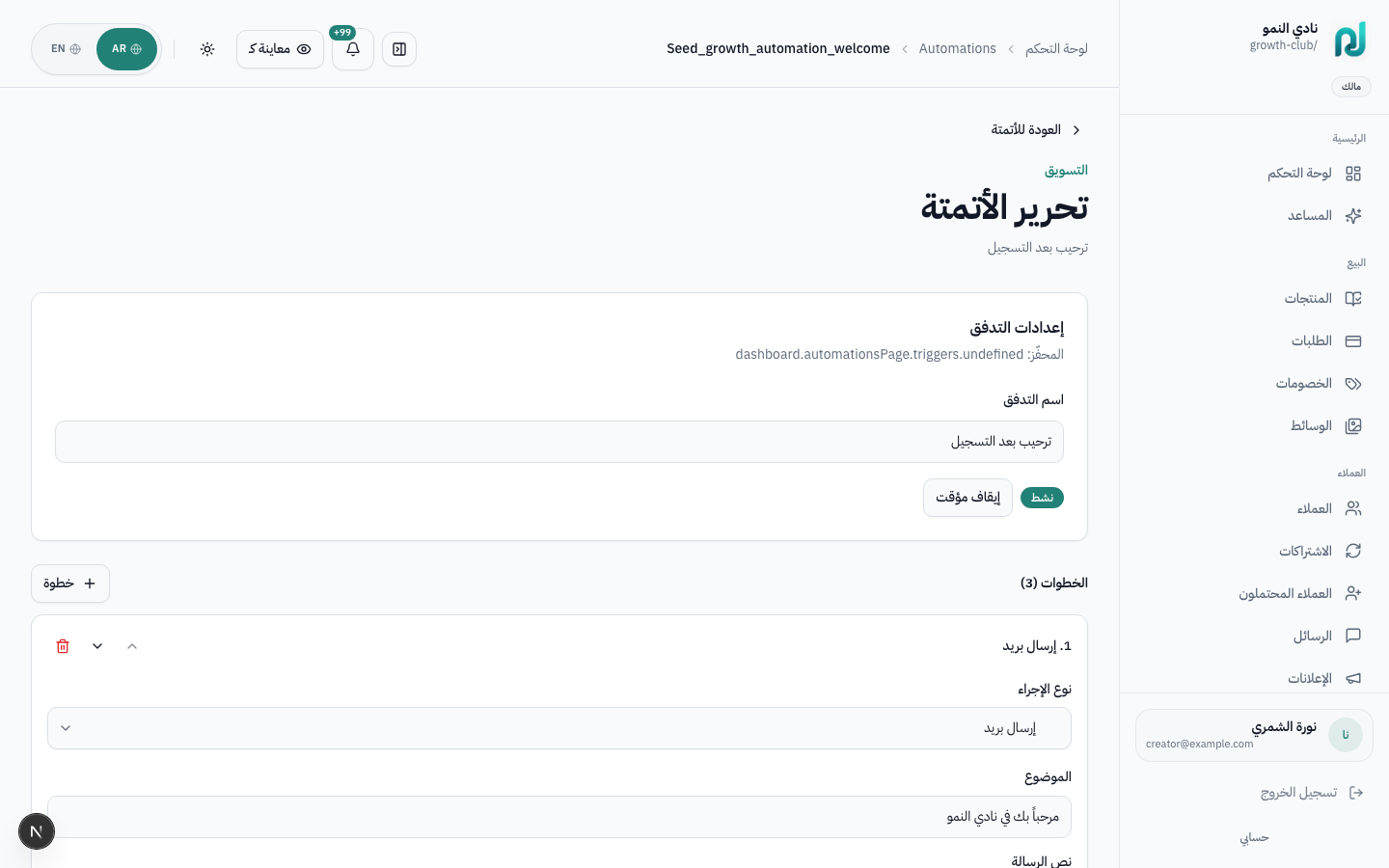
Triggers include order.paid, enrollment.created, checkout.abandoned, learner.at_risk, and subscription events.
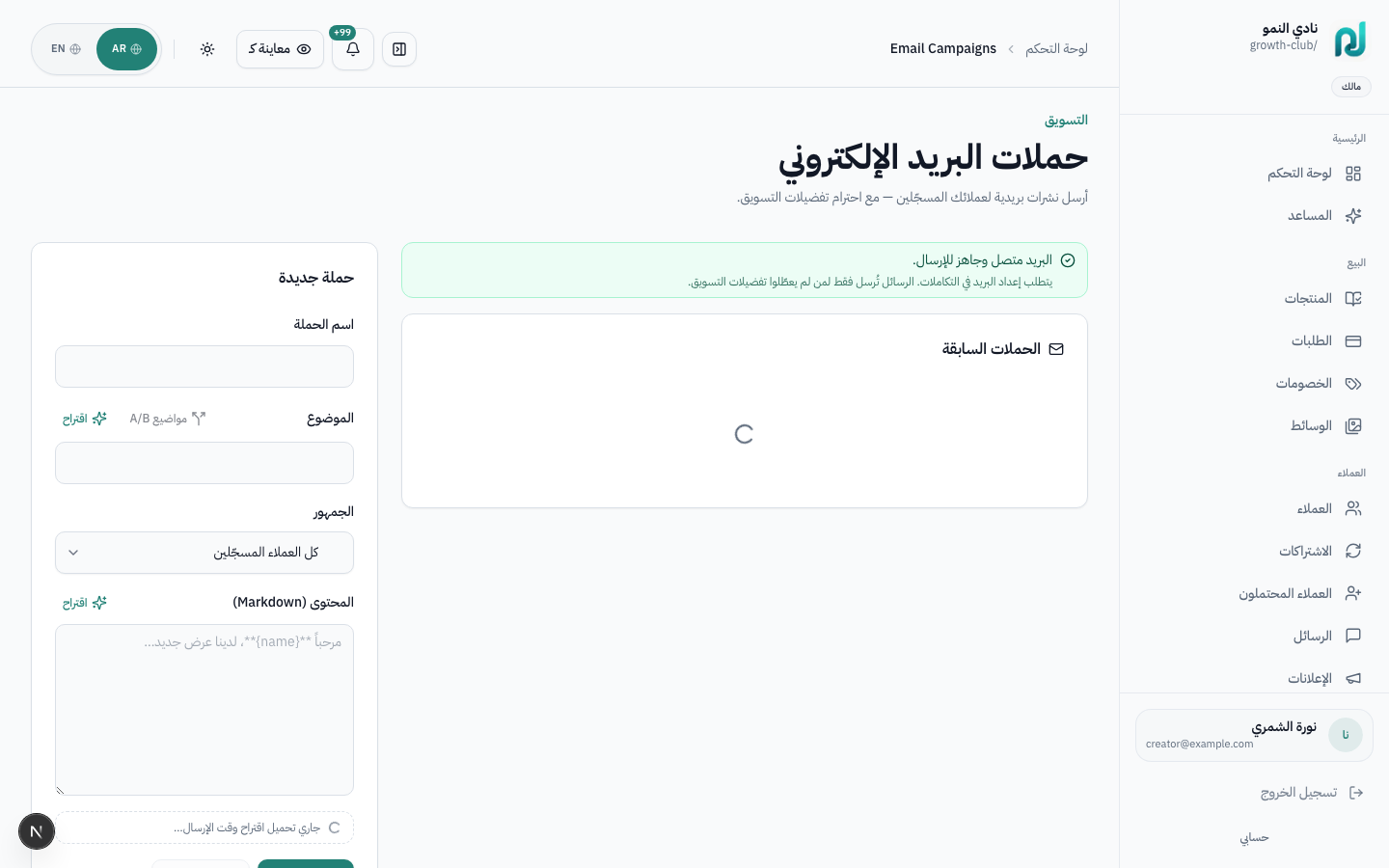
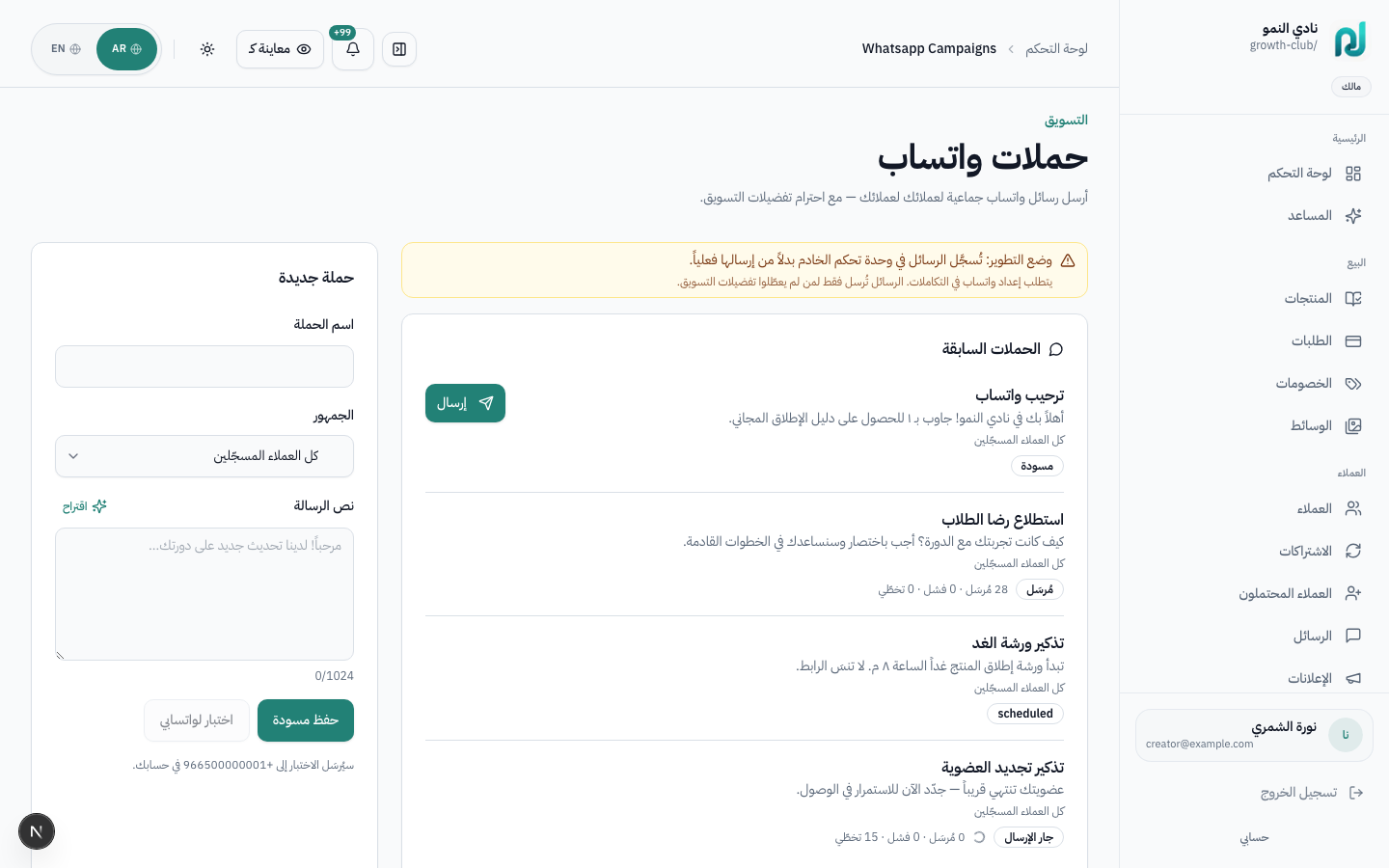
/dashboard/affiliates)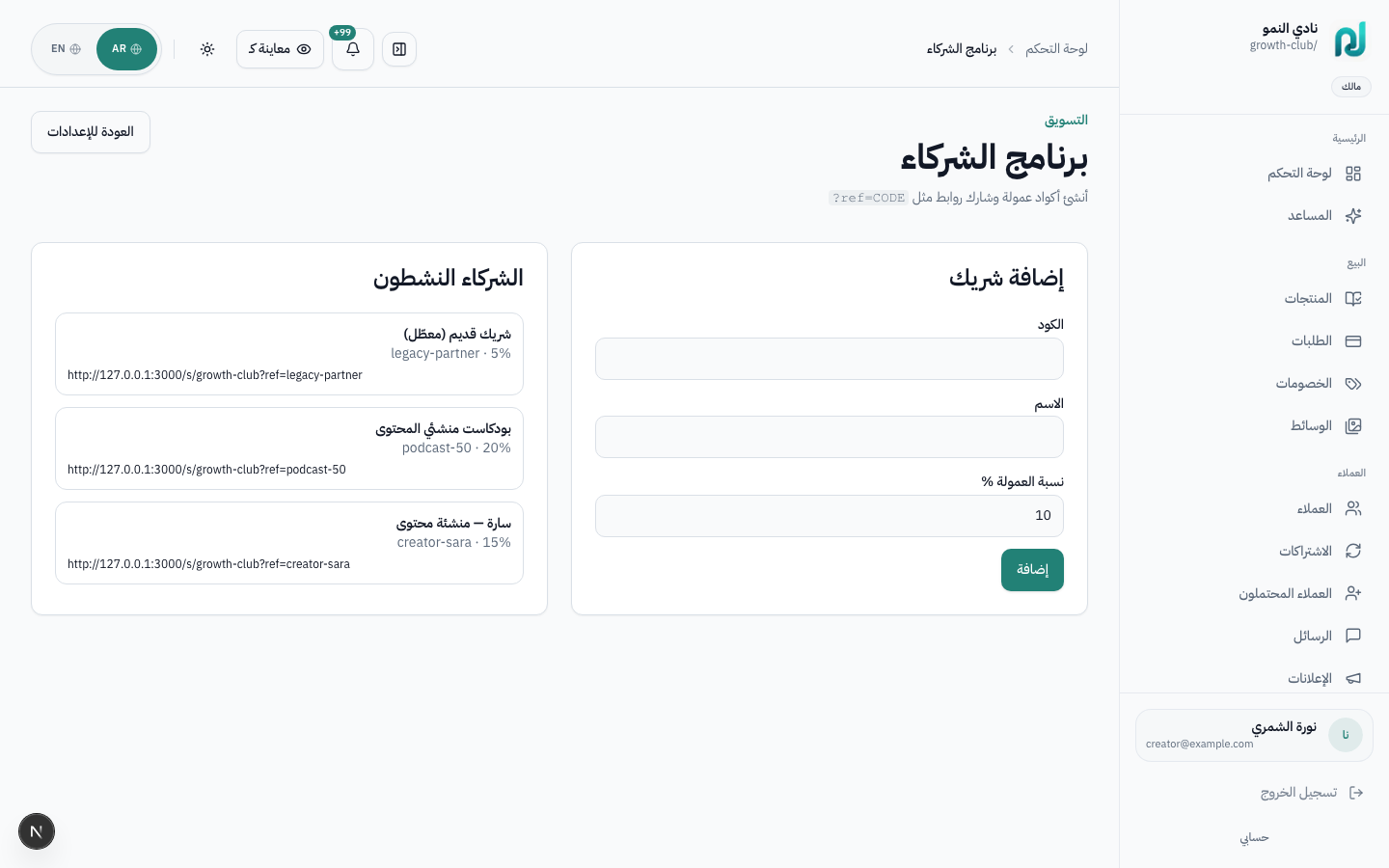
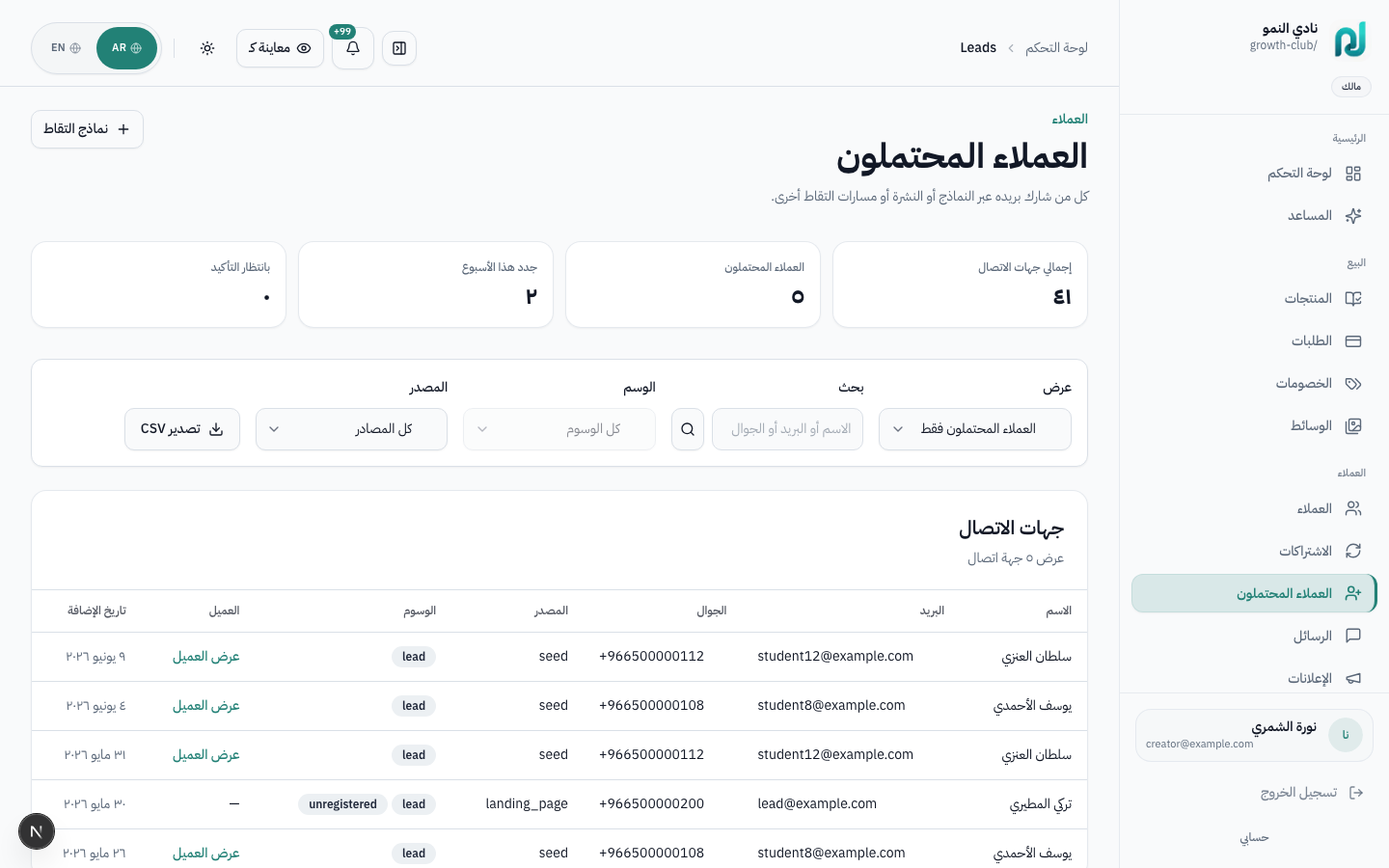
Lead forms (/dashboard/forms), leads inbox (/dashboard/leads), intake forms for coaching — see Coaching & booking.
Day-to-day tools for locations, coaching sessions, bank payouts, and audit compliance.
Keep the operational details organized after launch: branches, sessions, payouts, and audit history.
When setting locations, managing sessions, requesting payouts, or checking who changed what.
/dashboard/locations)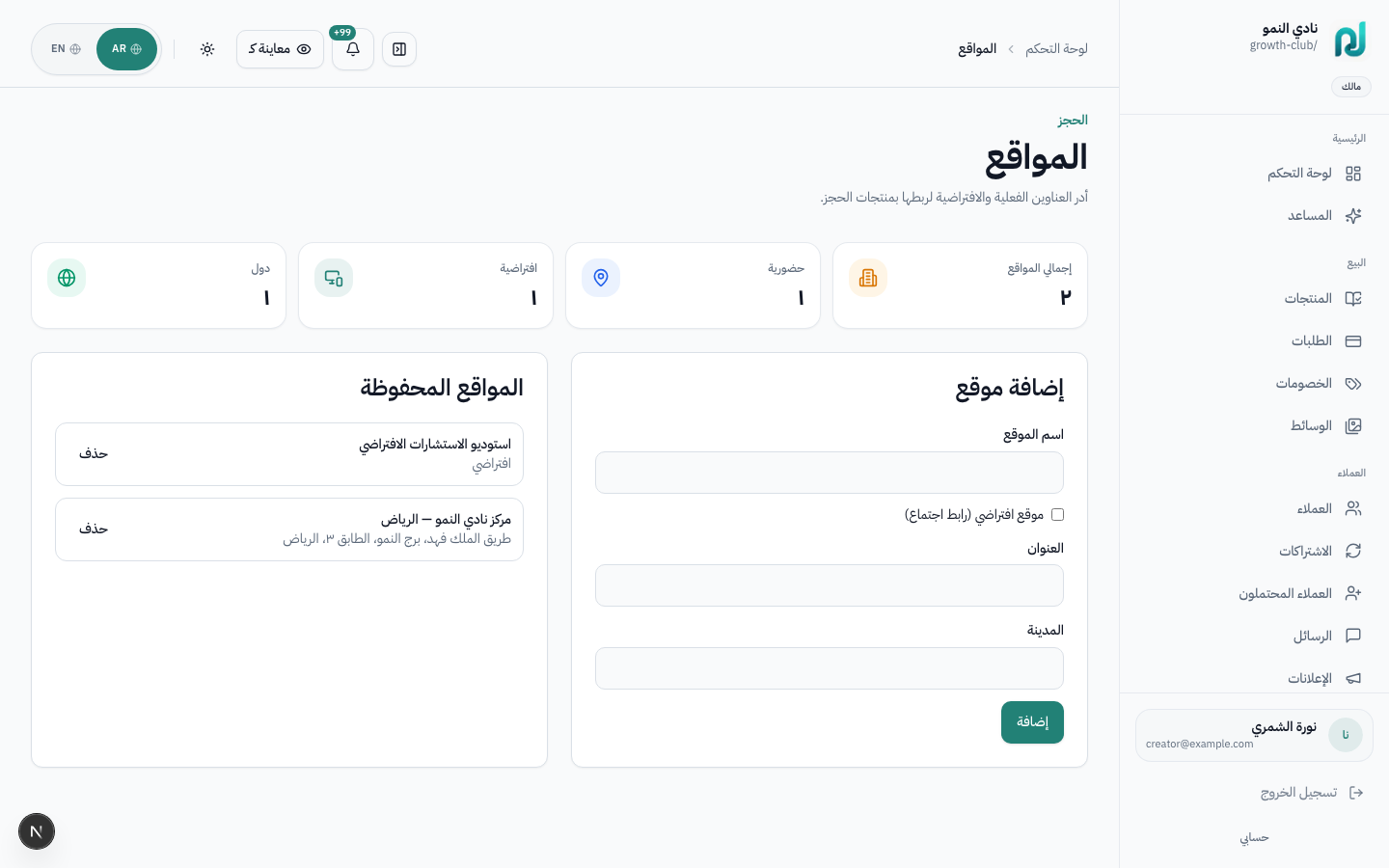
Physical branches, clinics, or virtual meeting defaults for coaching, service, and event products.
/dashboard/coaching-sessions)
Configure availability in Coaching & booking.
/dashboard/payouts)
/dashboard/audit)Team change history — who edited products, orders, or settings and when.
Extend your store with third-party apps: CRM sync, analytics, webhooks, and custom integrations.
Browse the public catalog at /apps, install per workspace at
/dashboard/apps, and build your own apps in the Developer portal.
Explain how store owners discover, install, and manage apps; how developers publish; how platform admins review.
When connecting external tools, evaluating paid app subscriptions, or building an integration for multiple Lam Meem stores.
Anyone can browse published apps at /apps. Each card shows name, short description,
category, and pricing (free or paid). Logged-in store owners click through to install.
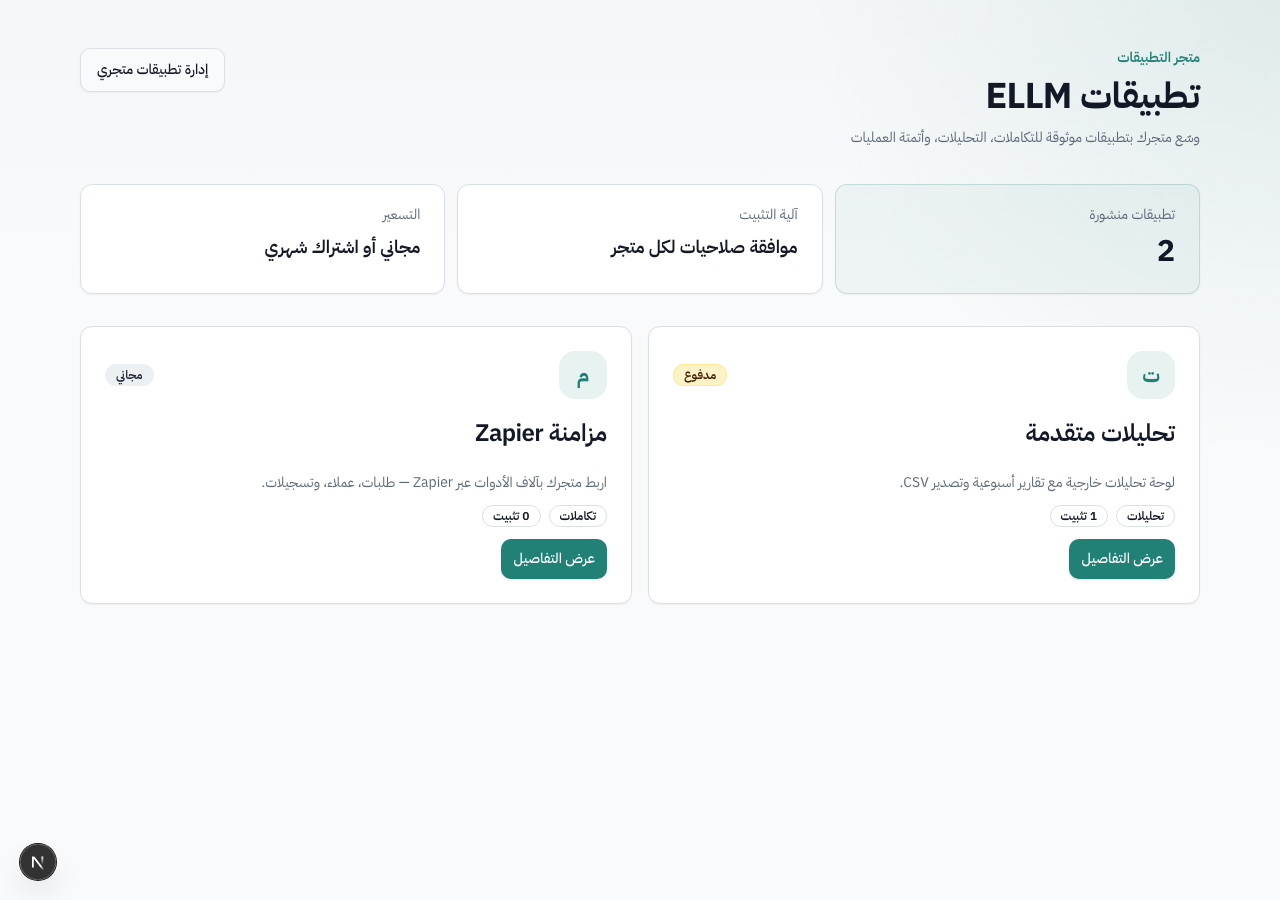
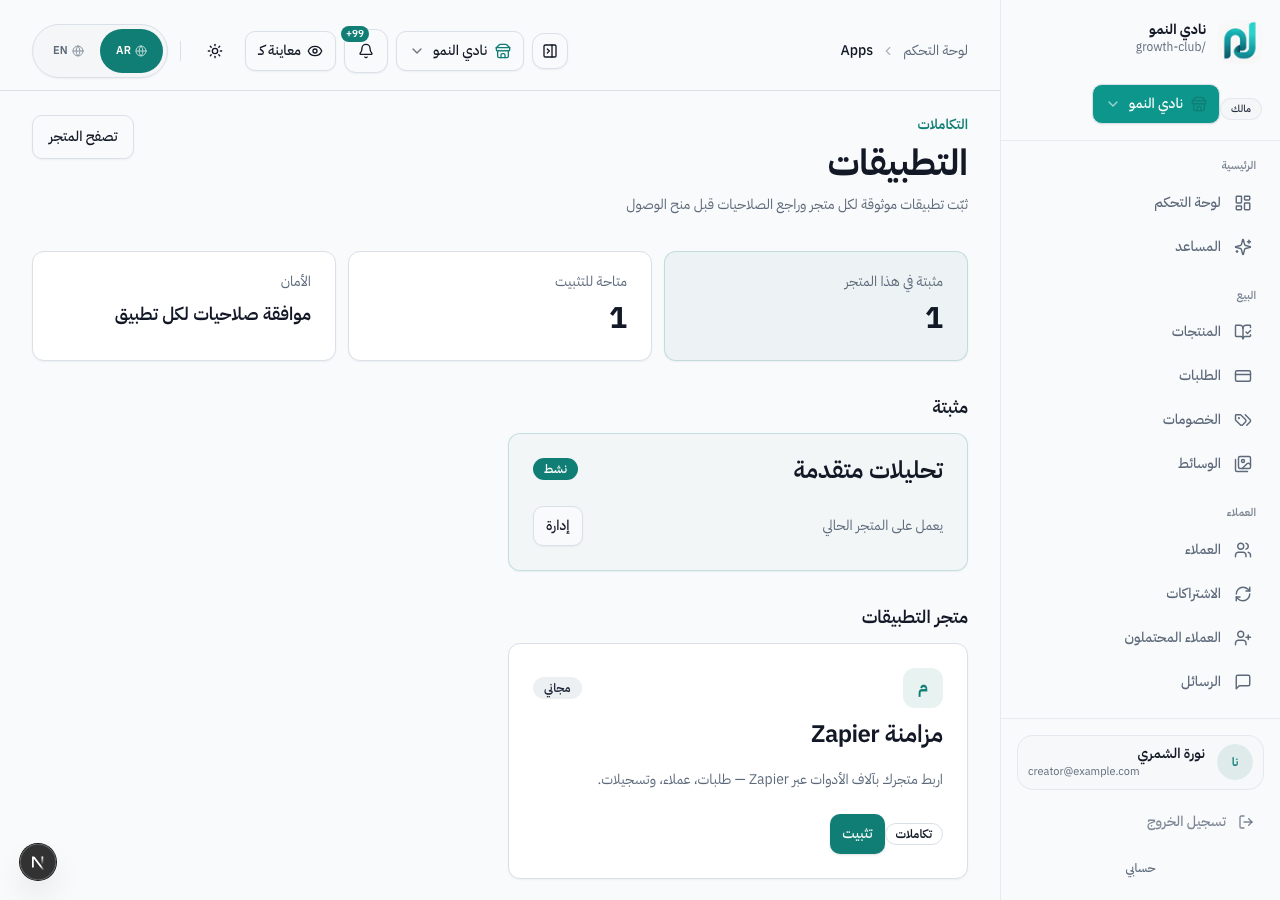
/dashboard/apps lists installed apps for the active workspace and
apps available to install. Subscription-priced apps may add a line item to your platform billing
invoice when one is pending.
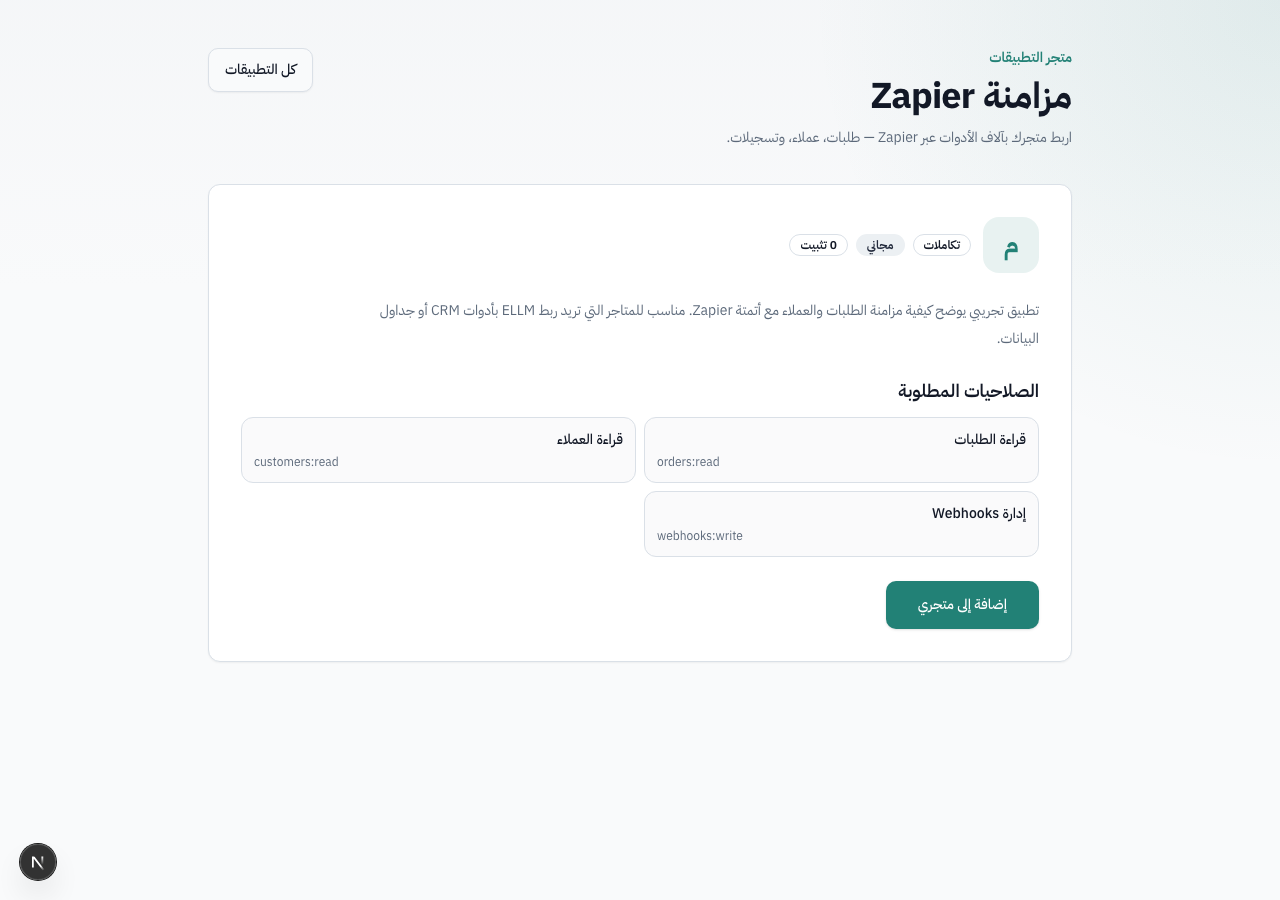
Before install, you approve a subset of the permissions declared in the app manifest.
The platform rejects requests for capabilities not listed by the developer. After install,
an API token (ellma_…) is shown once — store it securely for server-side use.
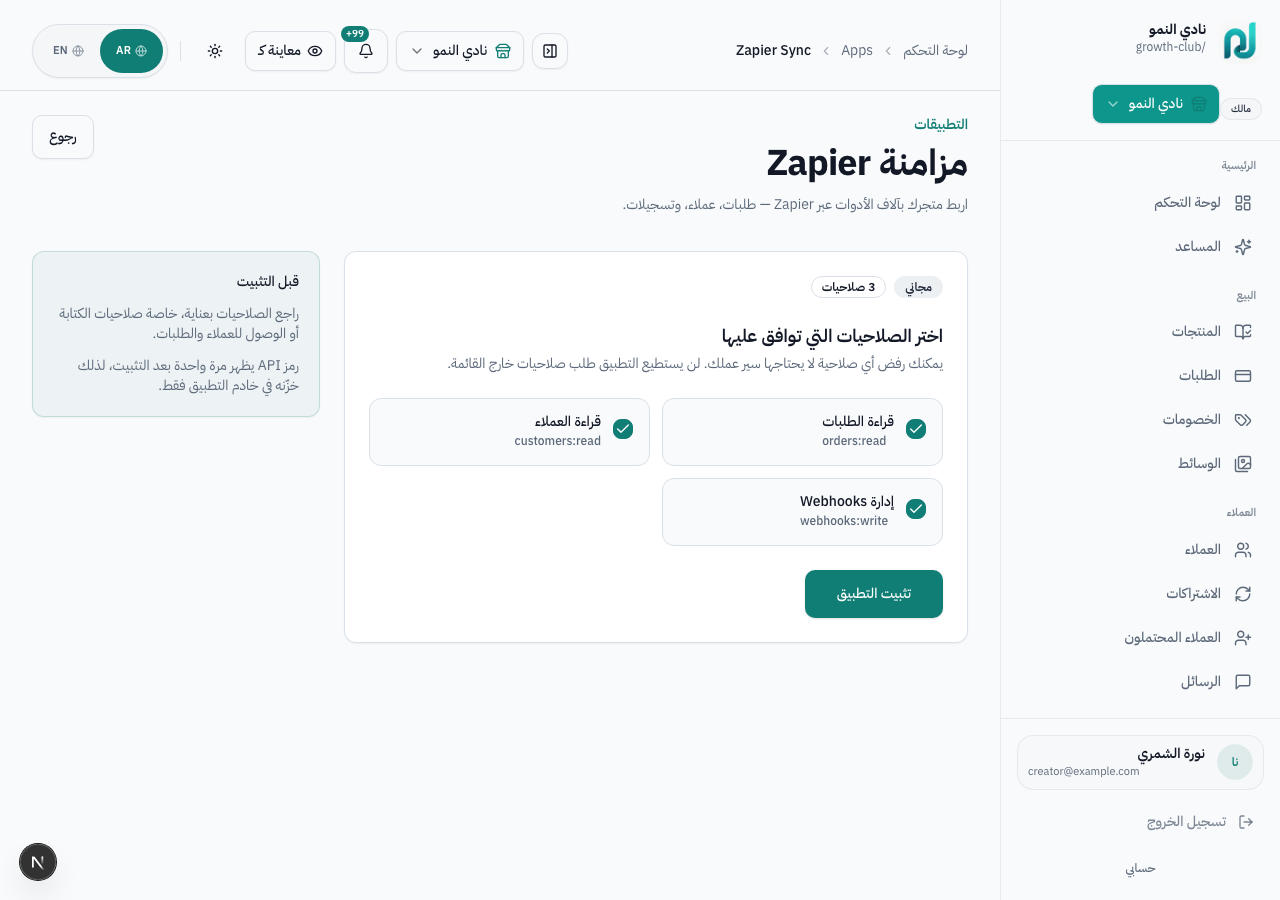
| Capability | Typical use |
|---|---|
products:read | Sync catalog to external CRM or ads |
orders:read | Push paid orders to accounting |
customers:read | Enrich buyer profiles |
webhooks:write | Receive order/enrollment events |
workspace:read | Read store metadata |
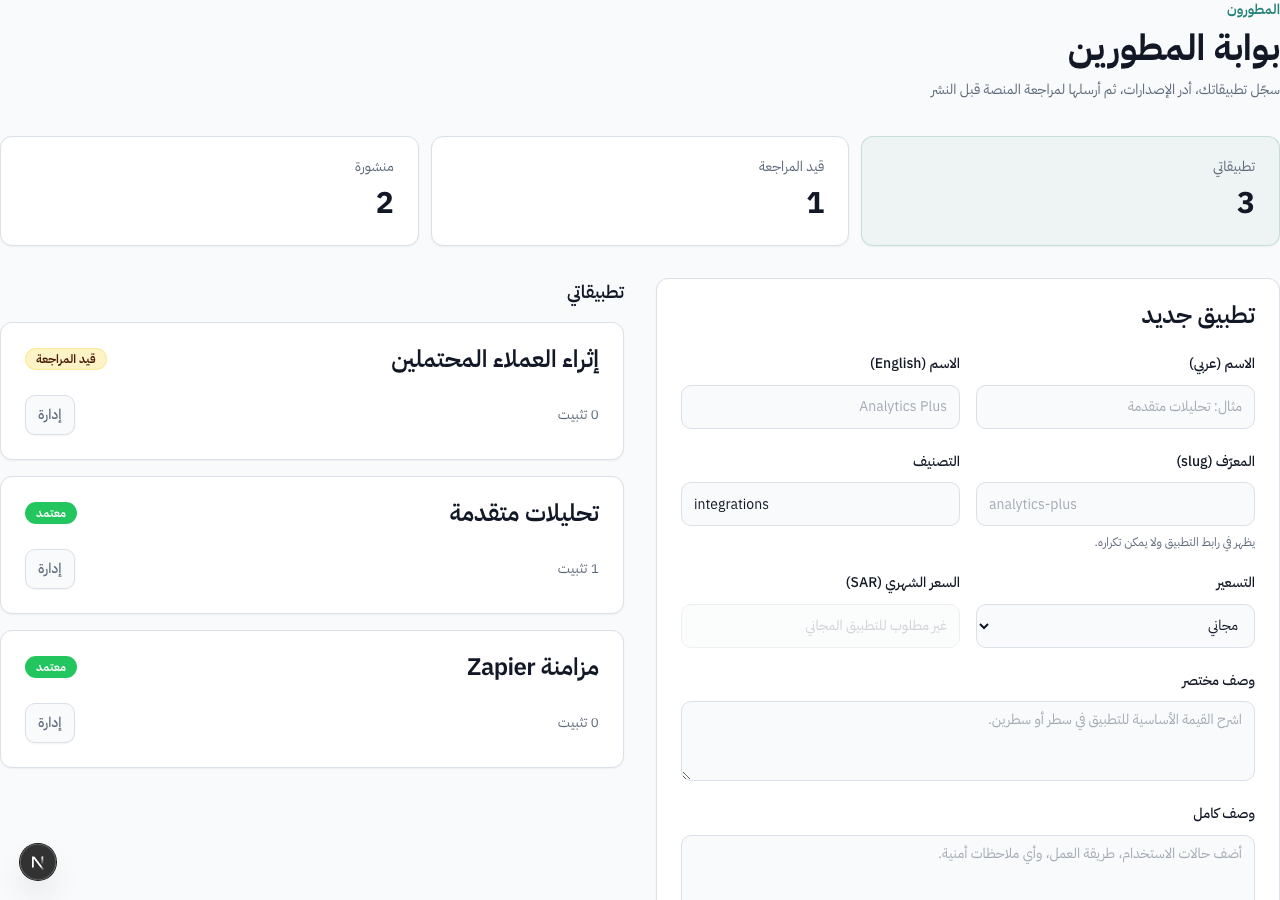
At /developer, registered developers create apps, set pricing (free or subscription),
upload a manifest with required permissions, and submit for platform review. Manage versions and
webhook endpoints per installation from the app detail page.
Platform admins approve or reject apps at /platform/apps before they appear in the
public catalog. Demo: after seeding, Lead Enricher stays pending for review.
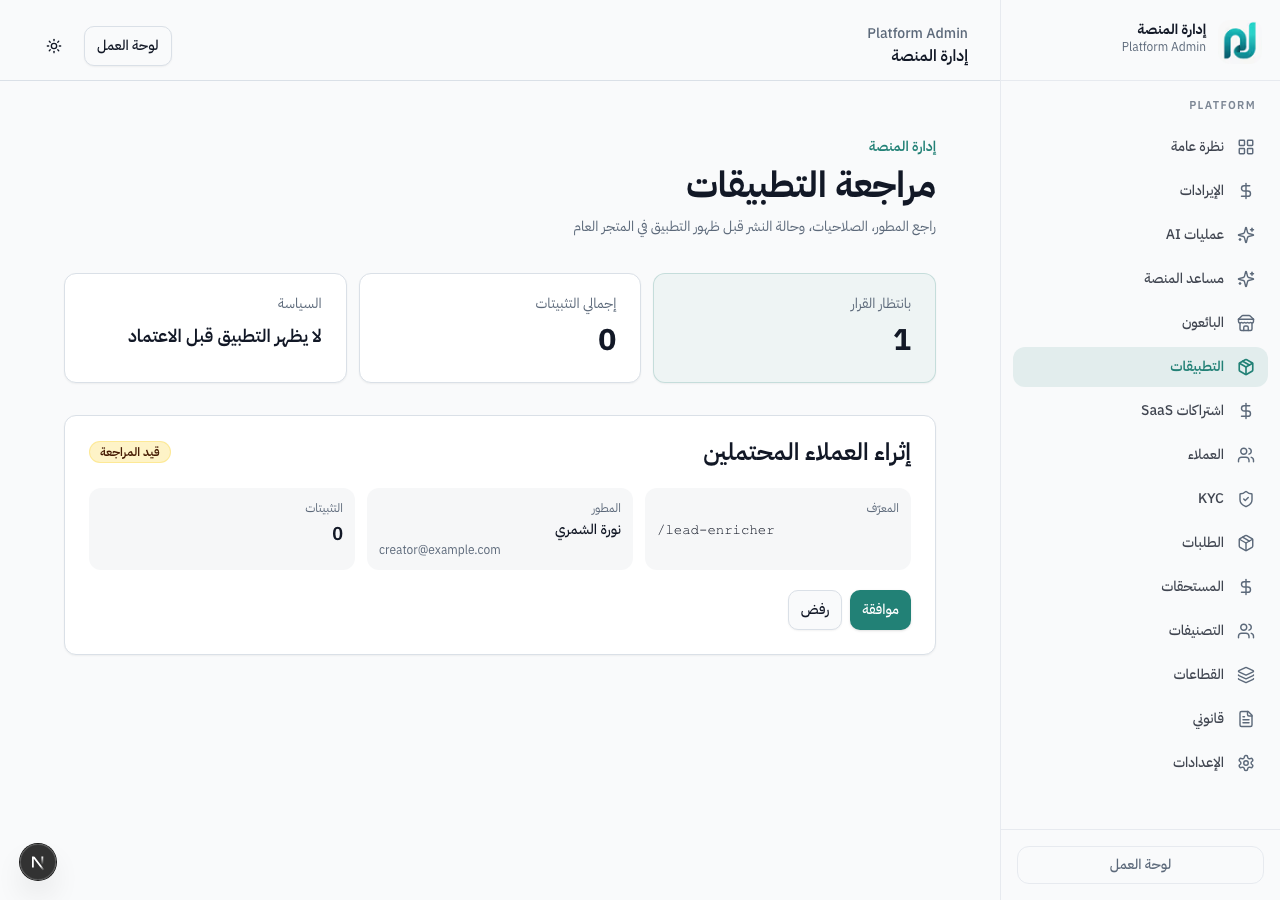
npm run db:seed:apps-marketplace-demo -w @ellm/db
adds Zapier Sync (free), Analytics Plus (installed on Growth Club), and Lead Enricher (pending review).
| Path | Audience | Purpose |
|---|---|---|
/apps | Public | Browse published apps |
/apps/{slug} | Public / owners | App details |
/dashboard/apps | Store owner | Install & manage per workspace |
/developer | Developer | Register and publish apps |
/platform/apps | Platform admin | Review submissions |
/api/v1/apps/* | Installed app (token) | REST API for products, orders, customers |
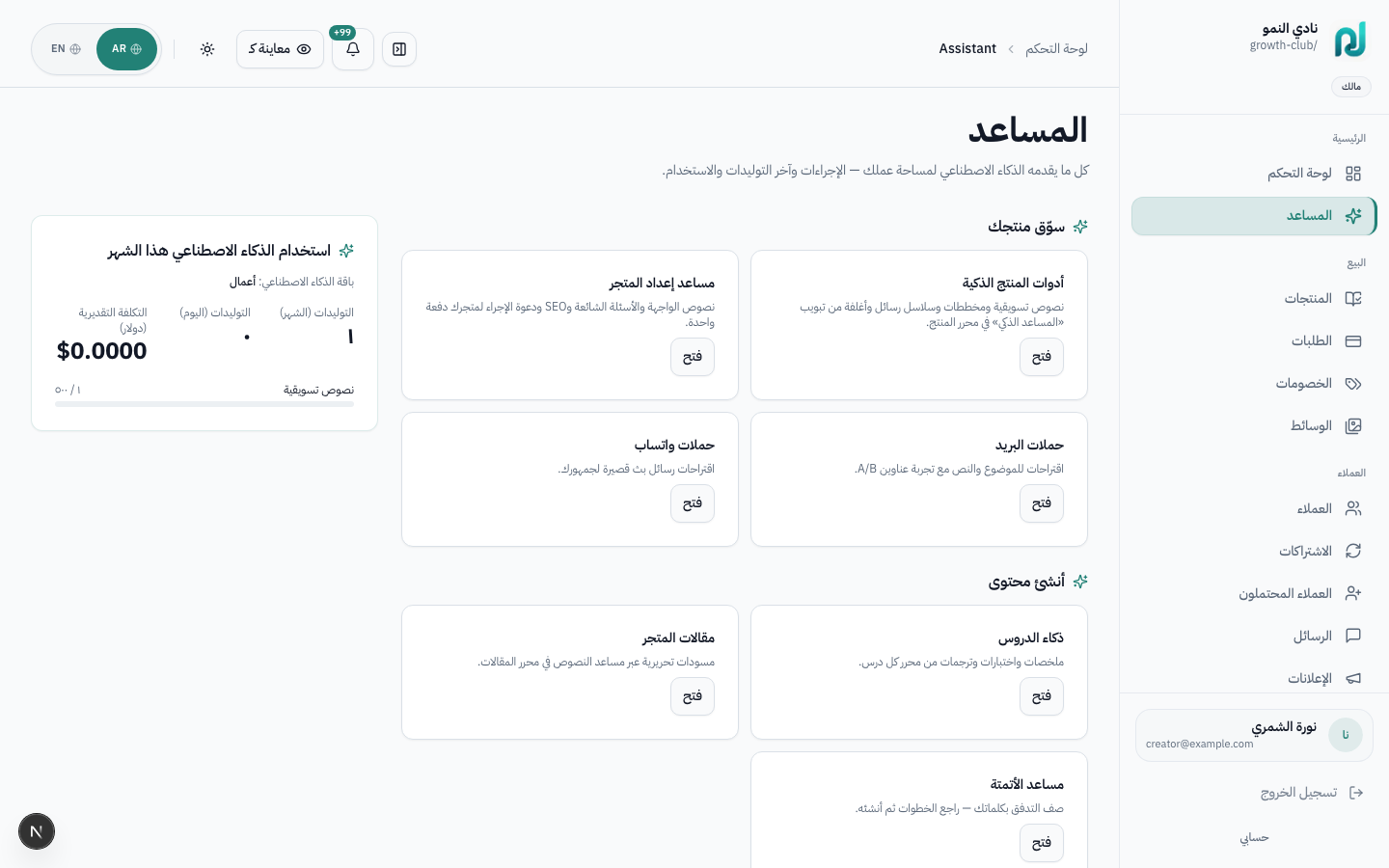
/dashboard/assistant is the hub for AI capabilities across the platform: writing, summarizing, outlines, quizzes, storefront copy, and campaigns.
Show where AI tools live and when to use each capability.
When writing product copy, generating outlines, creating quizzes, summarizing content, or improving storefront text.
| Feature | Where | Provider |
|---|---|---|
| Copy & outlines | Product editor, storefront settings | OpenRouter |
| Lesson sequences | Course content tab | OpenRouter |
| Storefront copilot | Settings → Storefront | OpenRouter |
| Email/WhatsApp drafts | Campaigns, automations | OpenRouter |
| Q&A digest | Dashboard → Q&A digest | OpenRouter |
| Search reranking | Storefront search | OpenRouter |
| Cover images | Product media | OpenAI DALL·E |
| Transcription | Lesson video upload | OpenAI Whisper |
Usage caps and cost estimates appear on the dashboard home and next to each AI action.
| Your goal | Go to | Action |
|---|---|---|
| First product from scratch | Products → New → AI | Describe idea → Apply to product |
| Sales page copy only | Product editor → Overview | Description → Suggest (اقتراح) |
| Course outline | Product editor → AI tab | Generate outline → apply modules |
| Lesson quiz | Lesson editor → Quiz | Generate quiz from content |
| Storefront hero text | Settings → Storefront | AI copilot on section fields |
| Cover image | Product → Media / AI tab | DALL·E generation (OpenAI key) |
| Video transcript | Lesson → Media tab | Automatic after upload (Whisper) |
The settings hub at /dashboard/settings controls your workspace: region and tax,
platform plan, customer payments, integrations, team, and terminology.
Public storefront appearance has a dedicated guide in
Storefront customization.
One reference for every settings page — what it does, where to find it, and who can edit it.
Launching a new store, enabling Moyasar, inviting staff, customizing Arabic labels, or upgrading your plan.
Settings use two levels: primary tabs (General · Storefront · Team) and secondary pills at the top (Billing · Payments · Integrations · Notifications · Terminology · Developer).
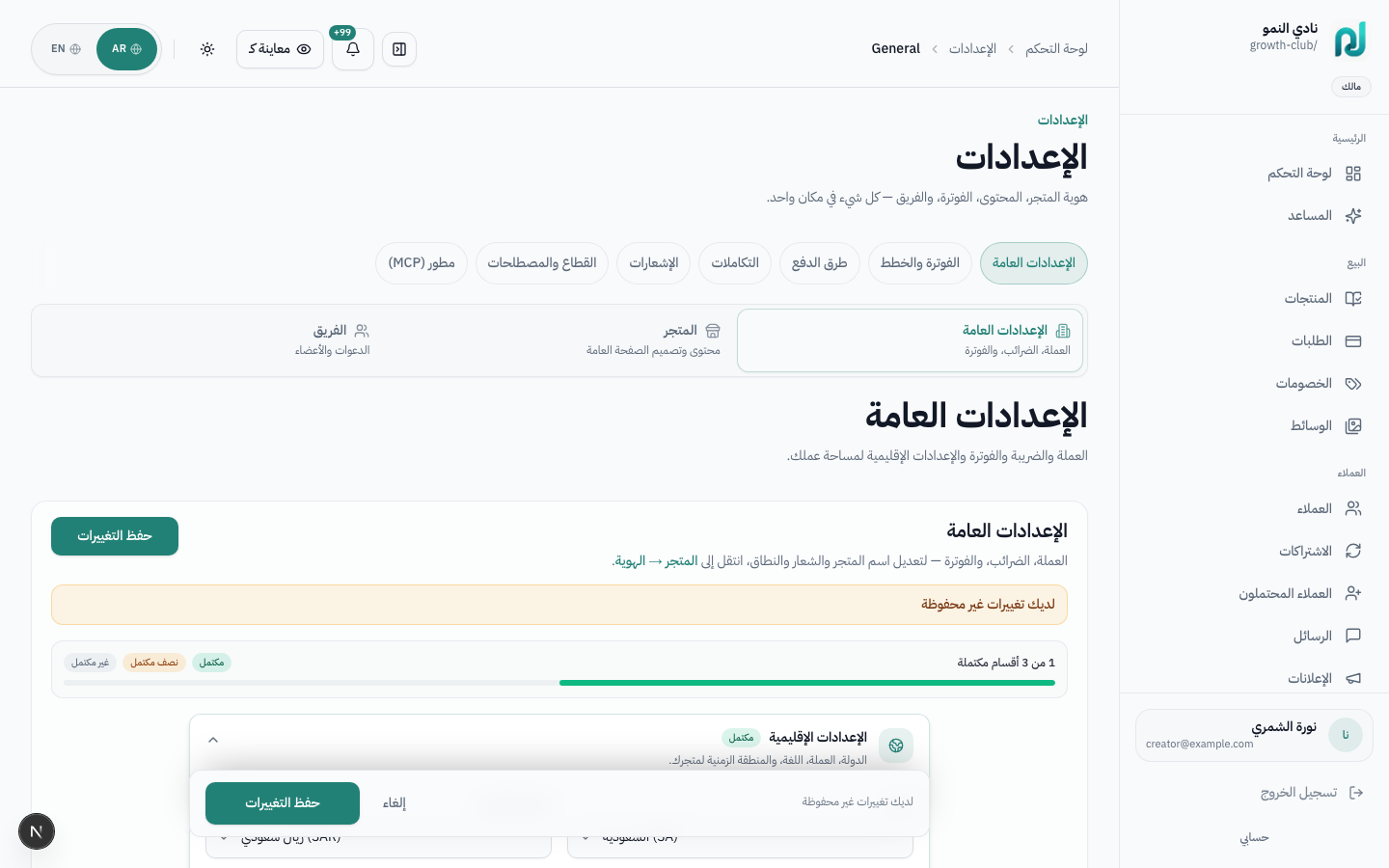
| Page | Path | What you configure | Who can access |
|---|---|---|---|
| General | /dashboard/settings/general | Country, currency, timezone, tax, legal entity, category | Owner / Admin |
| Storefront | /dashboard/settings/storefront | Identity, theme, templates, homepage sections | Owner / Storefront manager |
| Billing | /dashboard/settings/billing | SaaS plan, upgrade, platform card, subscription invoices | Owner / Finance |
| Payments | /dashboard/settings/payments | Moyasar status, bank transfer, payment logos | Owner / Admin |
| Integrations | /dashboard/settings/integrations | Moyasar, Google Calendar, email, SMS, WhatsApp | Owner / Integrations manager |
| Notifications | /dashboard/settings/notifications | In-app, email, and push preferences per event type | Owner / Admin |
| Terminology | /dashboard/settings/terminology | Arabic/English labels per industry | Owner / Admin |
| Developer | /dashboard/settings/developer | MCP tokens, API scopes (MFA required) | Owner / Developer |
| Team | /dashboard/settings/team | Invites, roles, revoke access | Owner / Team manager |
slug, logo, and custom domain
live under Storefront → Identity — not General. General is for region, tax, and legal billing entity.
/dashboard/settings/general sets operational basics.
The progress bar reminds you of incomplete sections (regional · billing · category).
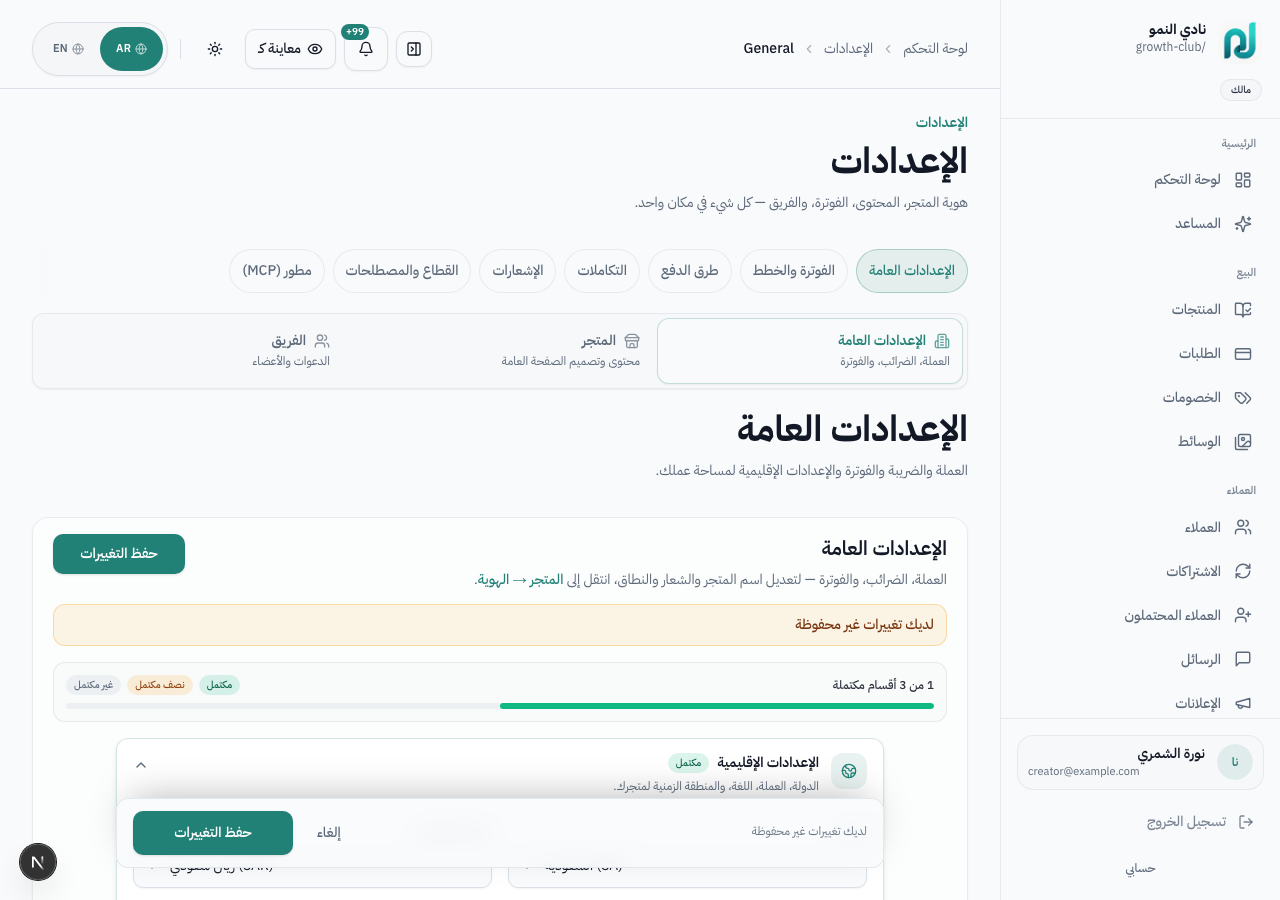
SAR for Saudi ArabiaAsia/Riyadh)INV for invoice numberingBusiness category helps marketplace discovery. The Plan card shows your current tier with a quick link to Billing.
/dashboard/settings/billing manages your subscription to the platform
(not customer checkout — see Payments).
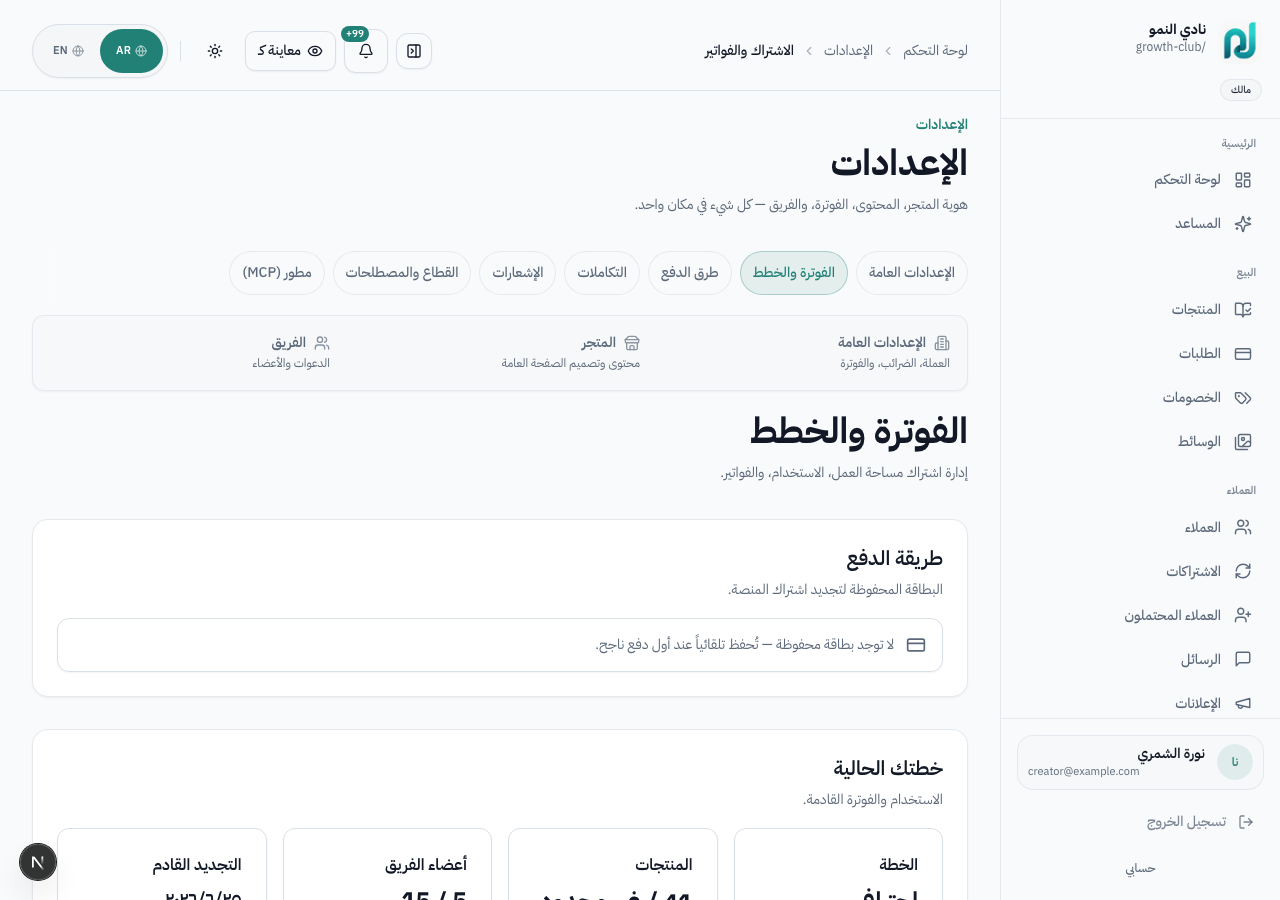
/dashboard/settings/payments is a quick status dashboard before diving into
Integrations.
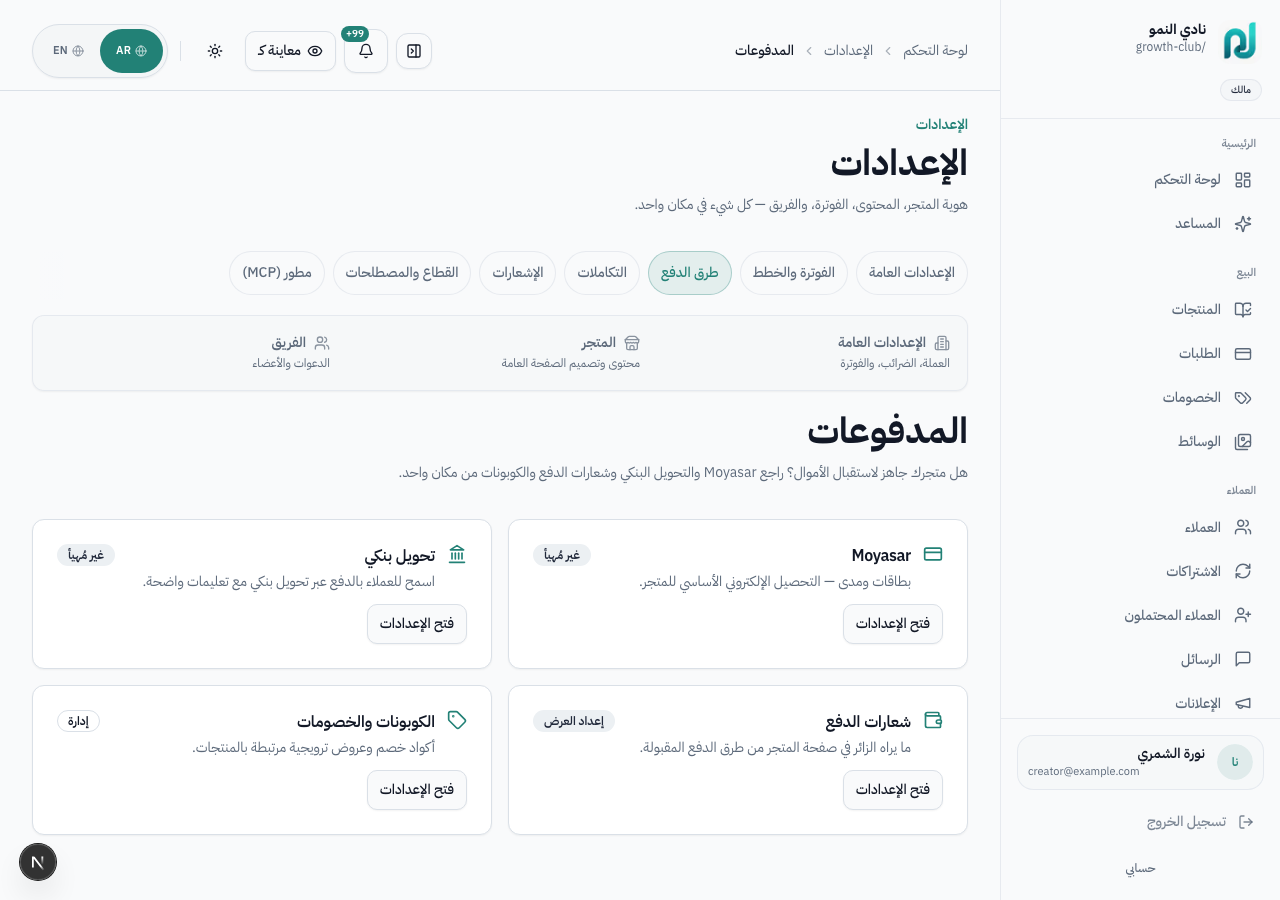
| Card | Purpose | Configure in |
|---|---|---|
| Moyasar | Mada · Visa · Mastercard · Apple Pay | Integrations |
| Bank transfer | Manual payment with confirmation | Integrations |
| Payment logos | Mada/Visa icons on storefront | Storefront → Payment logos |
| Coupons | Order discounts | Dashboard → Coupons |
/dashboard/settings/integrations connects external services.
Each integration shows source: workspace · platform · unconfigured.
| Integration | Credentials | Used for |
|---|---|---|
| Moyasar | Publishable key · Secret key · Webhook | Live checkout — see Checkout & booking |
| Google Calendar | OAuth connect button | Block busy slots for consultations |
| Email (Resend) | From address · API key | Order confirmations, password reset, campaigns |
| SMS | Unifonic or Taqnyat | Appointment reminders and OTP |
| Twilio SID · Token · From | Automations and customer messages |
Platform-level AI keys (OpenRouter, OpenAI) are environment variables — see AI assistant.
/dashboard/settings/notifications controls your team-member alerts —
not customer transactional email (sent automatically on purchase/booking).
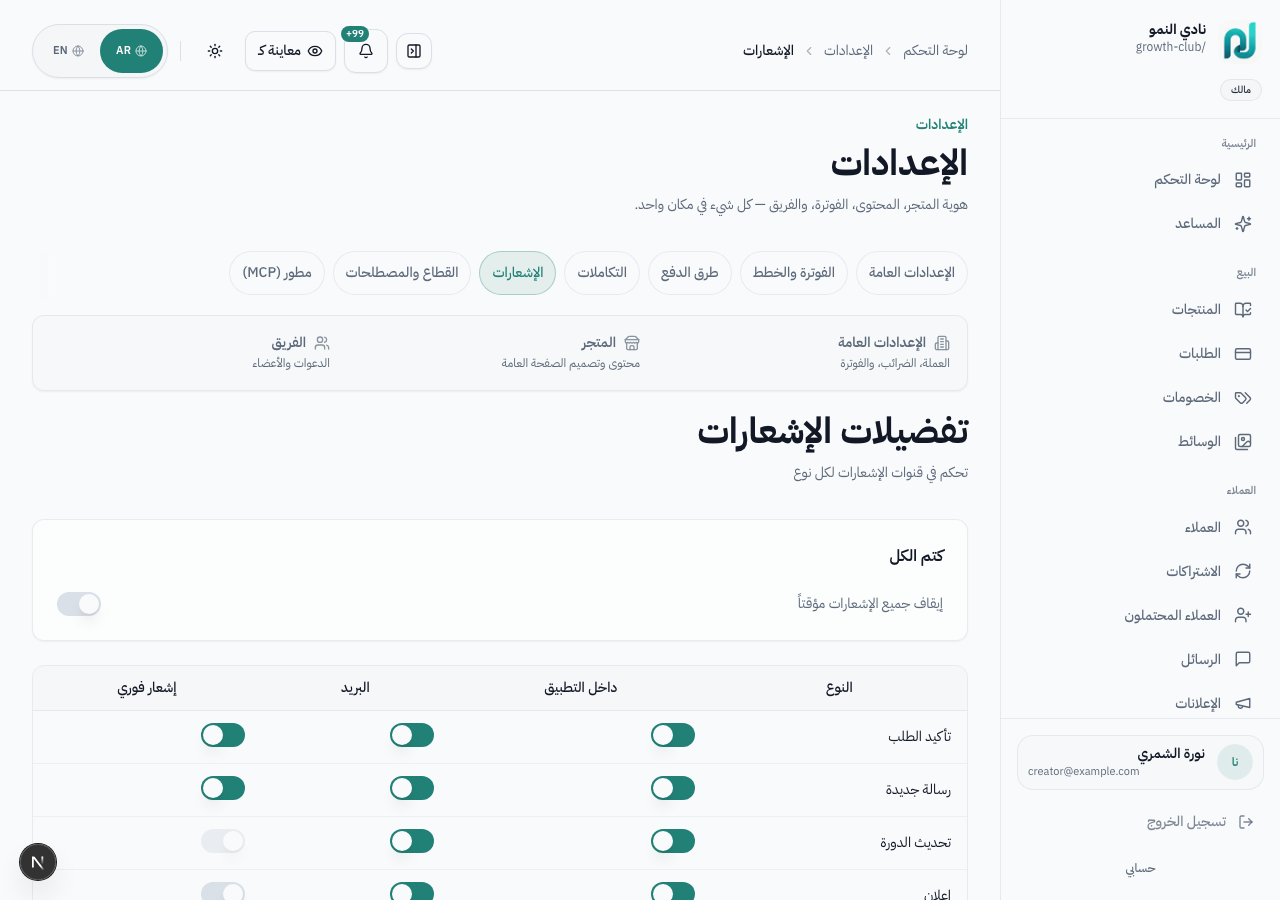
| Type | When it fires |
|---|---|
| Order confirmed | New purchase in your store |
| New message | Customer contacts you |
| Course update | Lesson published or content changed |
| Announcement | Platform or workspace updates |
| Payment receipt | Financial confirmations |
| Marketing | Tips and offers (optional) |
| System | Security and maintenance alerts |
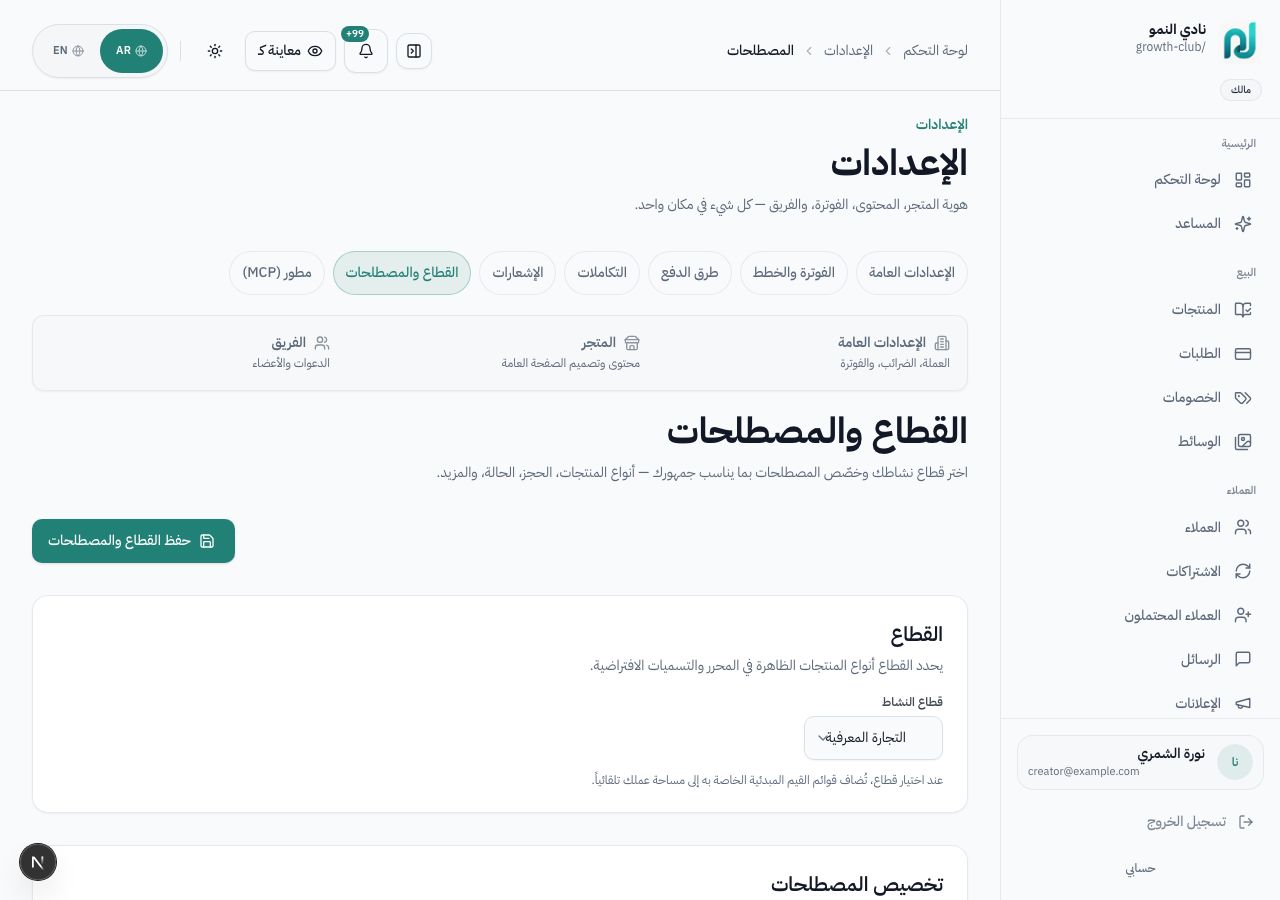
/dashboard/settings/terminology customizes labels across storefront and dashboard —
especially useful for Saudi verticals with different wording preferences.
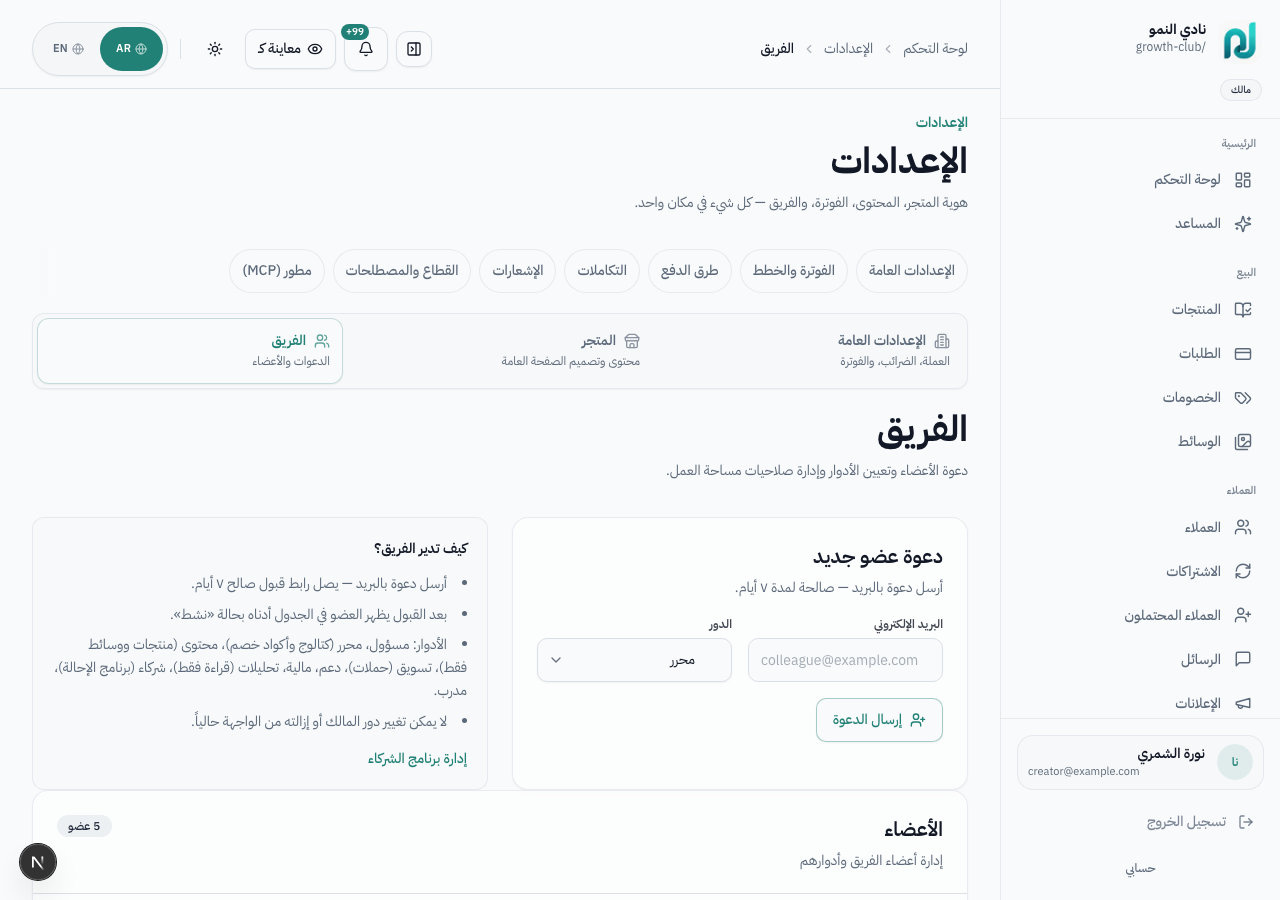
/dashboard/settings/team invites colleagues and assigns roles.
Full permission matrix in Team roles.
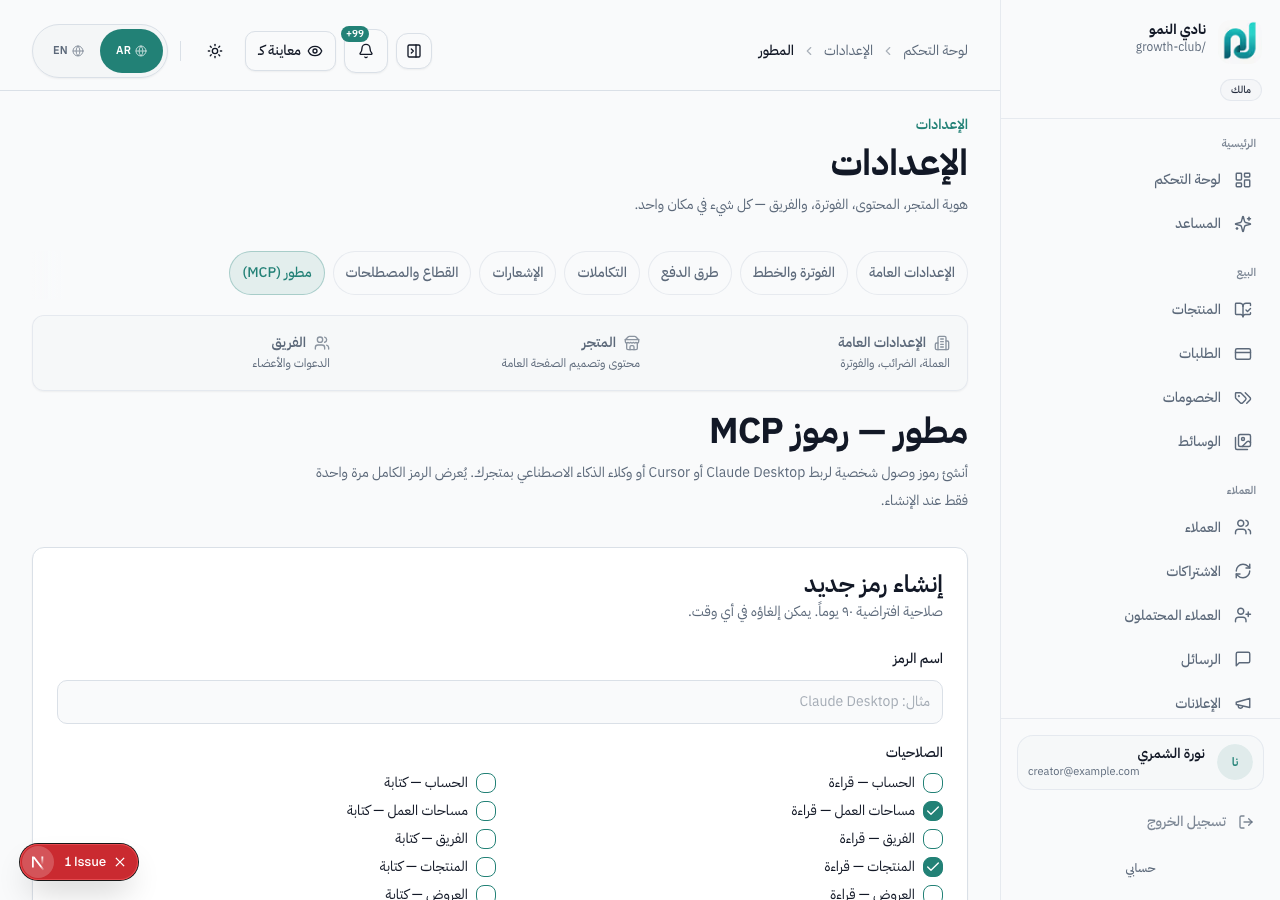
/dashboard/settings/developer creates MCP tokens for Cursor or external tools.
Requires MFA on your account.
The Storefront tab has 25+ sections: identity, theme, templates, section order, SEO, and more. Detailed guide with screenshots: Storefront customization.
| Issue | Fix |
|---|---|
| Team tab missing | Your role lacks manage_team — ask the owner |
| Customer checkout fails | Check Moyasar in Integrations + live (not mock) mode |
| Wrong booking times | Timezone in General + Google Calendar sync |
| Labels didn't change | Save terminology then hard-refresh storefront |
| Product limit reached | Upgrade plan in Billing |
| Developer page empty | Enable MFA on your user account first |
Choose product type based on how the buyer receives value: learning content, a booked appointment, downloadable files, recurring access, or a bundle. The type controls checkout, tabs, and publishing rules.
Help you choose the right product type before creating it, so you do not need to rebuild later.
When turning a new idea into a course, consultation, membership, download, service, or bundle.
| Type | Arabic (typical) | Use case | Example product |
|---|---|---|---|
course | دورة | Video curriculum with modules, lessons, drip, certificates | «دورة Excel للمحاسبين» — 990 SAR one-time |
coaching | تدريب / استشارة | 1:1 sessions with calendar booking and intake forms | «استشارة 30 دقيقة» — 450 SAR per session |
service | خدمة / زيارة | Appointments, clinic visits, in-person services | «فحص أولي» — 200 SAR at branch |
membership | اشتراك | Recurring subscription with access periods | «عضوية VIP» — 99 SAR/month |
cohort | برنامج جماعي | Fixed-start group programs with capacity | «دفعة سبتمبر 2026» — 2,500 SAR, 25 seats |
bundle | باقة | Multi-product packages at one price | 3 courses + templates — 1,499 SAR |
digital_download | تحميل رقمي | PDFs, templates, files for instant download | «دليل PDF» — 59 SAR instant |
event | فعالية | Tickets, QR check-in, venue/virtual | «ورشة الرياض» — 350 SAR ticket |
certification | شهادة | Exam-linked credentials with verification | «شهادة معتمدة PMP» — exam + cert |
facility | مرفق | Room, studio, or equipment rental by slot | «استوديو 2 ساعة» — 150 SAR/hour |
exam_prep | بنك أسئلة | Question banks, flashcards, spaced repetition | «تمرين قياس» — 149 SAR |
→ course or cohort if fixed start date
→ coaching (1:1) or service (appointments)
→ digital_download
→ bundle
Workspace members see different dashboard navigation based on role. Roles are backed by the platform permission matrix and control what each member can view or manage across products, orders, customers, marketing, settings, payouts, and integrations.
Clarify which permissions fit each team member's daily responsibilities.
When inviting an editor, support teammate, finance user, instructor, marketer, analyst, content user, or affiliate manager.
| Role | Best for | Dashboard access | Important notes |
|---|---|---|---|
Owner owner | Store owner or final accountable user | All sections: products, orders, customers, marketing, operations, settings, team, developer | Highest role. Permission override denies do not apply. |
Admin admin | Operations lead supporting the owner | Almost all dashboard areas including settings, integrations, team, and audit log | Close to owner, but ownership-only actions remain owner-controlled. |
Business manager business_manager | Daily sales and operations manager | Products, orders, customers, marketing, analytics, affiliates, sessions, locations | Cannot manage workspace settings, team, integrations, developer, audit, or payouts by default. |
Editor editor | Product pages and content editor | Products, media, coupons, coaching sessions, locations, intake forms | Does not see orders or customers by default. |
Content content | Lesson, media, and download preparation | Products, media, downloads, intake forms | Narrower than editor: no coupons or locations by default. |
Support support | Customer support and access follow-up | Orders, customers, subscriptions, leads, messages, announcements, forms, analytics | Cannot process refunds or view aggregate revenue by default. |
Finance finance | Accounting, refunds, and payouts | Orders, customers, subscriptions, coupons, analytics, payouts | Can process refunds and view revenue. |
Instructor instructor | Coach or instructor delivering content/sessions | Media, customers, leads, messages, analytics, coaching sessions, forms, intake forms | Can manage training-related products and sessions, but not aggregate revenue. |
Marketing marketing | Campaigns and growth owner | Customers, leads, analytics, announcements, email/WhatsApp campaigns, automations, forms, funnels | No product, order, or revenue management by default. |
Analyst analyst | Performance or data analyst | Read-only orders, customers, subscriptions, leads, analytics, revenue | Read and analyze; does not manage customers or orders. |
Affiliate manager affiliate_manager | Referral and affiliate program owner | Affiliates, read-only orders, analytics, revenue | Manages affiliate program only, not general marketing campaigns. |
| Area | Default roles | Notes |
|---|---|---|
| Product and content management | Owner, Admin, Business manager, Editor, Content, Instructor | Includes product creation/editing and course preview. |
| Downloads and files | Owner, Admin, Business manager, Editor, Content | Instructor has media access, but download management is separate. |
| Orders | Manage: Owner, Admin, Business manager, Support, Finance · Read: + Analyst, Affiliate manager | Support can manage daily order workflows, but not refunds. |
| Refunds | Owner, Admin, Business manager, Finance | Limited to financial or leadership roles. |
| Customers | Manage: Owner, Admin, Business manager, Support, Instructor, Marketing · Read: + Analyst | Used for access grants, follow-up, and lead/customer work. |
| Messages | Owner, Admin, Business manager, Support, Instructor | Editor, Finance, and Marketing do not see inbox by default. |
| Campaigns and announcements | Owner, Admin, Business manager, Support, Instructor, Marketing | Includes announcements, email/WhatsApp campaigns, automations, forms, and funnels. |
| Analytics | Owner, Admin, Business manager, Support, Finance, Instructor, Marketing, Analyst, Affiliate manager | Broader than revenue access. |
| Revenue | Owner, Admin, Business manager, Finance, Analyst, Affiliate manager | Support, Instructor, and Marketing do not see aggregate revenue by default. |
| Payouts | Owner, Admin, Finance | For store earnings and bank transfer requests. |
| Settings, team, integrations, developer, audit | Owner, Admin | High-trust admin permissions including MCP, integrations, and audit log. |
| Affiliates | Owner, Admin, Business manager, Affiliate manager | Marketing does not manage affiliates by default. |
| Subscriptions | Manage: Owner, Admin, Business manager, Support, Finance · Read: + Analyst | Useful for customer support and recurring billing. |
Each role starts with default actions. You can then grant extra actions or deny default actions for specific members.
Permission overrides do not reduce owner or admin role templates.
An admin cannot grant a permission they do not hold. Owner is the top-level exception.
When permissions change, the sidebar updates to show only pages that member can access.
| If the person... | Start with this role |
|---|---|
| Runs the business with the owner | Admin |
| Handles sales, orders, and campaigns without sensitive settings | Business manager |
| Creates lessons, pages, and media | Editor or Content |
| Supports customers and access issues | Support |
| Handles revenue, refunds, and payouts | Finance |
| Manages sessions and student messages | Instructor |
| Runs campaigns, funnels, forms, and automations | Marketing |
| Needs analytics and revenue visibility without editing | Analyst |
| Manages referrals and commissions | Affiliate manager |
Quick reference for key platform paths. The official domain is https://lammem.com; append the paths below to that domain.
Collect important routes in one place for review, testing, and team communication.
When sharing a link, opening a page directly, or verifying a browser path.
| URL | Purpose |
|---|---|
/ | Marketing landing page |
/auth | Creator login & signup |
/auth/customer | Customer library login |
/dashboard | Creator dashboard |
/dashboard/products | Product catalog management |
/dashboard/products/new | Create a new product |
/dashboard/settings | Workspace & storefront settings |
/dashboard/stores | Multiple stores — list & switch |
/dashboard/apps | Install & manage third-party apps |
/apps | Public apps marketplace catalog |
/developer | Developer portal — publish apps |
/platform/apps | Platform admin — review apps |
/s/{slug} | Public storefront home |
/p/{slug}/{product} | Product landing & purchase page |
/checkout/{offerId} | Checkout flow |
/thank-you/{orderId} | Order confirmation after payment |
/library | Customer content library |
/library/{productId} | Lesson player for enrolled course |
/platform | Platform admin (super-admin only) |
Common questions from Saudi and GCC creators using Lam Meem.
Answer common questions that come up while creating products or running a store.
When you need a quick answer before jumping into a detailed section.
No. Most work happens in the dashboard: create a product, choose a storefront template, set pricing, and publish. Technical details in this guide are only for teams testing the platform locally.
Set your store identity, create one simple product, then test the full buyer journey: product page → checkout → library. See the Publishing Checklist.
No. Start with a clear offer for a specific problem and share it with your current network or a small group of interested buyers. Improve after the first feedback and orders.
No — product type is fixed at creation because it determines database structure (course vs booking vs files). Create a new product with the correct type and archive the old one if needed.
Draft — visible only in dashboard, not on storefront. Published — available to buyers if visibility is public or unlisted and the checklist is complete. Archived — hidden from sale; existing customers usually keep access.
Public — appears in storefront catalog. Unlisted — only via direct link. Private — enrolled customers only; hidden from catalog and search.
Common reasons: product is still draft, visibility is private, no active offer exists, or the products section is disabled in storefront settings. Open the product editor and check the publish checklist.
Start with one clear product that is easy to test. Once description, pricing, checkout, and library access work well, add more products or bundles.
Yes — set price to 0 or create a free offer. Buyers still go through a simple access step so the product appears properly in their library.
Yes — add multiple offers on a product including payment plan offers (where enabled on your plan).
Start from the value of the outcome, not only the number of lessons. Consider the problem solved, time saved, and audience. You can later add multiple offers for the same product.
Billing is what you pay Lam Meem for your platform plan. Payments are what your customers pay when buying products. See Billing and Payments.
Yes. Open the order details and choose full or partial refund. Depending on product settings, full refunds may revoke customer access automatically.
Videos stream in the library player — download protection depends on hosting settings. Digital download products deliver files explicitly marked as downloadable.
Set per-lesson release dates or a course-wide drip schedule in product Settings. Locked lessons show a countdown in the library until the release datetime.
Yes. Lessons can be text-only or include files and links. Video is useful but not required for every lesson.
If certificates are enabled and completion rules are met, customers can receive certificates after finishing the course or program. Check product settings and the publish checklist.
Check availability windows, timezone, product status, and Google Calendar sync. External busy events may block available slots.
Yes. Add a physical location or virtual meeting URL, then connect it to the coaching or service product. The location appears in booking confirmation and the customer library.
It collects context before the session, such as goals, challenges, or questions. This helps you prepare and reduces manual messages before the appointment.
Use a membership when value is ongoing: monthly content, community, recurring sessions, or a refreshed library. If the product has a clear start and finish, a course is usually better.
The subscription becomes past due. You can follow up with the customer, and access may be revoked after the grace period depending on settings. See Subscriptions.
Yes on Professional plan and above — Settings → Storefront → custom domain. Default URL remains /s/{slug} until DNS is verified.
Lam Meem is Arabic-first with an English UI toggle. Storefront, dashboard, and customer library support both languages; product content, lesson names, and pricing appear as you configure them.
Yes. Invite members and assign roles such as editor, support, finance, instructor, marketing, or admin. Each role sees different dashboard areas. See Team Roles.
Yes. Rename labels such as “course” to “training program” or “session” to “visit”. See Terminology.
A campaign is sent to a selected audience at a chosen time. An automation runs automatically after an event, such as paid order or abandoned checkout.
Use a funnel for a focused campaign around one product or ad. Use the storefront when you want to show your full catalog and brand experience.
Watch conversion rate. If visits are high but purchases are low, review headline, description, pricing, FAQ, trust sections, and the primary call to action.
Enable MFA to protect the account, especially if you use developer settings, MCP tokens, or team roles with finance and operations access.
KYC is identity or business verification that may be required before payouts or some payment services. It protects payment flows and compliance.
Key terms used across the dashboard and this guide.
Keep business and product terms consistent for everyone using the guide.
When you see terms such as offer, enrollment, drip, funnel, or MRR.
| Term | Arabic | Meaning | Example / note |
|---|---|---|---|
| Workspace | مساحة العمل | The store owner's account container for storefront, team, products, and settings. | A training center may have one workspace for its store. |
| Storefront | المتجر | Public-facing store where buyers browse and purchase products. | https://lammem.com/s/growth-club |
| Product page | صفحة المنتج | Sales page for one product with description, price, content, or availability. | /p/{slug}/{product} |
| Slug | معرّف الرابط | Short English URL identifier used in store and product links. | home-fitness-4w |
| Visibility | الظهور | How the product appears to buyers: public, unlisted, or private. | Unlisted means link-only. |
| Draft | مسودة | Saved product that is not ready for sale. | Use before copy or pricing is complete. |
| Published | منشور | Product available to buyers based on visibility and checklist status. | Appears in catalog if public. |
| Archived | مؤرشف | Hidden from sale, usually while existing customers keep access. | Useful for old offers. |
| Term | Arabic | Meaning | Example / note |
|---|---|---|---|
| Product type | نوع المنتج | Operational template for a product: course, consultation, membership, download, event... | Controls tabs and publishing rules. |
| Offer | عرض | A purchasable price point attached to a product. | Full price, free, subscription, or installment. |
| Active offer | عرض نشط | The offer buyers can currently use to purchase. | Required before publishing. |
| One-time payment | دفعة واحدة | Buyer pays once and receives access. | Course or digital download. |
| Subscription | اشتراك | Recurring monthly or yearly payment for ongoing access. | Monthly content membership. |
| Free trial | تجربة مجانية | Access period before first subscription charge. | 14 days before payment. |
| Coupon | كوبون | Discount code applied during checkout. | LAUNCH20 |
| Bundle | باقة | Product that packages multiple products into one price. | Course + templates + session. |
| Term | Arabic | Meaning | Example / note |
|---|---|---|---|
| Customer | عميل | Person who purchased or was granted access to a product. | Signs in from /auth/customer. |
| Enrollment | تسجيل | Access record linking a customer to a product. | Created after checkout or manual grant. |
| Grant access | منح الوصول | Add product access for a customer without online checkout. | Useful for corporate contracts. |
| Revoke access | سحب الوصول | Remove customer access to a product. | May happen after a full refund. |
| Customer library | مكتبة العميل | Place where customers see purchases, sessions, files, and certificates. | /library |
| Message | رسالة | Direct conversation between customer and store team. | Appears in the inbox. |
| Announcement | إعلان | Broadcast message to customers or enrolled segments. | New cohort announcement. |
| Term | Arabic | Meaning | Example / note |
|---|---|---|---|
| Curriculum | المنهج | Course structure made of modules and lessons. | Managed from the Content tab. |
| Module | وحدة | Section that groups lessons inside a course. | Week 1, Basics. |
| Lesson | درس | Learning unit with video, text, or quiz. | Intro lesson. |
| Quiz | اختبار | Multiple-choice questions inside a lesson. | Saves progress after answers. |
| Preview lesson | درس معاينة | Lesson visible before purchase. | Useful for conversion. |
| Drip | تدريج | Scheduled content release after enrollment or on dates. | Unlock one lesson weekly. |
| Certificate | شهادة | Completion proof shown after a course or program. | May include QR verification. |
| Transcription | تفريغ | Converting lesson audio/video into text. | Uses Whisper when enabled. |
| Term | Arabic | Meaning | Example / note |
|---|---|---|---|
| Availability | الإتاحة | Days and times customers can book. | Sun-Thu, 10-6. |
| Availability window | نافذة إتاحة | Specific time range inside a weekday. | Sunday 9:00-13:00. |
| Buffer | فاصل بين الجلسات | Break between appointments. | 15 minutes between consultations. |
| Slot hold | حجز مؤقت | Temporarily reserves a slot during checkout. | Expires if payment is not completed. |
| Intake form | نموذج استقبال | Pre-session questionnaire to collect customer context. | Goals, challenges, questions. |
| Location | موقع | Physical branch or virtual meeting URL. | Riyadh branch or Zoom. |
| Sessions dashboard | جلساتي | Dashboard area for upcoming and completed bookings. | /dashboard/coaching-sessions |
| Term | Arabic | Meaning | Example / note |
|---|---|---|---|
| Funnel | مسار بيع | Standalone page sequence for a specific campaign. | Landing → checkout → thank you. |
| Campaign | حملة | Email or WhatsApp broadcast to a selected audience. | Course launch campaign. |
| Automation | أتمتة | Message or action triggered automatically by an event. | Welcome email after payment. |
| Lead | عميل محتمل | Person who submitted contact info but has not bought yet. | Interest form on a landing page. |
| Affiliate | شريك / إحالة | Partner who promotes your product for commission. | Link with ?ref=CODE. |
| Conversion rate | معدل التحويل | Percentage of visitors who complete checkout. | Product visits → paid orders. |
| MRR | — | Monthly recurring revenue from active subscriptions. | Important for memberships. |
| Churn | التسرب | Rate of customers cancelling or not renewing subscriptions. | High churn means review membership value. |
| Term | Arabic | Meaning | Example / note |
|---|---|---|---|
| Moyasar | — | Payment provider for mada, cards, and Apple Pay. | Configured in Integrations. |
| Google Calendar | — | Integration that blocks busy times for booking products. | Useful for consultations. |
| Resend | — | Email service for transactional messages and campaigns. | Order confirmation, password reset. |
| — | Messaging and automation channel for customers. | Appointment reminder or campaign. | |
| MCP Token | — | Access token for external tools such as Cursor. | Created in Developer settings. |
| MFA | — | Multi-factor authentication for account security. | Required for some developer tokens. |
| KYC | — | Identity or business verification before payouts. | May be required before bank transfer. |
| VAT | ضريبة القيمة المضافة | Value-added tax. | Often 15% in Saudi Arabia. |
A reference for common issues during testing or operation, with direct checks for likely causes.
Speed up diagnosis for recurring problems without searching across the whole guide.
When something fails in setup, checkout, AI, publishing, video processing, or booking.
npm run setup to install deps and generate Prisma clientDATABASE_URL is set and PostgreSQL is runningnpm run db:migrate -w @ellm/dbnpm run db:seedcreator@example.com (owner of growth-club workspace)ALLOW_MOCK_CHECKOUT=true in your .envOPENROUTER_API_KEY for text AI featuresOPENAI_API_KEY for images and transcriptionDISABLED_AI_KINDS is not blocking the featureClick تخطي (Skip) → confirm to bypass the setup wizard.
OPENAI_API_KEY — without it, status stays idle